9.3Zones
Delivery zones, each zone's charge and cash-on-delivery setting, the default zone — and where to change charges, weight tiers and free delivery.
- Menu:
- Courier → Zones
- Who:
- Owner · Manager · Staff
- Package:
- All packages
- Updated:
- 2026-10-15
Overview
The Delivery zones tab under Courier lists every delivery zone of the shop and its charge. For each zone you can see how many districts it covers, whether cash on delivery is on, and how many weight tiers it has.
Charges cannot be changed on this tab. Change charges, weight tiers and free-delivery rules under Manage Shop → Delivery. From this tab you can only delete a zone, and only Owners and Managers can do that.
Owners, Managers and Staff can all see this tab.
Screen tour
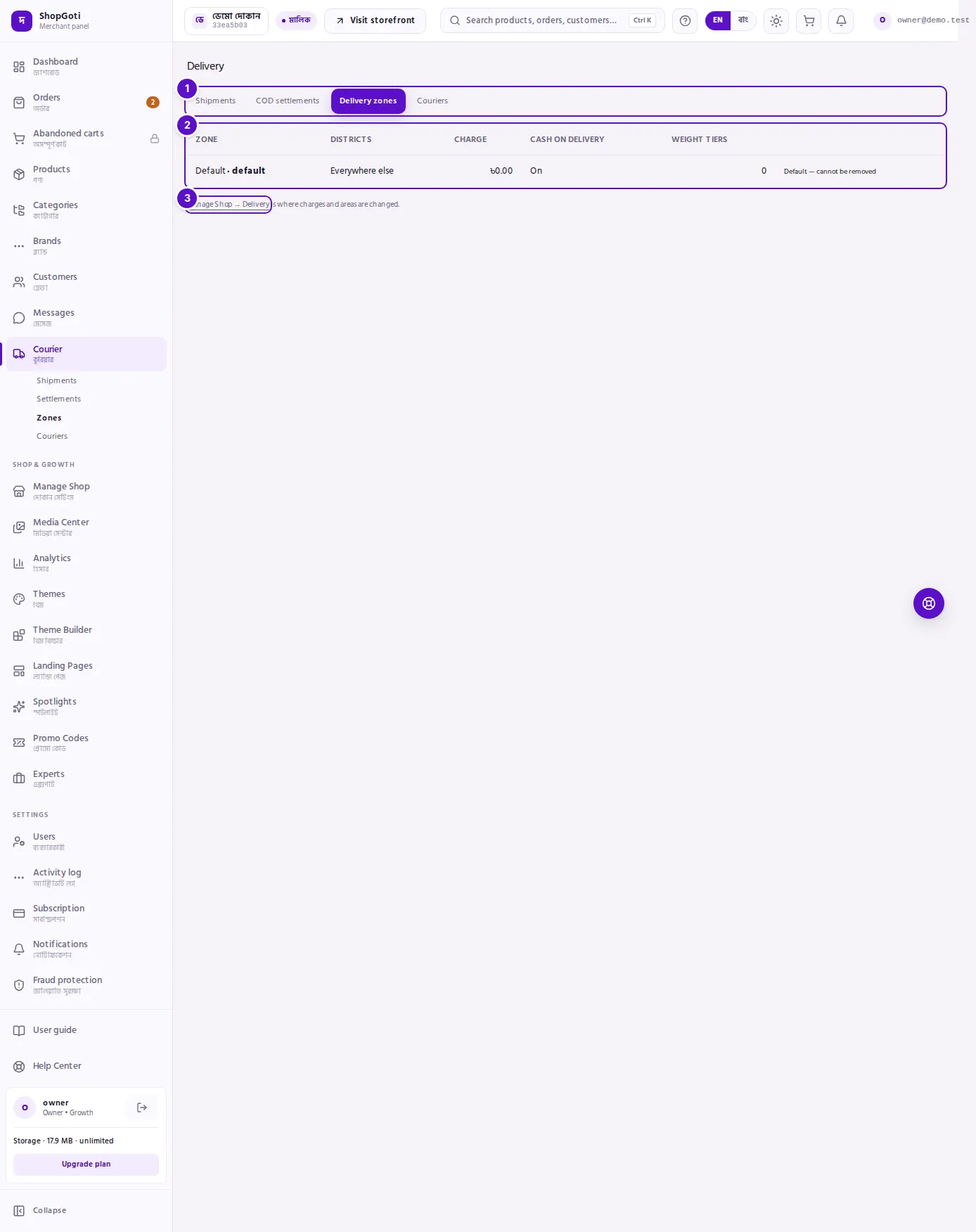
- Tab row — Delivery zones is the active tab.
- Zone list — columns: Zone, Districts, Charge, Cash on delivery, Weight tiers. Owners and Managers also see a Delete button at the end of each row.
- Manage Shop → Delivery link — for Owners and Managers, it sits under the list and opens the page where charges are changed.
Steps
Look at the zone list
Steps
- Open the Courier menu, then press Delivery zones.
- In the Zone column, read the zone name. A zone marked default is used for every area no other zone claims.
- In the Districts column, read how many districts the zone covers. The default zone shows Everywhere else.
- In the Charge column, read the zone's base delivery charge. In the Cash on delivery column, On or Off shows whether cash on delivery is allowed there.
- In the Weight tiers column, read how many weight tiers the zone has. To see the amounts and change them, go to Manage Shop → Delivery.
Delete a zone (Owners and Managers)
Steps
- On the zone's row, press Delete.
- The zone leaves the list. This button has no separate confirmation step.
Change charges, weight tiers and free delivery (Owners and Managers)
You do these on another page, not on this tab.
Steps
- Under the zone list, press the Manage Shop → Delivery link.
- For the normal charge everywhere, change Base charge everywhere else (৳) and press Save defaults.
- To change one named zone's charge or districts, edit that zone's form there and press Save zone.
- For extra charges by weight, enter the From weight (kg) and Extra charge (৳) values in the tier rows, then press Save.
- For free delivery above an amount, enter the amount in Free delivery on orders above (৳). Leave it blank for no such rule.
Tips and common mistakes
- Each district belongs to one zone only. A district that is already in another zone is refused.
- Staff can view the list only. They do not see the Delete button or the Manage Shop → Delivery link.
- An empty list shows No delivery zones yet. Add zones and set charges under Manage Shop → Delivery.
- The weight tier count tells you how many tiers exist, not what they cost. Open Manage Shop → Delivery to see the amounts.