4.1Products list
Every product in your shop in one list — searched by name or SKU, filtered by status, origin and category, changed in bulk, and kept in the archive until you restore it.
- Menu:
- Products
- Who:
- Owner · Manager · Staff
- Package:
- All packages
- Updated:
- 2026-10-15
Overview
Opening the Products menu shows every product in your shop. Each row shows the product's photo, name and SKU, its category, status, price, stock and number of variants. The status and origin tabs narrow the list, the search box and the category picker find a product, and the row menu changes it.
Everyone in the shop can open this list and each product's page, so Staff can check a price or the stock while taking an order. Adding, changing and removing products is for Owners and Managers. Only they see the Add Product and Import buttons, the row menu and the bulk actions.
Screen tour
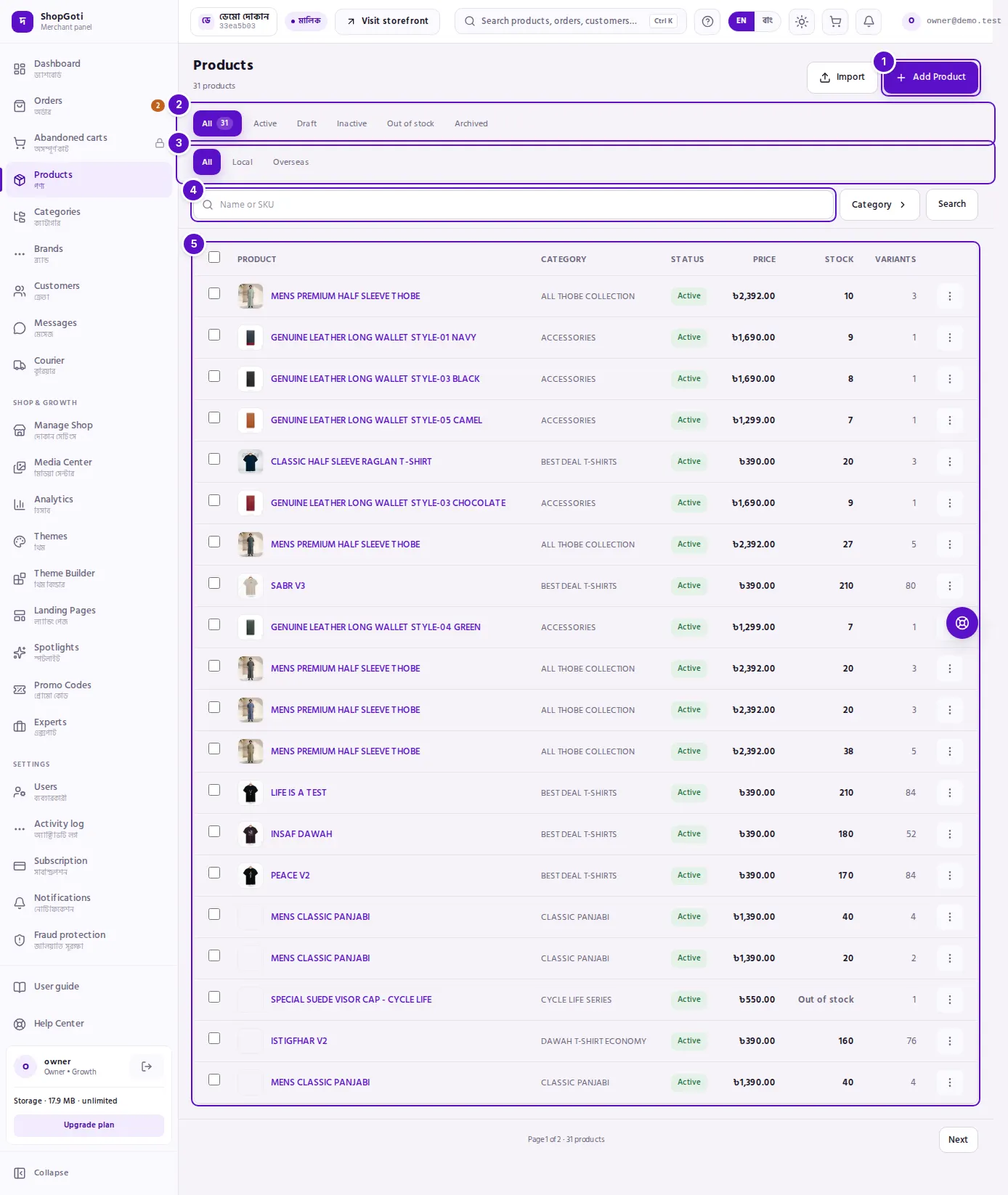
- Add Product and Import — the two buttons at the top right, for Owners and Managers only. Add Product opens the form in Add a product. Import opens the CSV importer.
- Status tabs — All, Active, Draft, Inactive, Out of stock, and then Archived, set apart from the others. Pressing one shows only the products in that status. The number beside the selected tab is how many there are.
- Origin tabs — All, Local, Overseas. This row works with the status row: choosing Draft and then Overseas shows draft products that ship from abroad.
- Search and category — the Name or SKU box with its Search button, and the Category picker beside it.
- The product table — columns Product, Category, Status, Price, Stock and Variants. Owners and Managers also get a tick box on the left of each row and a menu (⋮) on the right. On a phone each product is a card with the same details, and its menu sits at the foot of the card.
Below the list, Previous and Next move between pages when there is more than one page.
Steps
Find a product by name or SKU
Steps
- Type part of the name or the SKU into the Name or SKU box.
- Press Enter, or press Search.
- The list shows the matches. The status and origin tabs you have chosen stay in force. Press All in the status row to see every status.
- Clear the box and press Search to get the full list back.
Show one status
Steps
- In the status row, press Active, Draft, Inactive or Out of stock.
- Press All to see every status again.
Show local or overseas products
Steps
- In the origin row, press Local or Overseas.
- Press All in that row to clear it.
Filter by category
Steps
- Press the Category button beside the search box. A picker opens with your category tree.
- Open a branch that holds sub-categories, then press the category you want. The list updates as soon as you pick it.
- To remove the filter, open the picker again and choose All categories.
Change several products at once
Owners and Managers only, on a desktop screen.
Steps
- Tick the boxes on the left of the products you want to change. Tick the box in the header row to select every product on this page.
- A bar appears above the table and shows how many are selected.
- Press Move category to file all of them under one category. Or press Publish, Hide or Archive.
- Press the × button at the end of the bar (Clear selection) to clear the ticks.
Hide a product for a while
Steps
- Press ⋮ at the end of the product's row (on a phone, at the foot of its card).
- Press Hide from shop. The product becomes Inactive: it leaves your shop, but its photos and details stay.
- To put it back in the shop, open the same menu and press Publish.
Edit a product or open its photos
Steps
- Press ⋮ on the product's row.
- Press Edit to open the product's edit page. Or press Images to open the same page at its photos section.
See Edit a product for what you can change there.
Duplicate a product
Steps
- Press ⋮ on the row, then press Duplicate.
- The copy opens on its own page, with
(Copy)added to its name. It is saved as a draft. - Before you publish the copy, give it its own SKU and set its stock. The duplicate does not copy the SKU or the stock. Its variants come across with their prices, but without their stock and codes.
Archive a product
Steps
- Press ⋮ on the row, then press Archive.
- Read the question and confirm it. It says the product leaves your shop, its photos are deleted, and past orders keep it.
- The product moves to the Archived tab.
Restore an archived product
Steps
- Press Archived in the status row.
- Press ⋮ on the product, then press Restore.
- Read the question and confirm it.
- The product comes back as Inactive. Its photos were deleted when it was archived, so upload them again on its edit page.
Tips and common mistakes
- Status and origin work together. You can choose one status at a time, and the origin row narrows whatever status you have chosen.
- The status words. The list and the product form name the same states differently:
| On the list | In the product form | In your shop? | What it means |
|---|---|---|---|
| Active | Visible (active) | Yes | Shown in the shop and can be bought. |
| Draft | Hidden (draft) | No | Saved, but not in the shop. |
| Inactive | Inactive | No | Taken off the shop. Photos and details are kept. |
| Out of stock | OUT OF STOCK (set by stock) | Yes, marked out of stock | No stock is left. Set by the stock count, not by you. |
| Archived | — | No | Taken off the shop. Photos are deleted. Past orders keep the product. |
- Out of stock is a word, not a red colour. A sold-out product is labelled, not highlighted as an error.
- Running low appears when a variant's stock is at or below its own low-stock level, or 5 if no level is set. A variant with zero stock counts as out of stock, not as running low.
- The Stock figure is what can still be sold now. It is the total across all variants.
- The Price column shows the product's selling price. Variants with their own price are not listed separately here.
- The Category column shows the name of the category the product is filed under, not the full path.
- No photo appears as a grey placeholder with the words "No photo" in the picture's place.
- Bulk Archive does not ask first. The row menu's Archive asks you to confirm, but the bar's Archive does not. Check the ticked products before you press it.
- A product's archived status hides its real status. An archived product may still say Active underneath, so the list shows Archived for it. It is never shown as live.
- Arriving from the profit report. When you open this list from the profit report's "products missing a buying price" link, a line at the top says so. Press Show all products to leave that view.
- Empty lists. With a filter on, an empty list offers Clear filters. When the shop has no products yet, Owners and Managers see Add a product. A shop with nothing archived sees Nothing archived.
Related pages
- Add a product — the three-step form, field by field
- Edit a product — changing a product, its variants and its photos
- Import products from CSV — adding many products from a sheet
- Reviews — buyer reviews of a product