12.3Profit & loss
How much profit or loss you made today, over 7 days or over 30 days — sales less the buying price of goods and your own costs, with a margin for each product.
- Menu:
- Profit
- Who:
- Owner · Manager
- Package:
- All packages
- Updated:
- 2026-10-15
Overview
The Profit & loss page works out what you kept from delivered orders. The calculation is: sales − cost of goods − your costs = profit (or loss). Your costs are the ones you enter on this page yourself, such as ads, packaging, courier fees, rent, salary or other costs.
The page opens on Today. Use the tabs at the top to choose 7 days or 30 days.
Only Owners and Managers can view this page; Staff are sent back to the dashboard. On a paid plan (Starter and above) the page opens in full. On the Free plan you see one card, Profit & loss is on paid plans, with a See plans button.
Screen tour
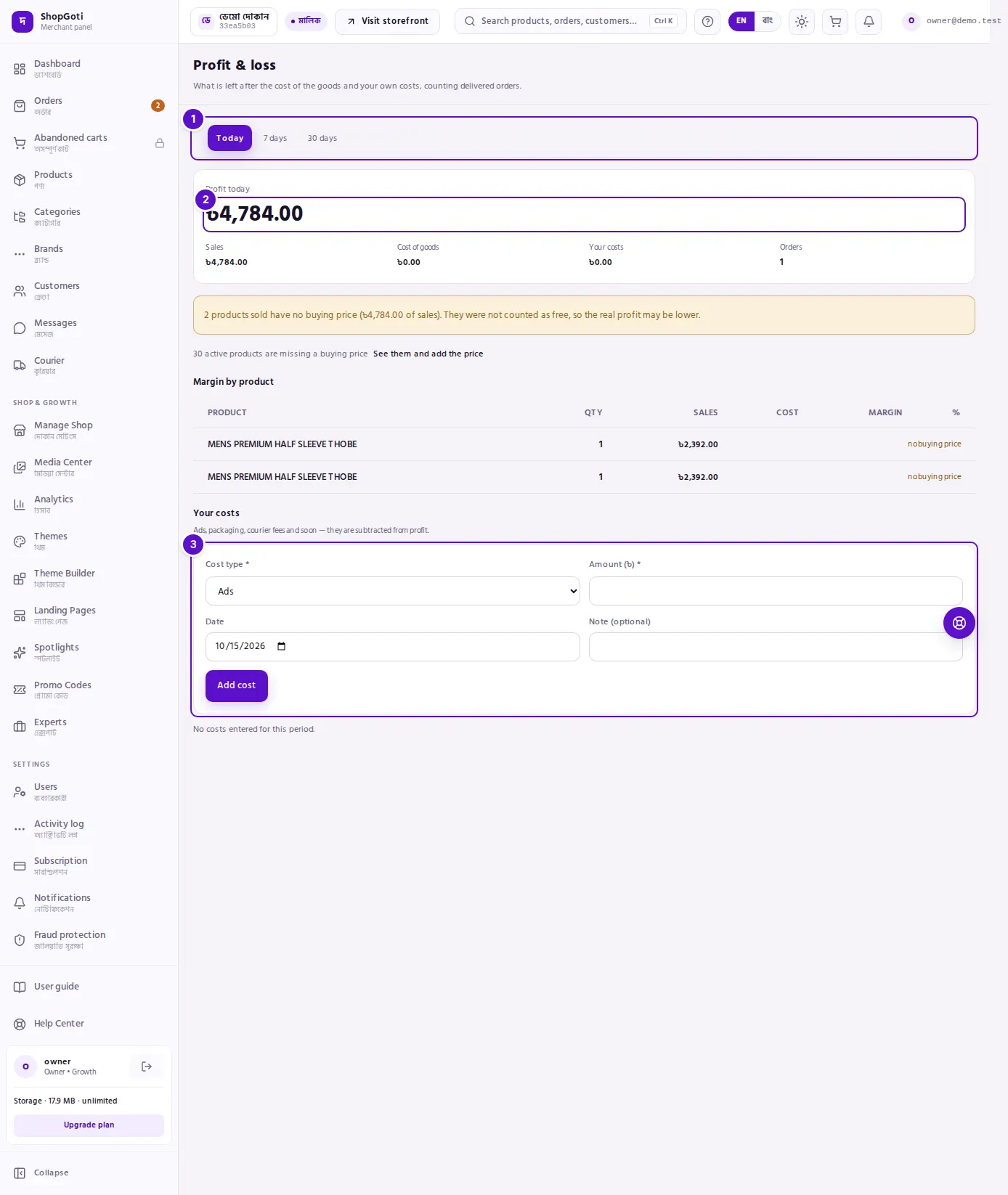
- Period tabs — Today, 7 days, 30 days. The one you have chosen is shown differently.
- The large profit figure — its heading reads the period, for example "Profit, last 7 days". If there is a loss, the word Loss appears in red in front of the amount.
- Costs form — under Your costs, the form for adding a new cost.
Under the large figure are four small boxes: Sales, Cost of goods (−), Your costs (−) and Orders. Hover over the Sales heading for an explanation: delivered orders' goods, after discounts, excluding the delivery charge.
Below them come the Margin by product table and, at the bottom, Your costs.
Steps
See today's, the last 7 days' or the last 30 days' profit
Steps
- Open the Profit menu. Today is selected by default.
- Press 7 days or 30 days. The large figure and the tables change to that period.
- Read the heading above the large figure — Profit today, Profit, last 7 days or Profit, last 30 days.
Read the margin by product
Steps
- Scroll to Margin by product.
- In each row, see Qty, Sales, Cost, Margin and %.
- For a product with no buying price, the cost, margin and % cells say no buying price.
- A margin shown in red means that product made a loss.
Find products with no buying price
Steps
- If the page says "{n} active products are missing a buying price", press See them and add the price.
- The product list opens, filtered to active products with no buying price.
- Open a product and fill in Buying Price (Optional) on its form, then save.
- Come back to this page to see the profit recalculated.
Add a cost
Steps
- Under Your costs, choose a Cost type: Ads, Packaging, Courier, Rent, Salary or Other.
- In Amount (৳), type the amount. The smallest amount is 0.01.
- In Date, choose the day the cost was paid. It starts as today, and a future date cannot be chosen.
- If you want, type a note in Note (optional). Up to 200 characters.
- Press Add cost. The cost appears in the list and is taken off the profit.
Remove a cost
Steps
- On the cost's row, press Remove.
- There is no confirmation question. The cost is removed at once.
Fields
| Field | Required | What it does |
|---|---|---|
| Cost type | Yes | One of six types. Starts at Ads. |
| Amount (৳) | Yes | The amount of the cost. Smallest value 0.01. |
| Date | No | The day of the cost. Starts at today. Cannot be in the future. |
| Note (optional) | No | Your own comment. Up to 200 characters. |
Tips and common mistakes
- A missing buying price makes profit look higher. Sales of a product with no buying price are not counted as free, so the real profit may be lower than the figure shown. The warning under the figure gives the sales amount and the number of products involved.
- Only delivered orders count. Orders still on the way, and cancelled orders, are not in this calculation.
- A cost cannot be edited. If you entered it wrongly, remove it and add it again.
- Staff cannot see this page. If Staff need to record a cost, ask an Owner or Manager.
- On the Free plan the figures are not shown. After you change plan, the figures appear when you open the page again.
Related pages
- Analytics — the sales and order report
- Store insights — who is visiting and where they come from
- Dashboard — a summary of the day