16.1Spotlights
Decide which products sit in a spotlight and when it shows — create a spotlight, choose its products, set a window, or turn it off.
- Menu:
- Spotlights
- Who:
- Owner · Manager
- Package:
- Depends on the package — a lock on the menu means upgrade
- Updated:
- 2026-10-15
Overview
The Spotlights menu holds groups of hand-picked products, such as an Eid collection. Each spotlight has a few chosen products and can have an optional start and end time. In the Theme Builder, a Spotlight block places one of these spotlights on a page. The landing page editor offers the same block.
Only Owners and Managers can open this page. Staff are sent back to the dashboard. If the Spotlights item in the menu has a padlock beside it, your package does not include the feature.
Package: spotlights are included on Growth only. On other packages the page opens, but saving a new spotlight or a change shows a message that your plan does not include this, with a pointer to Subscription.
Screen tour
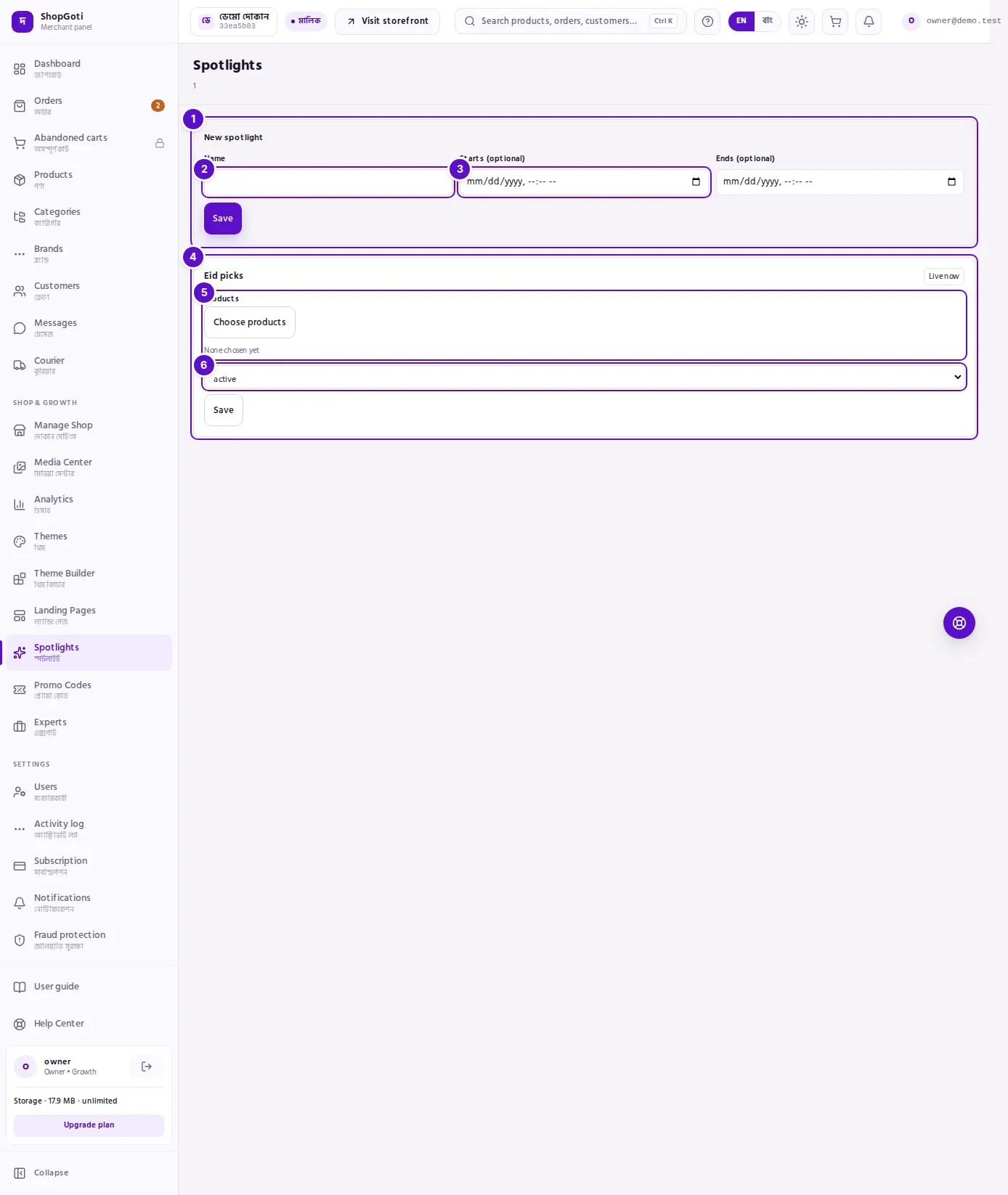
- New spotlight form. Create a spotlight with a name, a start and an end.
- Name box. The spotlight is recognised by this name in the list.
- Starts (optional) box. When it starts showing. Beside it is Ends (optional), when it stops.
- Spotlight card. Its name and a status badge: Live now, Scheduled or Off.
- Products section. The spotlight's products appear as chips. Choose products adds or changes them.
- Status box, which reads active or inactive. The Save button beside it saves every change on the card.
Steps
Create a spotlight
Steps
- Open the Spotlights menu.
- In the New spotlight form at the top, type a Name.
- If you want, pick Starts (optional) and Ends (optional). Leave them empty for no limit at that end.
- Press Save. The new card appears in the list.
- A new spotlight has no products. To add some, go to its card. The next section explains how.
Choose products for a spotlight
Steps
- On the spotlight's card, in the Products section, press Choose products.
- Search by product name or SKU, or pick one category under All categories. Only active products are listed.
- Press a product to choose it. A chosen product shows a tick. A product with no stock shows "no stock" beside it.
- To choose more, repeat steps 2 and 3. Press Confirm.
- Press Save on the card. The order you chose products in is kept.
Turn a spotlight on or off
Steps
- On the card, pick active or inactive in the status box. The words in this box are shown in English.
- Press Save on the card.
- Check the badge. inactive shows Off. active shows Scheduled until the start time, and Off after the end time.
Fields
| Field | Where | Required | What it does |
|---|---|---|---|
| Name | New spotlight | Yes | The spotlight's name. You cannot change it on this screen after it is created. |
| Starts (optional) | New spotlight | No | Empty means no start limit. |
| Ends (optional) | New spotlight | No | Empty means no end limit. You cannot change it on this screen after it is created. |
| Products | Spotlight card | No | The products in this spotlight. |
| Status | Spotlight card | Not applicable | active (on) or inactive (off). |
Tips and common mistakes
- If you choose products and do not press Save on the card, the change is lost.
- A new spotlight has no products until you add some. Its card shows the Products section empty.
- Only active products can be chosen.