21.2Manage plan
Change your plan, pause the subscription so your days are banked, resume it, or cancel it — and what each of those does to your days and your shop.
- Menu:
- Subscription → Manage plan
- Who:
- Owner
- Package:
- All packages
- Updated:
- 2026-10-15
Overview
Manage plan is where the Owner changes the shop's plan, pauses or resumes the subscription, and cancels it. It is open to the Owner only.
The page has two sections:
- Change plan — shows the plan you are on now, and a button that opens the Plans page. The plan itself is chosen on that page, not here.
- Subscription controls — one control to pause or resume, and a separate control to cancel. They are kept apart on purpose: pausing keeps your remaining days, and cancelling does not.
Screen tour
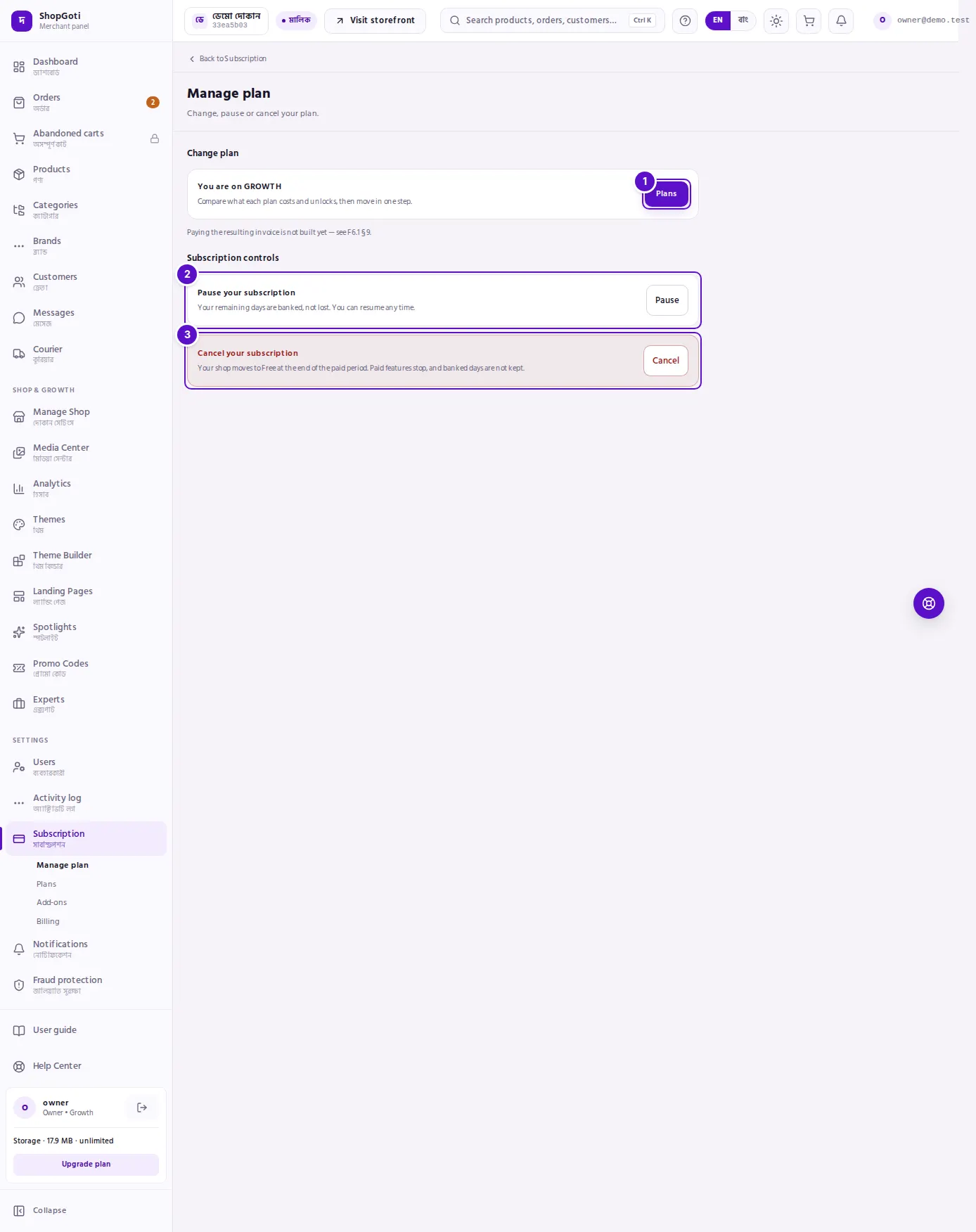
- Change plan — the line You are on followed by the plan name, and the Plans button.
- Pause or resume — one card. Its title and button change with the state: Pause your subscription with a Pause button when the subscription is running, or Resume your subscription with a Resume button when it is paused.
- Cancel your subscription — a red-bordered card below, with its own Cancel button.
The Back to Subscription link at the top returns you to the overview.
Steps
Change your plan
Steps
- Open Subscription, then Manage plan, from the rail under Settings.
- In Change plan, read the line You are on and the plan name.
- Press Plans. The Plans page opens.
- Choose a billing cycle and press Choose this plan, or Move to this plan for a cheaper plan. Read the line under the button before you press it. See Plans for what each choice does.
Pause your subscription
Steps
- In Subscription controls, read the card Pause your subscription and its line: "Your remaining days are banked, not lost. You can resume any time."
- Press Pause.
- The Subscription overview now shows Paused with the number of days banked, instead of a paid-through date.
Resume a paused subscription
Steps
- In Subscription controls, the top card reads Resume your subscription. Its line says your banked days start counting again.
- Press Resume.
- The overview shows a paid-through date and the days left again.
Cancel your subscription
Steps
- Find the red card Cancel your subscription.
- Read its line: "Your shop moves to Free at the end of the paid period. Paid features stop, and banked days are not kept."
- Press Cancel. There is no "are you sure?" step.
Tips and common mistakes
Related pages
- Subscription overview — your plan, the days left, and the product meter.
- Plans — compare plans and choose one.
- Billing — the invoices a plan change raises, and how to pay them.