14.1Theme Builder — layouts list
The list of layouts you design yourself, by page type — create a new layout, see the one that is live, publish a draft, rename, duplicate or delete.
- Menu:
- Theme Builder
- Who:
- Owner · Manager
- Package:
- Depends on the package — a lock on the menu means upgrade
- Updated:
- 2026-10-15
Overview
The Theme Builder lets you arrange your shop's pages yourself. For each page type (home page, product page and so on) you can keep several named layouts. Only one of them is live on the shop at any time.
On this page you see how many layouts each page type has, which one is live, and you can create a new layout, publish a draft, rename, duplicate or delete one. The blocks inside a layout are arranged on the next page (see Theme Builder editor).
Only Owners and Managers can view this page. The Theme Builder needs a plan that includes it: Pro and Growth. Without one, a lock mark shows beside Theme Builder in the menu, and the page shows a message with a Compare plans link.
Screen tour
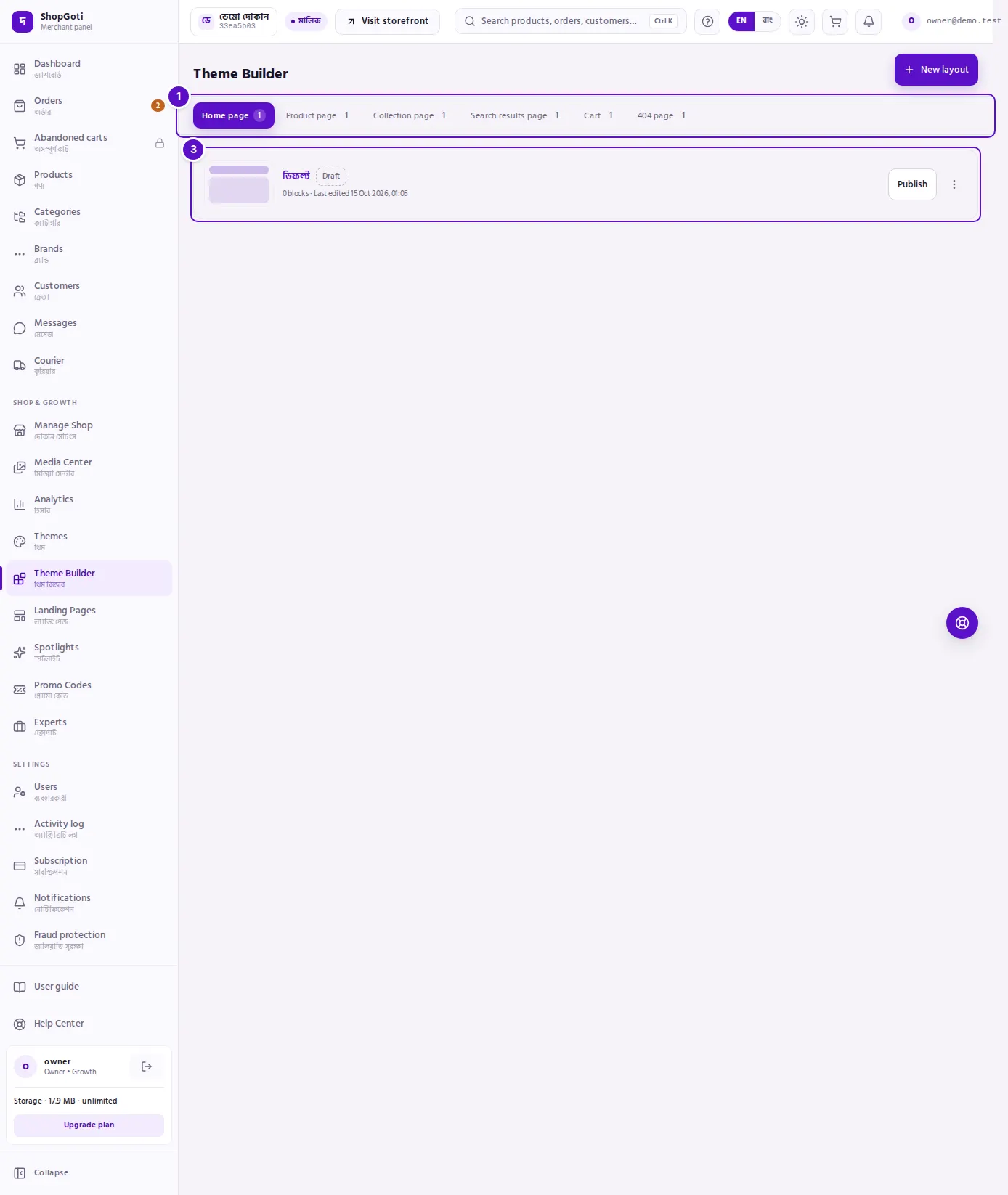
- Page-type tabs — Home page, Product page, Collection page, Search results page, Cart and 404 page. The number beside each tab is how many layouts that page type has.
- Live layout — the card with the thick blue border. It shows the layout's name, how many blocks it has, when it was last edited, and three buttons: Open, Duplicate as new and Version history.
- Drafts list — each draft's name, a Draft badge, its block count, a Publish button and a ⋮ menu.
The New layout button sits at the top right.
Steps
Create a new layout
Steps
- Press New layout at the top right.
- In the box that opens from the bottom, type a Name, up to 120 characters. For example, "Eid homepage".
- Press Create. The editor for the new layout opens straight away.
Change the page type
Steps
- Press one of the tabs — Home page, Product page, Collection page, Search results page, Cart or 404 page.
- Read the number beside the tab to see how many layouts that page type has.
Open a draft
Steps
- Press a draft's name. The editor opens.
- Arranging and editing blocks is covered on the next page.
Publish a draft
Steps
- On the draft's row, press Publish.
- The layout goes live on your shop, and its row moves into the Live on your shop card.
Rename, duplicate or delete a draft
Steps
- On the draft's row, press the ⋮ button.
- Press Rename. In the box that opens (titled "Rename this layout"), type the new name and press Save.
- Press Duplicate as new. Give the copy a name — by default "(copy)" is added to the end — then press Create.
- Press Delete. A confirmation asks: "Delete “…”? This cannot be undone." Press OK to delete the layout.
Work with the live layout
Steps
- On the Live on your shop card, press Open to edit the layout.
- Press Duplicate as new to make a copy under a new name.
- Press Version history. It opens the editor, where earlier saved versions are listed.
Fields
| Field | What it does |
|---|---|
| Name | The layout's name, up to 120 characters. Needed for New layout and for a duplicate. |
| Page type tab | Chooses which page's layouts you see. If none is chosen, the home page opens. |
Tips and common mistakes
- A page type can hold several layouts, but only one is live. The others stay as drafts until you publish them.
- The live layout cannot be deleted. Its card has no delete option.
- A draft is not on the shop until you publish it. Edits to a live layout also stay out of the shop until you publish again.
- Without the plan, the whole page shows one message, with a Compare plans link.
- On a phone this list opens, but adding or changing blocks is done on a computer.
Related pages
- Theme Builder editor — arranging blocks, settings and publishing
- Themes — preset themes and switching on the Theme Builder