4.4Import products from a CSV file
Bring many products in from one spreadsheet — the template, the upload, matching your columns, checking the result before anything is written, the report, and the limits.
- Menu:
- Products
- Who:
- Owner · Manager · Staff
- Package:
- All packages
- Updated:
- 2026-10-15
Overview
If you have a list of products in a spreadsheet, you can bring them in as one CSV file instead of adding them one by one. The importer works in three stages, and nothing is written to your shop until the last one:
- Upload — send the CSV file.
- Match the columns and check — tell the panel which column holds the name, the price and so on, and see a dry run of what would happen.
- Import — start the import and watch it run. When it finishes you get a report you can download.
Owners and Managers can use the importer. Staff do not see the Import button on the Products list, and if they open the import address directly the panel sends them back to the list.
Screen tour
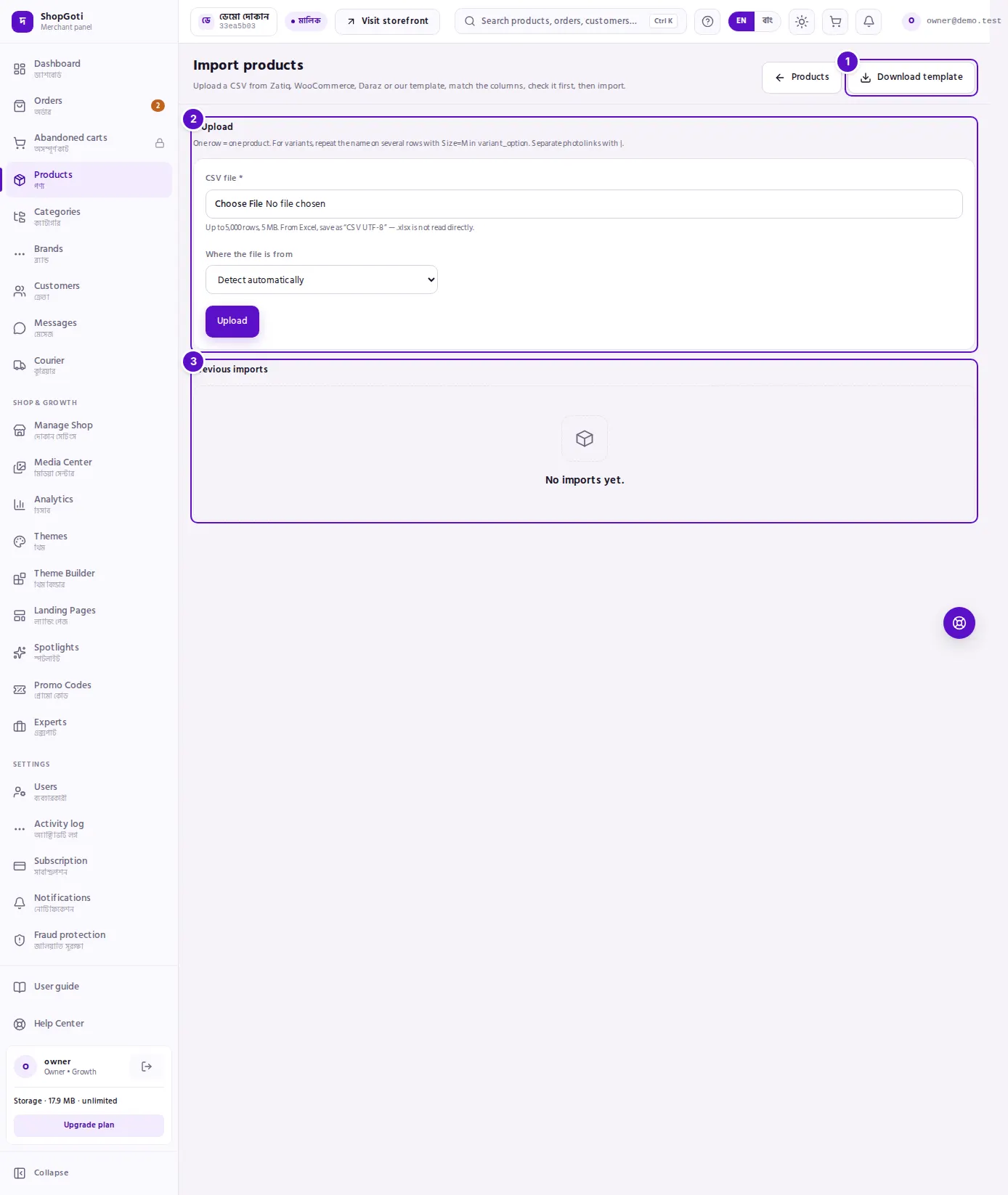
- Header — the title Import products with one line about what the importer does. ← Products returns to the list, and Download template downloads the CSV template.
- 1. Upload — the CSV file box, the Where the file is from list and the Upload button.
- Previous imports — one row per import, newest first, with its file name and date, its status, and the counts of rows, created, updated and skipped. Press a file name to open that import.
- Empty state — "No imports yet." appears until you upload a file.
Steps
Download the template
Steps
- On the Products list, press Import. This opens the import page.
- Press Download template. A file called
shopgoti-products-template.csvdownloads. - Open it in Excel or Google Sheets. It has 17 columns and two example rows: one simple product and one with two sizes.
- Replace the example rows with your own. One row is one product. For a product with variants, repeat its name on one row per variant and write the option in
variant_option, for exampleSize=M. For more than one option, separate them with|. Put photo links inimage_urls, separated with|; up to 8 per product are used.
Upload your file
Steps
- In CSV file, choose your CSV file. The file picker offers CSV and plain-text files only.
- In Where the file is from, keep Detect automatically unless you know the source. The list offers ShopGoti template, Zatiq export, WooCommerce product CSV and Daraz seller-centre sheet. The choice only changes which column matches are suggested in the next step. A sheet from another source is handled by detection, and you can match its columns by hand.
- Press Upload. The import opens at the matching step.
Match the columns and check
Steps
- Under Match the columns, each product field has a list of the column headings in your file. Choose the heading that holds that field, or — not imported — to leave the field out.
- Product name and Sell price (৳) are required and marked with an asterisk. The form does not go on until both have a column.
- Under each list, the panel shows up to two values from that column, so you can check that you picked the right one.
- Show imported products in the shop right away is ticked by default. Products whose status cell is blank are published straight away. Untick it, and they stay as drafts until you publish them yourself. A status cell in the file overrides this box for that row.
- Press Check the file. Nothing is written yet.
Read the check result
Steps
- Read the six figures: Rows, Products, Will be created, Will be updated, Will be skipped and Over plan limit. A product counts as updated when a product you already have has the same SKU — or the same name, for a row that has no SKU.
- Read the meter, such as "12/50 products used on your plan". It counts the products you already have plus the ones this file would create. If your plan has no product limit, the meter says so.
- Read Rows that will be skipped. Each entry gives the row's line number in your file and the reason. The report lists them all.
- If Over plan limit is above zero, those products will not be imported. Press Upgrade plan to see the plans. After you upgrade, upload the same file again; only the products that were left out are added.
- Press Start import to write the products, or Cancel to stop here.
Watch the import and read the report
Steps
- While the import runs, the page shows "Importing… done/total products" and refreshes itself every two seconds. You can leave the page; the import keeps going. Press Cancel to stop it.
- When it finishes, the heading reads Import finished, Import failed or Import cancelled. The counters show Created, Updated, Skipped, Over plan limit and Failed, with a line on photos stored and photos that failed.
- Press Download report (CSV). You get one row per line of your file, with the columns line, key, status, reason, product_id, images_stored and images_failed.
- Read Row results. Each product name links to its product page. When there are more rows than the screen shows, the rest are in the report.
- Press Go to products to see the new products in the list.
Find an earlier import
Steps
- On the import page, find Previous imports. It lists your most recent imports, newest first, up to 20. Older finished imports are removed when you upload a new file.
- Press a file name to reopen that import. An import that has not started shows its matching step, a running one shows its progress, and a finished one shows its report.
- Press All imports to return to the list, or Upload another file after a finished import.
Fields
The upload form
| Field | What to put in it |
|---|---|
| CSV file | A CSV file in UTF-8, with a header row, up to 5,000 rows and 5 MB. From Excel, save as "CSV UTF-8". .xlsx files are not read. |
| Where the file is from | Detect automatically, ShopGoti template, Zatiq export, WooCommerce product CSV or Daraz seller-centre sheet. It only suggests the matching. |
The matching step. Each row is the field, then what the importer expects in the column you choose for it.
| Field | What it holds |
|---|---|
| Product name (required) | The product's name. A name longer than 255 characters refuses the row. |
| Sell price ৳ (required) | The selling price. A price that is zero, negative or unreadable refuses the row. |
| Regular price ৳ | The crossed-out price. If it cannot be read, it is ignored and the row still imports. |
| Buying price ৳ | Your cost, used for margin only. If it cannot be read, it is ignored. |
| SKU / code | Your product code, up to 100 characters. |
| Stock | A whole number. A number that is not whole refuses the row. |
| Category | The category name, up to 50 characters; longer names are cut. |
| Brand | The brand name, up to 80 characters; longer names are cut. |
| Short description | Up to 255 characters; longer text is cut. |
| Description | The full description. |
| Photo links | Web addresses of photos, separated by |. Up to 8 per product. |
| Variant (Size=M) | An option and its value, such as Size=M. Several options are separated by |. |
| Variant name (Size) | The option name, when your file gives the option and its value in separate columns. |
| Variant value (M) | The option value, such as M. |
| Status (active/draft) | Words such as active or published make the product live; draft or inactive keep it hidden. A blank cell follows the Show imported products box. |
| Weight (kg) | The weight in kilograms. |
| Unit | The unit, such as kg or piece, up to 20 characters. |
| Video link | A link starting with http:// or https://. Any other value is not imported. |
| English name | The English name, up to 255 characters. |
Tips and common mistakes
- Save from Excel as "CSV UTF-8". A
.xlsxfile is not read. Keep a header row at the top of the file. - Four kinds of file are refused with the same message: a file over 5 MB, more than 5,000 rows, more than 100 columns, and an upload while five unfinished imports already exist for your shop. The message on screen names only the size and row limits. Keep the sheet to 100 columns, and finish or cancel an open import before you start another.
- A file can update products you already have. A row is matched by its SKU, or by its name when it has no SKU. A re-import of the same file therefore updates rather than duplicates. Do not reuse a SKU for a different product.
- Several rows with the same name and a variant option make one product with one variant per row. Two rows with the same SKU, or two rows with the same name and no variant, are a duplicate: the second is skipped as "Already in the file".
- Stock on a product with several variants is not changed by the importer. The report says "Multiple variants — stock left as is". Adjust those stocks from the product page.
- Some reasons you will see in the report:
| Reason in the report | What it means |
|---|---|
| No name | The row has no product name. The row is skipped. |
| No price / Price unreadable or zero | The sell price is missing, zero or not a number. The row is skipped. |
| Negative price | A price below zero. The row is skipped. |
| Stock is not a whole number | Fix the stock cell. The row is skipped. |
| Already in the file | The same SKU or name appears earlier in the file. |
| Plan product limit reached | Your plan has no free product slot for this product. |
| SKU used by another product | The SKU is already used by another product in your shop, so the row could not be saved. |
| Brand cut to 80 characters, Category cut to 50 characters | The text was shortened and the product was imported. |
- Names are never cut. A product name that is too long refuses its row, because a shortened name would be a wrong name.
- Plan limits. Products over your plan's limit are not imported, and the check result says how many. The rest of the file is not affected.
- Staff cannot import. The Import button and the import page are for Owners and Managers.
Related pages
- Products list — where the Import button is
- Add a product — adding one product by hand
- Product page and editing — checking an imported product, and adjusting its stock