26.2Using the panel on a phone
The bottom bar, the More sheet, and what is different on a phone compared with a computer.
- Menu:
- Top bar and phone
- Updated:
- 2026-10-15
Overview
On a small screen (narrower than 768 pixels), the left menu is not shown. Instead, a bar sits at the bottom of the screen with four quick buttons and More. You reach every other page through More. A phone has all the same features; only the layout is different.
The four buttons depend on your role. An Owner gets Dashboard, Orders, Products and Customers. Staff get Orders, Products, Customers and Courier, because Staff do not see the Dashboard.
| Topic | Computer | Phone |
|---|---|---|
| Left menu | Shown | Not shown; the bottom bar takes its place |
| Search (Ctrl K / ⌘K) | Shown | Not shown |
| Account menu — My account | Shown | Not shown; More shows only Log out |
| Row density | In the account menu | Not shown |
| Help Center | In the left menu and as a floating button | Not shown; More shows only the user guide |
| Visit storefront | With its label | Icon only |
| Language, theme, ?, new order, notifications | Shown | Shown |
Screen tour
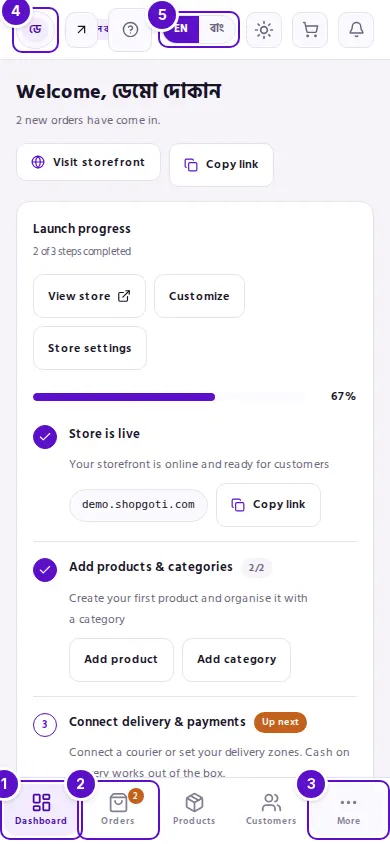
- First button — Dashboard for the Owner, Orders for Staff.
- Second button — Orders for the Owner, Products for Staff. The button for the page you are on shows in a filled colour.
- More — for every other page.
- Shop name and role — in the top bar. On a phone the role sits beside the name in a small chip.
- EN / বাং — the language button in the top bar.
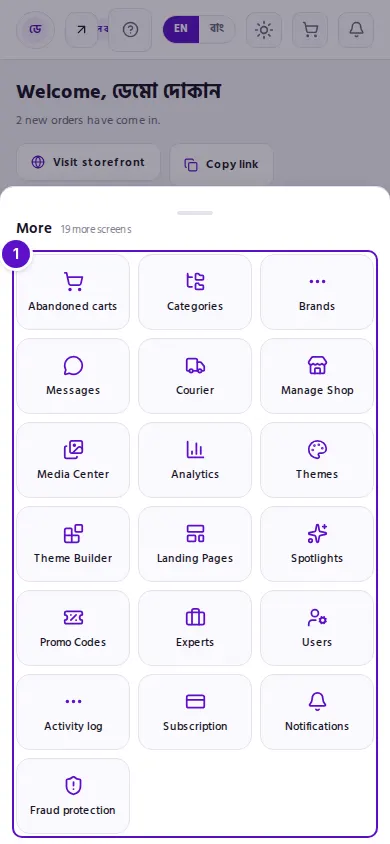
- Page tiles — each tile is one page. The pages not on the bottom bar are here. The heading shows how many screens there are.
- Theme — Light, Dark or System.
- User guide — opens the guide in a new tab.
Log out is the last row of the sheet.
Steps
Get from the bottom bar to a page
Steps
- Press one of the four buttons at the bottom. The button for the page you are on shows in a filled colour.
- To reach another page, press More. A sheet rises from the bottom, with the pages as large tiles.
- Press a tile. The sheet closes and the page opens.
Change the theme, open the guide, or log out from More
Steps
- Press More. Near the bottom of the sheet, choose Light, Dark or System from the three theme buttons. The one in use is filled.
- Press User guide to open the guide in a new tab.
- At the very bottom of the sheet, press Log out to sign out on this device.
Use the top bar on a phone
Steps
- At the left of the top bar, read the shop name and your role.
- If the shop has a verified domain, press the arrow button to open the shop's front page in a new tab. On a phone this button shows only an icon.
- At the right, you have ?, the language button, the theme button, the new-order cart and the notifications bell.
Tips and common mistakes
- A phone has no link to the account page. To delete your account or close your shop, use a computer. See My account.
- A phone has no link to the Help Center. To read the guide, press More, then User guide.
- A button you do not see is not part of your role. Staff do not see the Dashboard, Manage Shop or Analytics. This is by design, not a fault.
- The bottom bar always shows the names under its icons. The Orders button shows a number at its corner when new orders are waiting.
- Row density cannot be changed on a phone. To change it, use the account menu on a computer.
Related pages
- Top bar — every control in the top bar on a computer
- Your account card — the card at the foot of the menu on a computer
- Orders list — on a phone, each order is shown as a card