2.1Orders list
Every order of the shop in one list — filtered by status and payment, searched by number or phone, narrowed by date, with your choice of columns and a CSV download.
- Menu:
- Orders
- Who:
- Owner · Manager · Staff
- Package:
- All packages
- Updated:
- 2026-10-14
Overview
Opening the Orders menu shows every order of the shop, newest first. Two rows of tabs at the top narrow the list — the first row by status (New, Confirmed, Packed…), the second by payment (Payment OnProcess, Payment Failed). Below them sit the search box, the date range, the column picker and CSV. Pressing any row opens that order's detail page.
Owners, Managers and Staff all see this page; handling orders is Staff work.
Screen tour
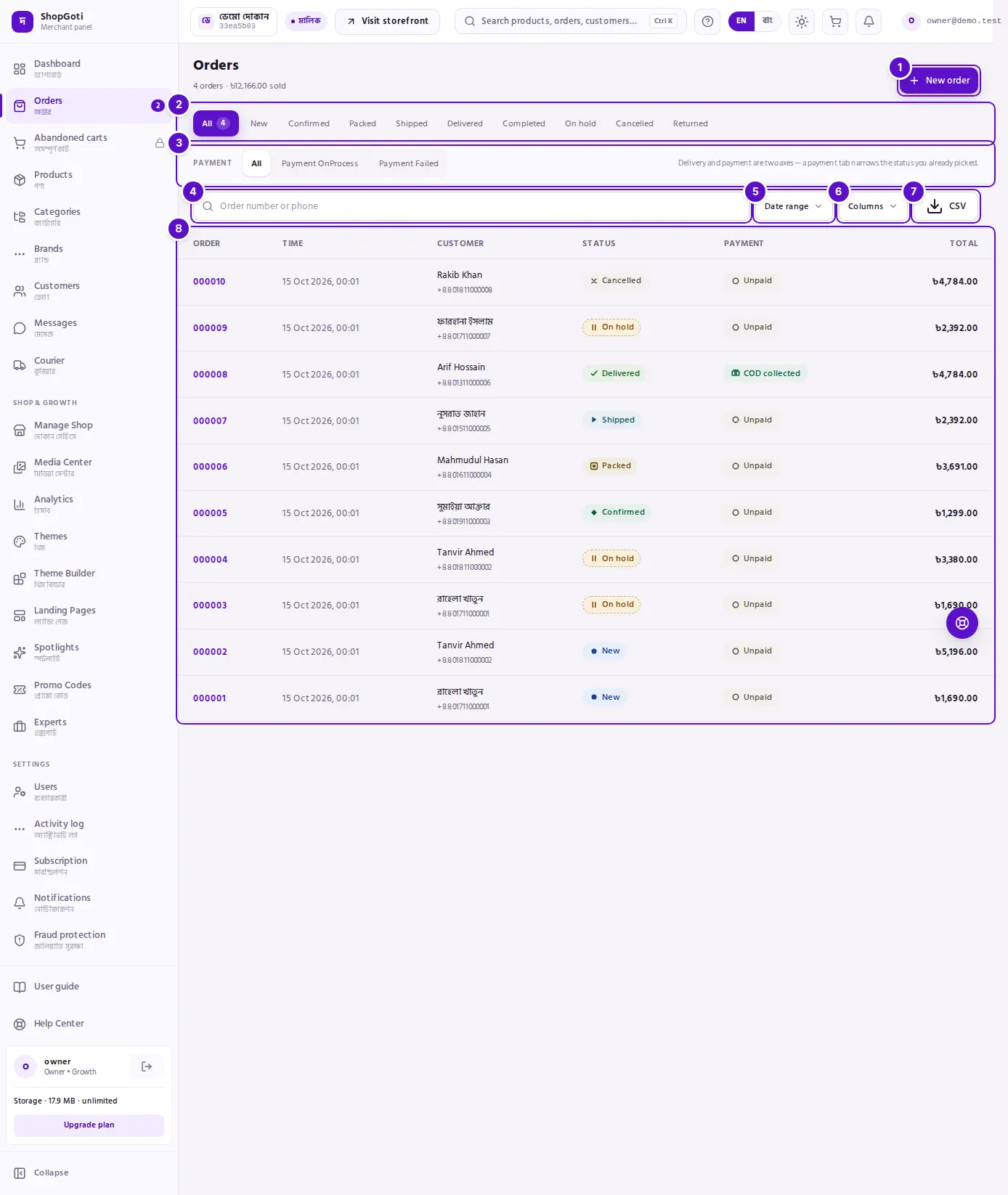
- New order — the form for entering an order that came by phone, Facebook or across the counter. The cart icon in the top bar leads to the same place.
- Filter by status — All, New, Confirmed, Packed, Shipped, Delivered, Completed, On hold, Cancelled, Returned. Pressing one keeps only orders in that status; the selected tab shows how many there are.
- Filter by payment — Payment OnProcess and Payment Failed. This row narrows the choice above rather than replacing it: "Shipped" + "Payment Failed" is orders that went out but whose payment did not arrive.
- Search — type an order number or the buyer's phone number and press Enter. The selected tab stays selected.
- Date — a start and end date to see one period's orders.
- Columns — choose which columns to show; Order and Total always stay. The choice is remembered in this browser.
- CSV — download the orders of the current filter as a CSV file (opens in Excel or Google Sheets).
- The list — columns: Order (number), Time, Customer (name and phone), Status, Payment, Total. On a phone each order is a card instead of a table row, with the same information.
Steps
Find the new orders
Steps
- Open the Orders menu, or press See new orders on the dashboard.
- Press the New tab in the top row. The number beside the tab is how many new orders there are.
- Press the topmost order — it is the most recent. The detail page has confirm, pack and courier.
Find an order by the buyer's phone number
Steps
- Type the phone number into the search box — the 017… form is fine, no country code needed.
- Press Enter or the button beside the box.
- The list now holds only that number's orders. A status tab you had selected stays in force; press All to see every status.
- Clear the box and press Enter, or press Clear filters, to get the full list back.
Download one period's orders as CSV
Steps
- Press Date, set the start and end dates, and apply.
- Pick a status tab if you need one — for example only Delivered.
- Press CSV. The file downloads; one order per row, the same columns as the list.
Choose columns
Steps
- Press Columns.
- Untick the columns you want to hide. Order and Total cannot be hidden.
- Press Apply. The choice is remembered in this browser — on another phone or computer you choose again.
Tips and common mistakes
- The two tab rows are two different questions. The top row replaces the choice (one status at a time); the bottom row adds to it. With "New" and "Payment Failed" both lit you are looking at orders that are new and failed.
- Status and payment are separate facts. A cash-on-delivery order can be Delivered and still Unpaid until the courier remits the money. Never read the two columns as one.
- The line under the title shows the shop's total orders and total sold — for the whole shop, not for the current filter.
- The count beside a tab shows only on the selected tab; to see another tab's count, press it.
- When the list is empty with a filter on, the Clear filters link removes everything. A shop with no orders yet sees a Get your shop link button instead.
Related pages
- Dashboard — the summary of new and on-hold orders