20.1Activity log
The shop's record of what staff did and of key events — how to read an entry, filter by module, action, person or date, and what the log records.
- Menu:
- Activity log
- Who:
- Owner · Manager
- Package:
- All packages
- Updated:
- 2026-10-15
Overview
The Activity log is the shop's record. It shows what staff did in this shop, and the important things that happened, such as a new online order or a payment received. Newest entries come first.
Owners and Managers can read the log. Activity log is under Settings in the rail, and only Owners and Managers see it. If a Staff member opens the page's address, they see a card that says This page is not available for your role instead of the log.
ShopGoti keeps entries for a set period. The page does not show that period. If logging has been switched off for your shop, a warning reads Activity logging is off. Entries recorded earlier still show below it, and nothing new is recorded.
Screen tour
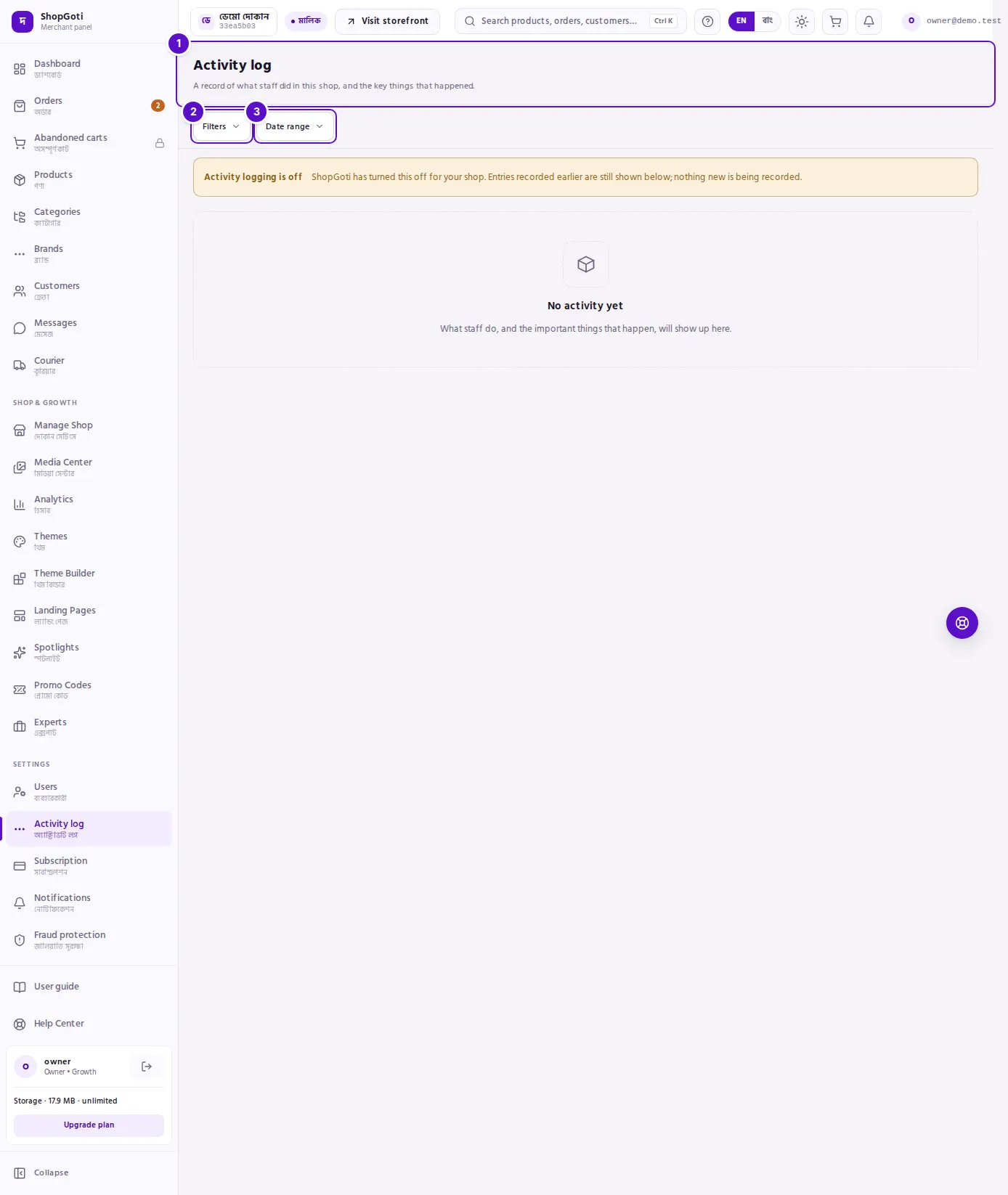
- Title and intro — Activity log, with one line that says what the page holds.
- Filters — opens a panel with Module, Action and Actor. The number on the button shows how many of them are set.
- Date range — opens From and To dates.
- The list — five columns: Time, Actor, Action, Target and Changed. On a phone each entry is a card. Press an entry to see its details.
When there are older entries, a Load more button appears under the list.
Steps
Read the log
Steps
- Open Activity log from the rail, under Settings.
- Read the newest entry at the top. Each row gives the time, who did it, the action, what it was done to, and the names of the fields that changed.
- If there are older entries, press Load more at the bottom of the list.
Open an entry's details
Steps
- Press the row. On a phone, press the card.
- The Details panel opens from the bottom of the screen. It shows the action, the time, the actor and their role, and the target.
- Under Changed fields, each field shows its new value. When the value before the change was recorded, the panel also shows Before.
- For a staff action, the bottom of the panel shows Route, IP address and Device.
- Close the panel to go back to the list.
Filter by module, action or person
Steps
- Press Filters.
- Under Module, choose one area, or keep All modules. When you choose a module, the Action list narrows to that module's actions.
- Under Action, choose one action, or keep All actions.
- Under Actor, choose a staff member by their email or phone, or choose ShopGoti support, Platform, Buyer, Courier or System. Keep Everyone to see all.
- Press Apply. The number on the Filters button shows how many filters are set.
- To remove every filter, press Clear filters.
Filter by date
Steps
- Press Date range.
- Set From and To.
- Press Apply.
- To remove the range, open Date range again and press Clear.
Fields
The filter panel has these choices. Every one is optional.
| Filter | Choices | What it does |
|---|---|---|
| Module | All modules, or one area such as Order, Product, Courier or Billing | Shows only entries from that area. |
| Action | All actions, or the actions of the chosen module | Shows only that action, such as Order confirmed. |
| Actor | Everyone, a staff member, ShopGoti support, Platform, Buyer, Courier, System | Shows entries by who or what did it. |
| Date range — From, To | Two dates | Shows entries from the start date to the end date. |
Tips and common mistakes
Related pages
- Users — invite, role and remove actions also appear here.
- Orders list — the orders that the log's order entries refer to.