10.8SEO & Marketing
Set the title, description, share image and search-engine verification for your shop's home page, decide whether search engines show your shop, copy your sitemap, and connect Meta Pixel, Google Analytics and Google Tag Manager.
- Menu:
- Manage Shop
- Who:
- Owner · Manager
- Package:
- All packages
- Updated:
- 2026-10-15
Overview
SEO & Marketing has two forms on one page:
- Search engine (SEO) — how your shop's home page appears on Google and Bing: its title and description, the picture shown when someone shares a link, the verification codes for Google and Bing, and whether search engines show your shop at all.
- Tracking — your Meta (Facebook) Pixel, Google Analytics and Google Tag Manager IDs. These report what buyers view, add to the cart and buy, so your ads can be measured.
Every product, category and brand has its own SEO box on its own page. This page is for the shop as a whole.
Owners and Managers can change these settings. Staff are sent to the dashboard.
Screen tour
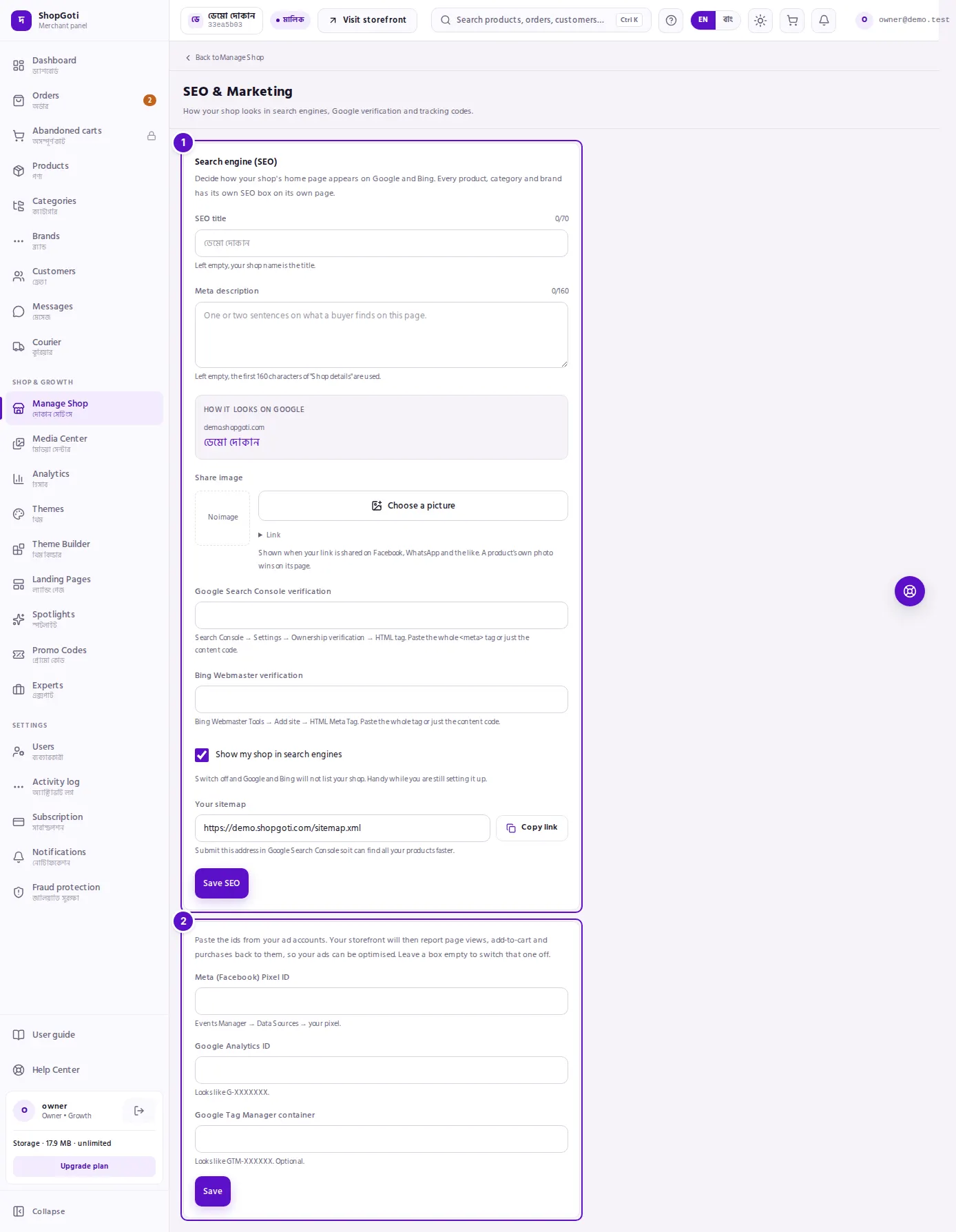
- Search engine (SEO) — the SEO title and Meta description boxes with their character counters, a search preview, the Share image box, the Google and Bing verification boxes, the Show my shop in search engines tick box, the sitemap address with a copy button, and Save SEO.
- Tracking — the Meta (Facebook) Pixel ID, Google Analytics ID and Google Tag Manager container boxes, and Save.
Steps
Set the title and description of your home page
Steps
- In SEO title, type the title. It can be up to 70 characters. The counter turns red when you go over.
- In Meta description, type one or two sentences about your shop. It can be up to 160 characters.
- Read the search preview under the boxes. It shows how your shop can appear in Google.
- Press Save SEO.
Leave SEO title empty and your shop name is used. Leave Meta description empty and the first 160 characters of Shop details on the Shop Settings page are used.
Choose a share image
Steps
- Under Share image, press Choose a picture. The Media Center opens. Pick a picture and press Use this picture. To paste a link instead, open Link under the button.
- Press Save SEO.
The picture appears when your link is shared on Facebook, WhatsApp and similar apps. A product's own photo is used on that product's page.
Verify your shop with Google or Bing
Steps
- In Google Search Console, go to Settings, then Ownership verification, then HTML tag. Copy the whole meta tag, or only the code in its content part.
- Paste it into Google Search Console verification.
- For Bing, go to Bing Webmaster Tools, choose Add site, then HTML Meta Tag. Paste the whole tag, or only the content code, into Bing Webmaster verification.
- Press Save SEO.
Show or hide your shop in search engines
Steps
- Under the verification boxes, tick or untick Show my shop in search engines.
- Press Save SEO.
When this is off, Google and Bing do not list your shop. It is useful while you are still setting it up.
Copy your sitemap
Steps
- Find Your sitemap. Its address is shown when your shop has a verified domain.
- Press the copy button beside the address.
- Submit the address in Google Search Console so it can find your products faster.
Without a verified domain, the box says that a verified domain is needed before there is a sitemap address. See the Shop Domain page.
Connect Meta Pixel, Google Analytics and Google Tag Manager
Steps
- In the Tracking form, paste your Meta (Facebook) Pixel ID.
- Paste your Google Analytics ID. It looks like G-XXXXXXX.
- Paste your Google Tag Manager container. It looks like GTM-XXXXXX. This one is optional.
- Press Save.
To switch one of them off, clear its box and press Save. Clearing a box stops that tracking.
Fields
Search engine (SEO)
| Field | Required | What it does |
|---|---|---|
| SEO title | No, up to 70 characters | The title of your home page in search results. Empty uses the shop name. |
| Meta description | No, up to 160 characters | The short description in search results. Empty uses the first 160 characters of Shop details. |
| Share image | No | The picture shown when a link is shared. |
| Google Search Console verification | No | The verification tag or code from Google. |
| Bing Webmaster verification | No | The verification tag or code from Bing. |
| Show my shop in search engines | No (ticked by default) | When off, Google and Bing do not list your shop. |
| Your sitemap | Read only | The sitemap address to submit to Google. Copy it with the button. |
Tracking
| Field | Required | What it does |
|---|---|---|
| Meta (Facebook) Pixel ID | No | Sends buyer activity to your Meta ad account. |
| Google Analytics ID | No | Sends visits to your Google Analytics property. |
| Google Tag Manager container | No | Loads your Tag Manager container. |
Tips and common mistakes
- Counters count characters. The counter under SEO title and Meta description shows how many you have written and the limit.
- The form does not check IDs. A wrong pixel ID is not reported here. Check it against the ID in your ad manager, where you already see your results.
- Search engines need time. After you verify and submit, results can take time to appear. Changes to your title and description are not instant.
- Hiding your shop is not a privacy setting. It only asks search engines not to list your shop.
- Clearing a pixel stops tracking. If you stop running ads, clear the Meta Pixel ID and save, so buyers' activity is no longer sent.