12.2Store insights
Who is visiting your shop, where they come from, which products they look at and how many get as far as an order — six tabs, for a date range you choose.
- Menu:
- Store insights
- Who:
- Owner · Manager
- Package:
- All packages
- Updated:
- 2026-10-15
Overview
Store insights shows your shop's visitors: how many came, how long they stayed, where they came from, which products they viewed, where they stopped, and how many placed an order. There are six tabs: Overview, Sources, Products, Funnel, Audience and Live.
The first time you open it, the period is Last 7 days. The period buttons and the custom dates sit at the top.
Only Owners and Managers can view this page. Staff who open it see a message instead. This is a top-plan feature: if your plan does not include it, the page says Store insights is not on your plan and shows a Compare plans button.
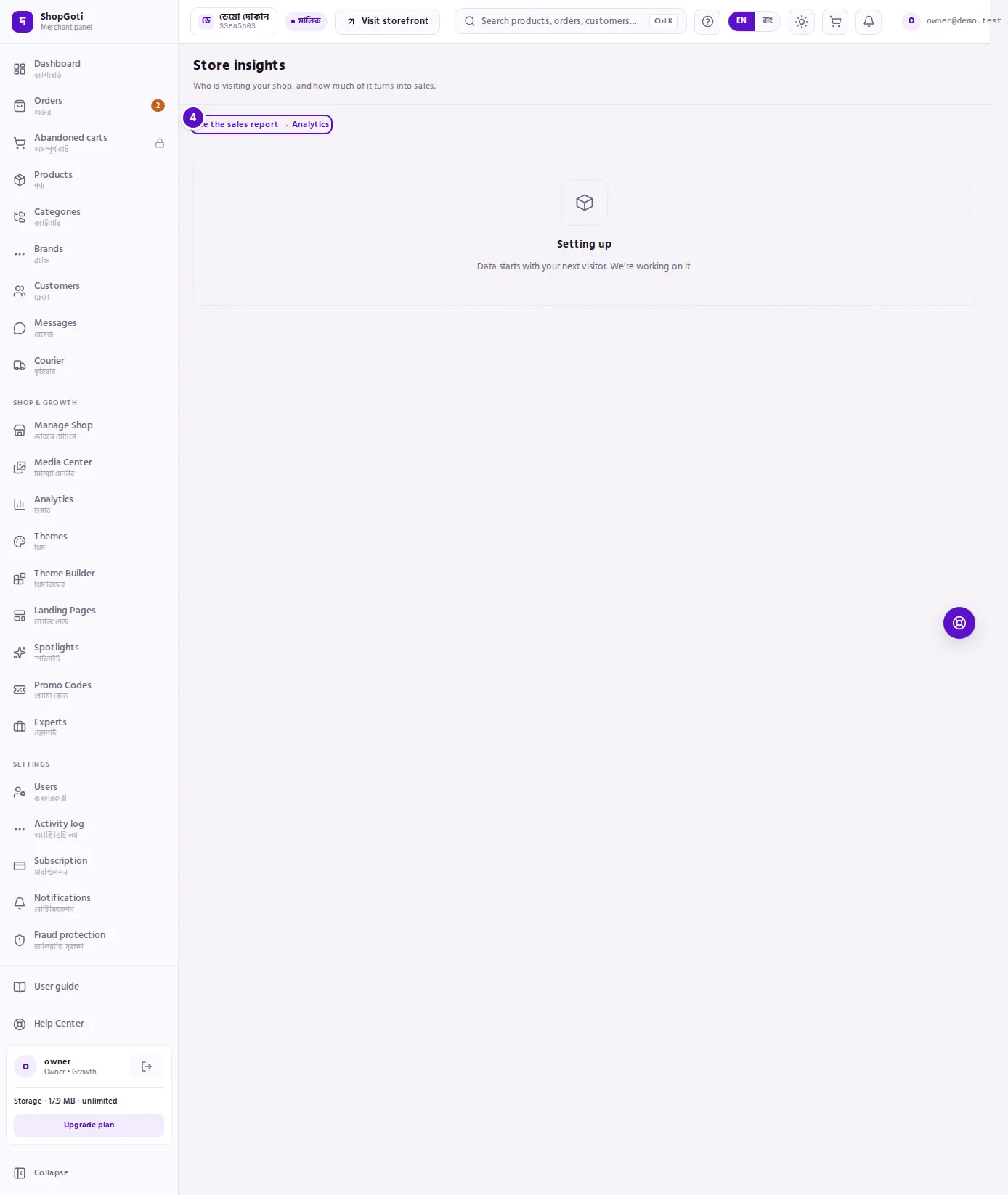
A brand-new shop may first show Setting up. Data starts with your next visitor.
Screen tour
- Period buttons — Today, Yesterday, Last 7 days, Last 30 days, This month. The one you have chosen is shown in a different colour.
- Custom period — the From and To date boxes and the Apply button.
- Tab row — Overview, Sources, Products, Funnel, Audience, Live.
- Link back to sales — "See the sales report → Analytics".
The period buttons and the date boxes do not appear on the Live tab, which always shows what is happening now.
Steps
Choose a period
Steps
- Press one of the period buttons at the top — Today, Yesterday, Last 7 days, Last 30 days or This month.
- For your own period, fill in From and To, then press Apply.
- Changing the period returns you to the Overview tab. Choose your tab again if you need it.
Read the overview
Steps
- Open the Overview tab. It is the default tab.
- In the first row, see Visitors, Visits, Pageviews and Bounce rate. The Visitors tile also shows the change against the period of equal length before.
- In the second row, see Web orders placed, Conversion rate and Web revenue (confirmed).
- In the table under Daily trend, see each day's visits, orders and web revenue.
See where visitors come from
Steps
- Open the Sources tab.
- In Visitors by channel, see which route each visitor came by.
- In Top referrers and the UTM source, UTM medium and UTM campaign tables, see the sites and campaign tags they came through.
- Under those, see Orders by channel and Revenue by channel (estimate). The revenue table has a note: these numbers are an estimate. Use the Analytics page for confirmed revenue.
See which products get attention
Steps
- Open the Products tab.
- In each row, see Views, Add to cart, Rate, Units and Revenue.
- Product names come from your product list. A product that cannot be matched is shown as Unknown product.
Follow one product through the funnel
Steps
- Open the Funnel tab. It starts with the shop funnel.
- Press Pick a product and choose a product. Once one is chosen, the button reads Change product.
- The heading now reads Product funnel with the product's name.
- For each step, see how many visitors reached it, and the percentage and number who dropped off since the step before.
- Press Back to the shop funnel to return to the shop funnel.
- Under the funnel, press See abandoned carts → to open the abandoned carts page.
See who your visitors are
Steps
- Open the Audience tab.
- Use the buttons across the top to choose one dimension: Device, Operating system, Browser, Country, Region, City or Language.
- In the table, see each row's Visitors and its Share of the total.
See who is on the shop right now
Steps
- Open the Live tab.
- At the top, read Visitors active now.
- In Where they are right now, see which pages visitors are on and how many are on each.
- The page refreshes itself every 15 seconds. It pauses while the browser tab is hidden.
Fields
| Button or field | What it does |
|---|---|
| Today, Yesterday | A single day. |
| Last 7 days | The last seven days, including today. This is the default. |
| Last 30 days | The last thirty days, including today. |
| This month | From the 1st of the current month to today. |
| From, To | The first and last day of your own period (Dhaka time). |
| Apply | Shows the tab's figures for the dates in the boxes. |
Tips and common mistakes
- Changing the period goes back to Overview. The period buttons and the date boxes do not keep the tab you were on.
- Visitor data can be unavailable for a while. The message "Visitor data is temporarily unavailable" appears. Sales figures are still shown below it.
- The first column of the daily table is the day. Its heading uses the same word as the From date box (শুরু in Bangla), so do not read it as a date setting.
- The Products tab shows at most 50 products.
- Channel names are shown in Bangla as well: Direct (সরাসরি), Organic search, Organic social, Paid search, Paid social, Paid ads, Referral, Email, Unknown.
- If there are no visitors in the period on the Overview tab, the page says No visitors yet and shows a button to copy your shop link. Share the link to bring visitors in.
Related pages
- Analytics — the sales and order report
- Dashboard — a summary of the day
- Orders list — the orders that visitors place