21.3Plans
Compare the plans by price for monthly, six-month and yearly billing, see what each one unlocks, and choose an upgrade, a new plan or a cheaper plan.
- Menu:
- Subscription → Plans
- Who:
- Owner
- Package:
- All packages
- Updated:
- 2026-10-15
Overview
The Plans page shows what each plan costs and what it includes, so you can choose one. Plans are listed from the cheapest to the most expensive. It is open to the Owner only.
The page has three parts: a billing-cycle switch, one card per plan, and a comparison table called What you get. The cards are for choosing. The table is for comparing every limit and feature side by side.
Screen tour
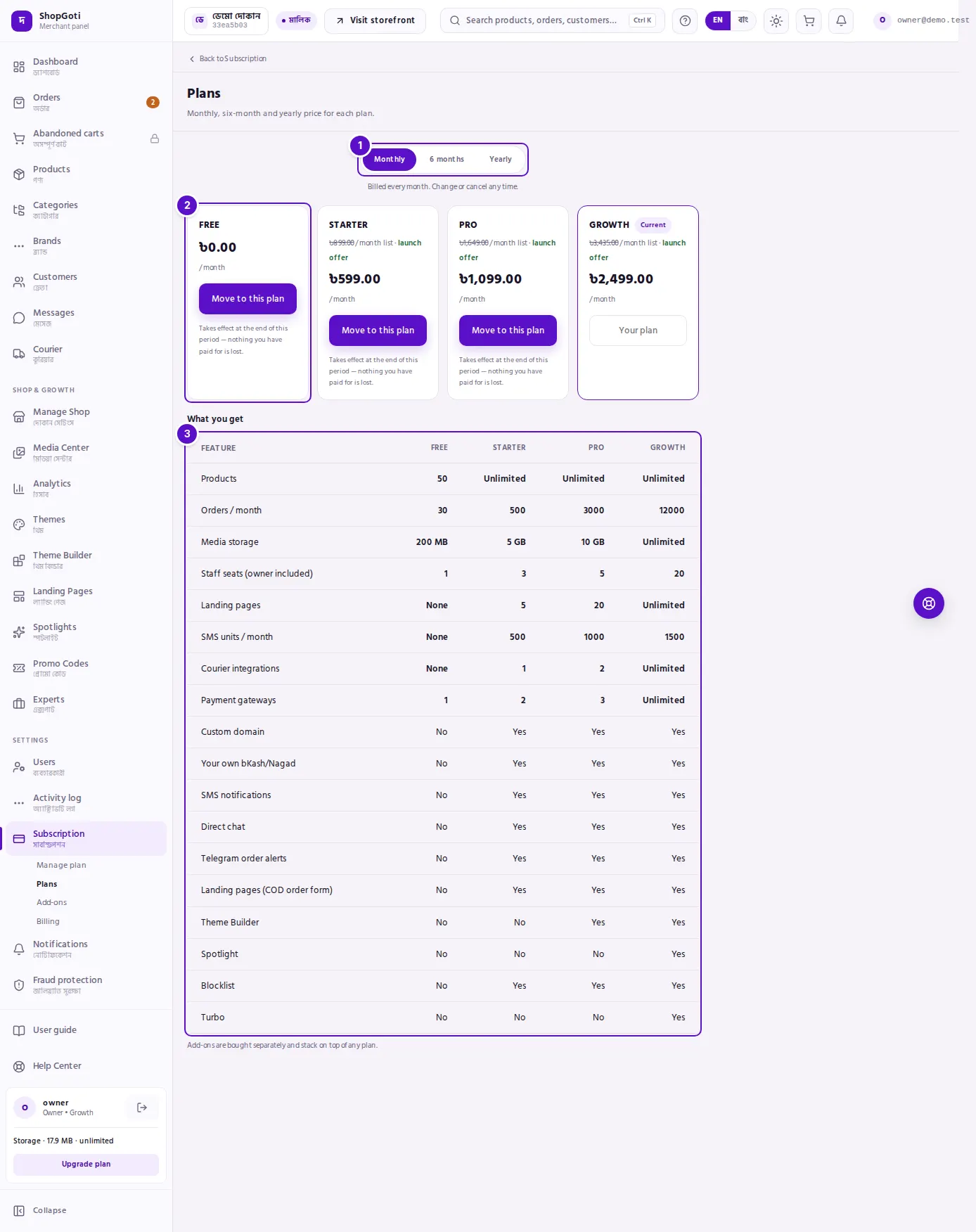
- Billing-cycle switch — three buttons: Monthly, 6 months and Yearly. Each card's price follows the cycle you pick.
- Plan card — the plan name, the Current badge on the plan you are on, or a save N% badge when the cycle costs less than paying monthly. Then the price, the features it unlocks, and the button.
- What you get — one row per limit, such as Products, Orders / month and Staff seats (owner included), and one row per feature, such as Custom domain or Theme Builder. Each cell shows a number, Unlimited, None, Yes or No.
Steps
Compare plans and prices
Steps
- Open Subscription, then Plans, from the rail under Settings.
- Press Monthly, 6 months or Yearly above the cards. Each card changes to that cycle's price.
- Read each card: the price and its unit, any save N% badge, the features it unlocks, and the Current badge if it is your plan.
- Scroll down to What you get to compare limits and features across all the plans.
Choose an upgrade or a new plan
Steps
- Press the billing-cycle button you want.
- On the card you want, press Choose this plan.
- Read the line under the button: "Raises an invoice. The plan starts once it is paid."
- Open Billing and pay the invoice. The new plan starts when the invoice is paid. See Billing.
Move to a cheaper plan
Steps
- On the cheaper plan's card, press Move to this plan.
- Read the line under the button: "Takes effect at the end of this period — nothing you have paid for is lost."
- The change takes effect when the current period ends. Your plan stays the same until then.
Tips and common mistakes
Related pages
- Manage plan — change, pause or cancel the plan you have.
- Add-ons — buy one feature without changing plan.
- Billing — pay the invoice a plan change raises.