10.6Payment Gateway
See which payment methods buyers can use, add your own bKash or Nagad number with the TrxID flow, enter online gateway keys, and understand test and live mode and what your package allows.
- Menu:
- Manage Shop
- Who:
- Owner · Manager
- Package:
- All packages
- Updated:
- 2026-10-15
Overview
Payment Gateway shows every payment method your shop offers, and lets the Owner set up the ones that need details.
There are three kinds of method on this page:
- Cash on delivery is always on. The buyer pays the courier when the parcel arrives. Whether it is offered for an address is set per zone on the Delivery Support page.
- Your own bKash or Nagad number is the method most small shops use. The buyer sends money to your number and enters a TrxID (the transaction ID from their app). You match it on the order and approve it there.
- Online gateways — bKash gateway, Nagad, SSLCommerz and aamarPay — take card-style payments through a provider. SSLCommerz is live with your own SSLCommerz account (Starter and above; on Free, checkout offers cash on delivery only). The other three are not yet live: their cards say Not available yet, and they do not take payments even if you save keys for them.
Owners and Managers can see this page. Only the Owner can save your number or enter gateway keys. A Manager sees the forms hidden.
Package: cash on delivery is on every package. The Free package includes cash on delivery only. Your own bKash or Nagad number is part of Starter and above.
Screen tour
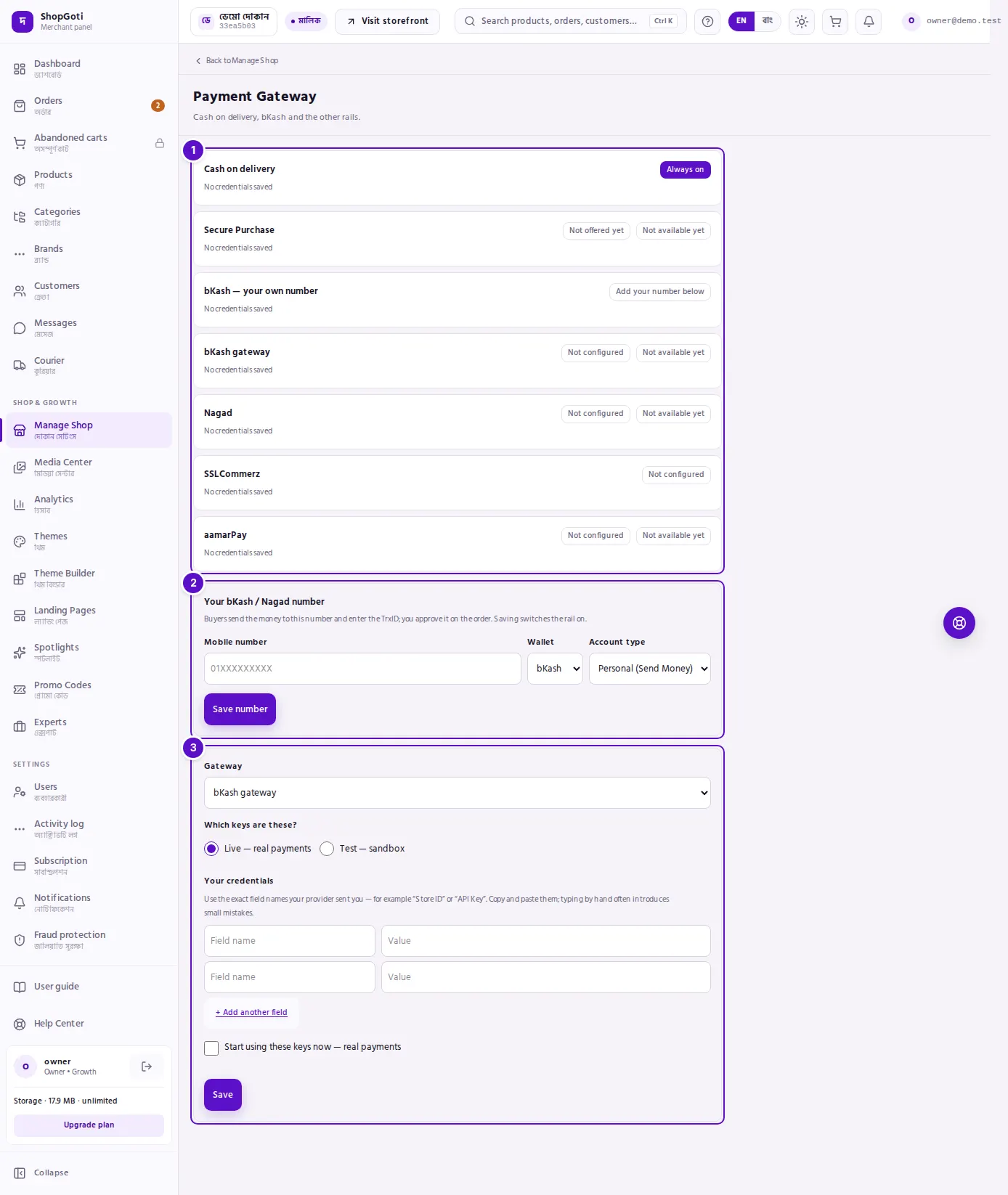
- Payment cards — one card for each method. Each shows the method's name, the saved keys (masked) or the words No credentials saved, the date they were saved, and a status badge.
- Your bKash / Nagad number — the form for your own number. Owners only, and only on packages that include it.
- Gateway keys — the form for online gateway keys. Owners only.
On a package without your own number, a note above the cards says that your package does not include it.
Steps
Read the payment list
Steps
- Look at each card's name. For example, Cash on delivery or bKash — your own number.
- Read the badge on the right of each card:
- Always on — cash on delivery.
- Run by ShopGoti or Not offered yet — Secure Purchase, which you cannot switch yourself.
- Add your number below — your own bKash or Nagad number is not set yet.
- Not configured — no keys are saved for an online gateway.
- Test mode — the gateway is running on test keys. A shop in test mode takes no real money.
- Live — the gateway is running on live keys.
- Test keys saved or Live keys saved — keys exist for the other mode too.
- Not available yet — the method is not live in this version of the panel.
- Read the line under the name. It shows the saved keys with their values hidden, or No credentials saved. A Saved line with a date shows when they were last saved.
Turn on your own bKash or Nagad number (Owner)
Steps
- Under Your bKash / Nagad number, type the Mobile number. Use 11 digits starting with 01, for example 01712345678. A number that starts with +880 is accepted and converted.
- In Wallet, choose bKash or Nagad.
- In Account type, choose Personal (Send Money), Merchant (Payment) or Agent (Cash Out).
- Press Save number. A message says Saved — buyers can now pay to this number. The method is switched on.
Saving again replaces the number.
How the TrxID flow works: the buyer sends the money to your number, then types the TrxID into the checkout. The order then waits for you. Check the TrxID against your bKash or Nagad statement, and approve the payment on the order. The orders list chapter explains where to find it.
Add keys for an online gateway (Owner)
The four online gateways are listed in this form, but in this version they are not live. Saving keys does not make them take payments. Follow these steps when a gateway is live for your shop.
Steps
- Under Gateway, choose the gateway: bKash gateway, Nagad, SSLCommerz or aamarPay.
- Under Which keys are these?, choose Live — real payments or Test — sandbox.
- Under Your credentials, type each field's name in the Field name box, exactly as your provider's email writes it, and its value in the Value box. Both boxes in a row must be filled. Press + Add another field for more rows.
- Optional: tick Start using these keys now — real payments (or test mode). This switches the gateway to the keys you just saved. Ticking the live box shows a confirmation first.
- Press Save.
Saved values are never shown again. The form always opens empty.
Switch between test and live keys (Owner)
To move a gateway to test or live, the panel asks you to enter that set of keys again.
Steps
- Under Which keys are these?, choose the set you want to run: Live or Test.
- Enter that set's keys in the credential rows.
- Tick Start using these keys now, then press Save.
Saving keys without ticking the box stores them, but the gateway keeps running on the keys it already uses.
Fields
Your bKash / Nagad number (Owner, Starter and above)
| Field | Required | What it does |
|---|---|---|
| Mobile number | Yes | An 11-digit number starting with 01. A +880 prefix is accepted. |
| Wallet | Yes (preselected) | bKash or Nagad. |
| Account type | Yes (preselected) | Personal (Send Money), Merchant (Payment) or Agent (Cash Out). |
Gateway keys (Owner)
| Field | Required | What it does |
|---|---|---|
| Gateway | Yes | The gateway the keys belong to. |
| Which keys are these? | Yes (preselected) | Live — real payments or Test — sandbox. |
| Field name | At least one row | The name of the field, as your provider writes it. |
| Value | At least one row | The value for that field. Both boxes in a row must be filled. |
| Start using these keys now | No | Ticked, it switches the gateway to these keys. |
Tips and common mistakes
- Test mode takes no real money. A gateway in Test mode does not take real payments. Check the badge before you advertise your shop.
- Copy keys exactly. Paste the field names and values from your provider's email. Capital letters and spaces count. The panel says so if a provider rejects them.
- New keys may need time. If you have just created keys, they can take 5 to 10 minutes to start working on the provider's side.
- Advance payments use your number. A product can ask for an advance payment. The buyer sends that advance to your bKash or Nagad number, so save your number before you use the advance option on a product.
- Free package: cash on delivery only. On Free, buyers see cash on delivery only. The panel's note says you can save your number before you upgrade. In this version the number form is hidden on Free, so you can add it after you move to Starter.
- Managers cannot change payment details. Ask the Owner to save your number or keys.
Related pages
- Delivery Support — where cash on delivery is offered, zone by zone
- Integrations — a read-only summary of your payment methods
- Orders list — where you approve a TrxID payment