22.1Notifications
The bell, the three tabs — My notifications, Send log and Preferences — the SMS meter, and who can see what.
- Menu:
- Notifications
- Who:
- Owner · Manager · Staff
- Package:
- All packages
- Updated:
- 2026-10-15
Overview
The Notifications page has three tabs:
- My notifications — messages the panel has sent to you, for example about new orders.
- Send log — a record of the messages that were sent, who they went to, by which channel, and what state they reached.
- Preferences — who has agreed to receive marketing messages. Only Owners and Managers see this tab.
The bell at the top right of the panel shows how many notifications you have not read yet. Its number counts your own notifications, not the whole shop's.
Owners, Managers and Staff can all open the page and the first two tabs.
Screen tour
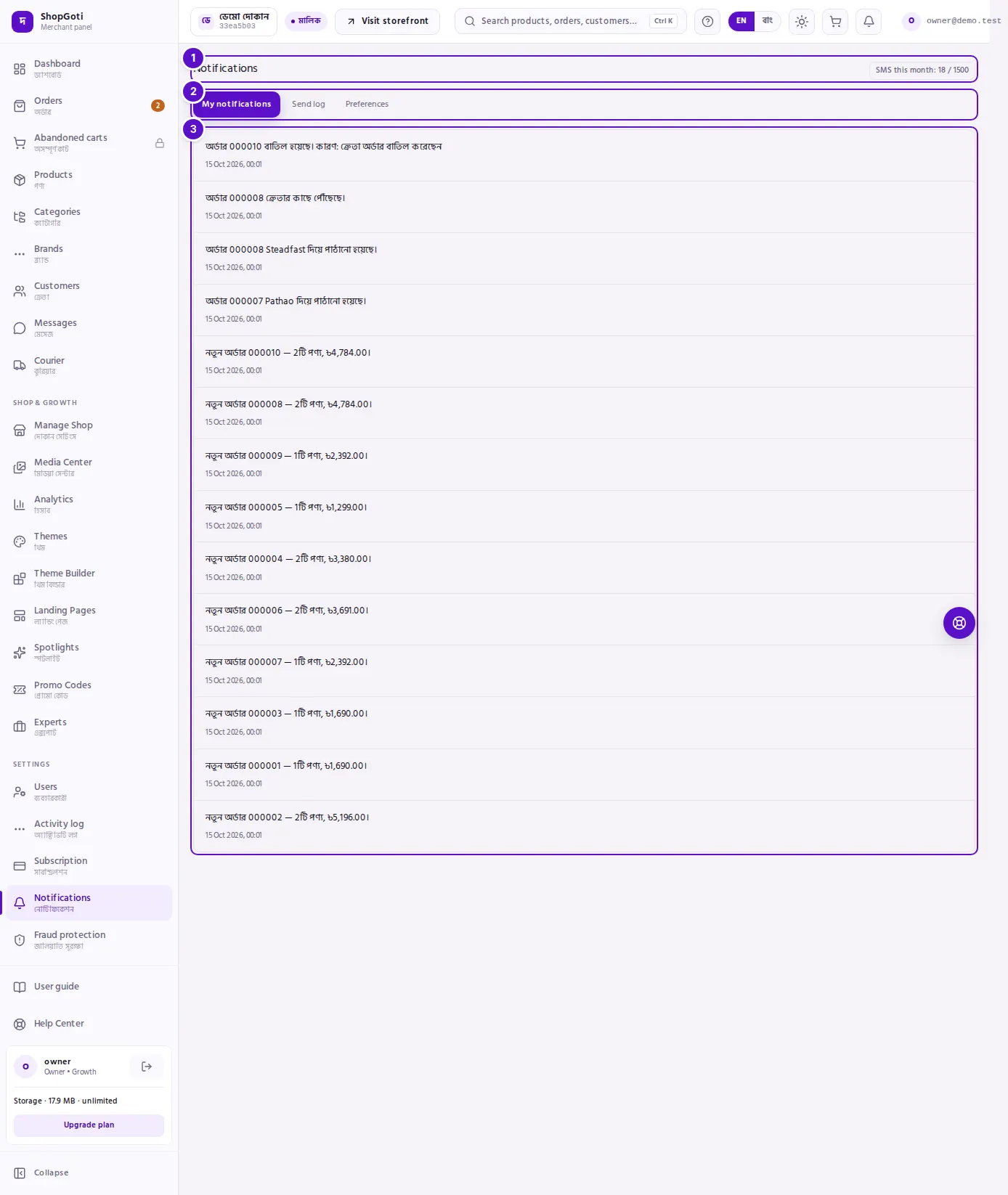
- Title and SMS meter — shows "SMS this month: used / limit" for your package, or "Your package has no SMS" when the package includes none. The badge turns red once the monthly limit is used up.
- Tabs — My notifications, Send log and Preferences. Staff do not see Preferences.
- The open tab's content — a list, a table, or the note "Nothing new." when there is nothing to show.
Steps
The bell
Steps
- Look at the bell icon at the top right of the panel. When you have unread notifications, a number appears on the icon. When you have none, no number is shown.
- Press the bell. The Notifications page opens on My notifications.
- Opening My notifications marks your notifications as read, and the number on the bell goes away.
- While you work in the panel, a new notification updates the number on the bell by itself. A notice reads "You have a new notification" with an Open button.
My notifications tab
Owners, Managers and Staff all see this tab.
Steps
- Stay on My notifications. The page opens on it.
- Read each notification. A notification with a subject shows the subject in bold, then the message, then the date and time.
- The list shows only the notifications sent to you. You do not see the notifications sent to other members.
- If there are none, the page reads Nothing new.
Send log tab
Owners, Managers and Staff all see this tab.
Steps
- Press Send log.
- Read each row. The columns are Template (the kind of message, with its version and language), Triggered by (the event that caused it), Channel, To, State and When.
- The address in To is hidden on screen, so the full number or address is not shown.
- Under State, a failed message shows its reason in small text.
- Read the line under the table, for example "8 messages · page 1". This screen has no filter controls and no buttons to move to another page.
- If nothing has been sent yet, the page reads Nothing sent yet.
Preferences tab
Only Owners and Managers see this tab.
Steps
- Press Preferences. If you are a Staff member, this tab is not in the list.
- Read the table. The columns are Recipient (a short reference and the kind of recipient), Channel, Marketing (Opted in or Not opted in), Recorded by (where the decision came from: you, the buyer's own unsubscribe link, or the CRM sync) and When.
- Read the note under the table. In-app notifications have no opt-out, so they are not listed. Editing preferences is not built yet, so this tab is for reading only.
- If no preferences are recorded, the page reads No preferences recorded.
Tips and common mistakes
- Opening the inbox clears the count. The number on the bell goes away when you open My notifications. A number that comes back means a new notification has arrived.
- The SMS meter does not count OTP codes. Login and sign-up codes are not added to the monthly SMS count.
- Staff see less. Staff can read My notifications and the Send log, but not Preferences.
- The send log is not the message. Use it to check whether a message went out. Use My notifications to read what you were sent.
- The bell shows your own notifications only. If a colleague's notification is not on your bell, that is expected.
Related pages
- Dashboard — the summary of new and on-hold orders
- Orders list — every order of the shop