10.11Showrooms
List up to ten physical showrooms or shop addresses with their phone, hours, Google Maps link and photo, so buyers can visit or call.
- Menu:
- Manage Shop
- Who:
- Owner · Manager
- Package:
- All packages
- Updated:
- 2026-10-15
Overview
Showrooms lists the physical places where buyers can visit you: a showroom, a branch or a shop address. You can add up to 10 showrooms. The panel's note says they appear on your storefront with a map link and a call button, in the Moto Shop theme.
Each showroom has a name, an address, a phone number, opening hours, a Google Maps link and an optional photo. The whole list is saved together with one button.
Owners and Managers can change showrooms. Staff are sent to the dashboard.
Screen tour
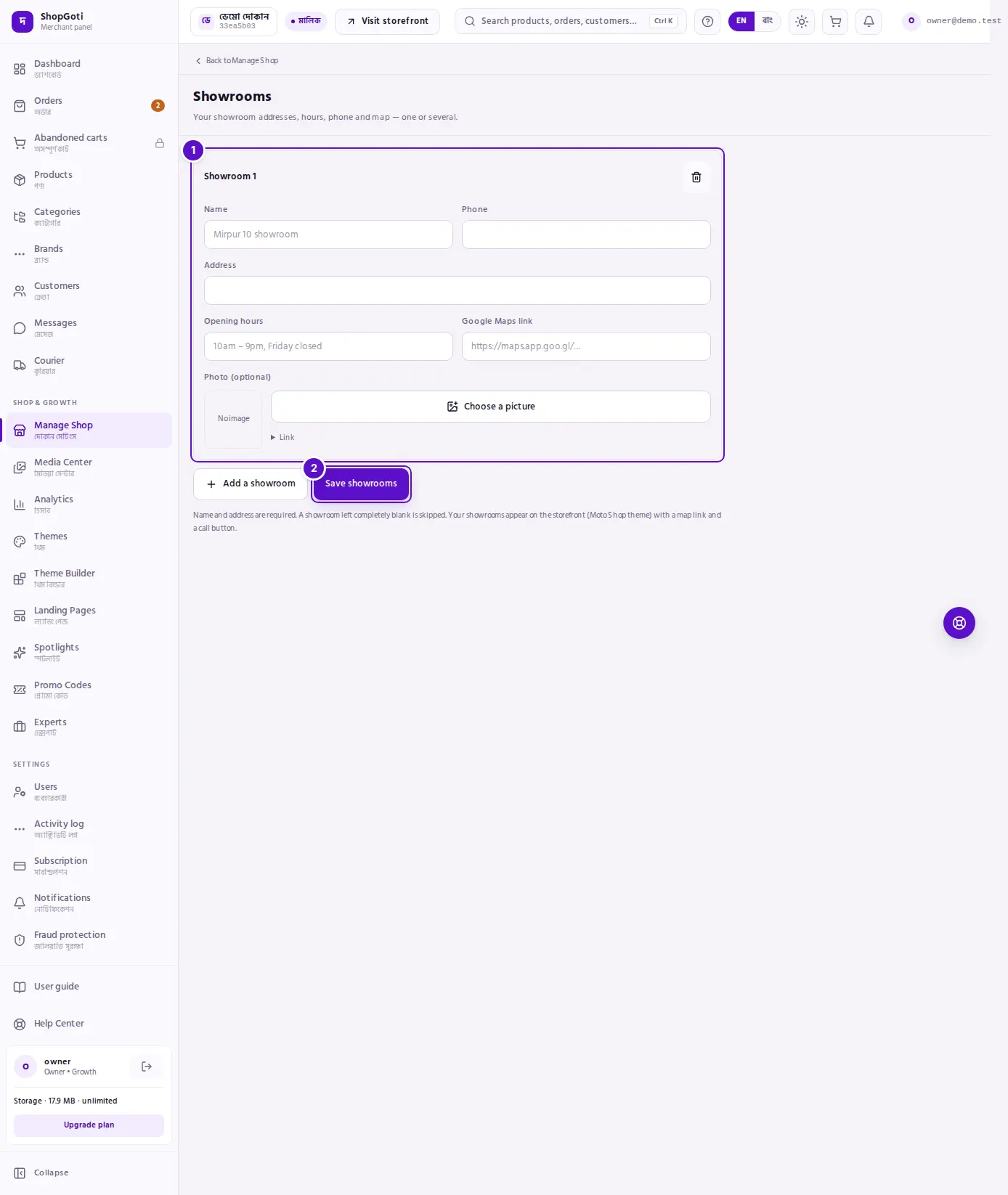
- A showroom card — one card per showroom, titled Showroom 1, Showroom 2 and so on. It has a bin icon at its top right, and the fields below it. Below the last card, Add a showroom adds an empty card. That button disappears when you have ten showrooms.
- Save showrooms — saves the whole list, with every card in it.
Steps
Add a showroom
Steps
- Press Add a showroom. A new card opens at the bottom of the list.
- Type the Name and the Address. Both are required.
- Optional: type the Phone, the Opening hours, the Google Maps link and add a Photo.
- Repeat for each showroom, up to ten.
- Press Save showrooms.
Change or remove a showroom
Steps
- Find the showroom's card, and change any of its fields.
- To remove a showroom, press the bin icon on its card. The card disappears.
- Press Save showrooms. The list is saved without the removed card.
A card that you remove is not saved until you press Save showrooms.
Add a map link
Steps
- Open Google Maps, find your showroom, and copy its share link.
- Paste the link into the Google Maps link box.
- Press Save showrooms.
Fields
| Field | Required | What it does |
|---|---|---|
| Name | Yes | The showroom's name, up to 80 characters. |
| Phone | No | The phone number buyers can call, up to 30 characters. |
| Address | Yes | The showroom's address, up to 300 characters. |
| Opening hours | No | The hours, up to 120 characters, for example "10am – 9pm, Friday closed". |
| Google Maps link | No | The map link buyers open for directions. |
| Photo (optional) | No | A photo of the showroom. |
Tips and common mistakes
- Name and address are required. A showroom needs both before it can be saved.
- A blank card is skipped. A card with every field empty is not saved, so you do not need to remove it first.
- Ten is the limit. The Add a showroom button is hidden at ten. To add another, remove one first.
- Showrooms show on the hub as Done. On the Manage Shop hub, Showrooms shows Done once at least one showroom is saved, and To do with "No showrooms yet." when there are none.
- Paste the share link, not the page address. The link should open the place on the map.