26.1Top bar
Every control in the panel's top bar: the shop, your role, search, the page "?", language, theme, new order, notifications and the account menu.
- Menu:
- Top bar and phone
- Updated:
- 2026-10-15
Overview
The top bar sits above every page. On the left you see which shop you are in and your role. On the right are search, page help, language, theme, new order, notifications and the account menu.
On a computer, all these controls sit in one row. A phone has fewer of them — see Using the panel on a phone. For the full list of menus, see Start here: panel tour.
Screen tour
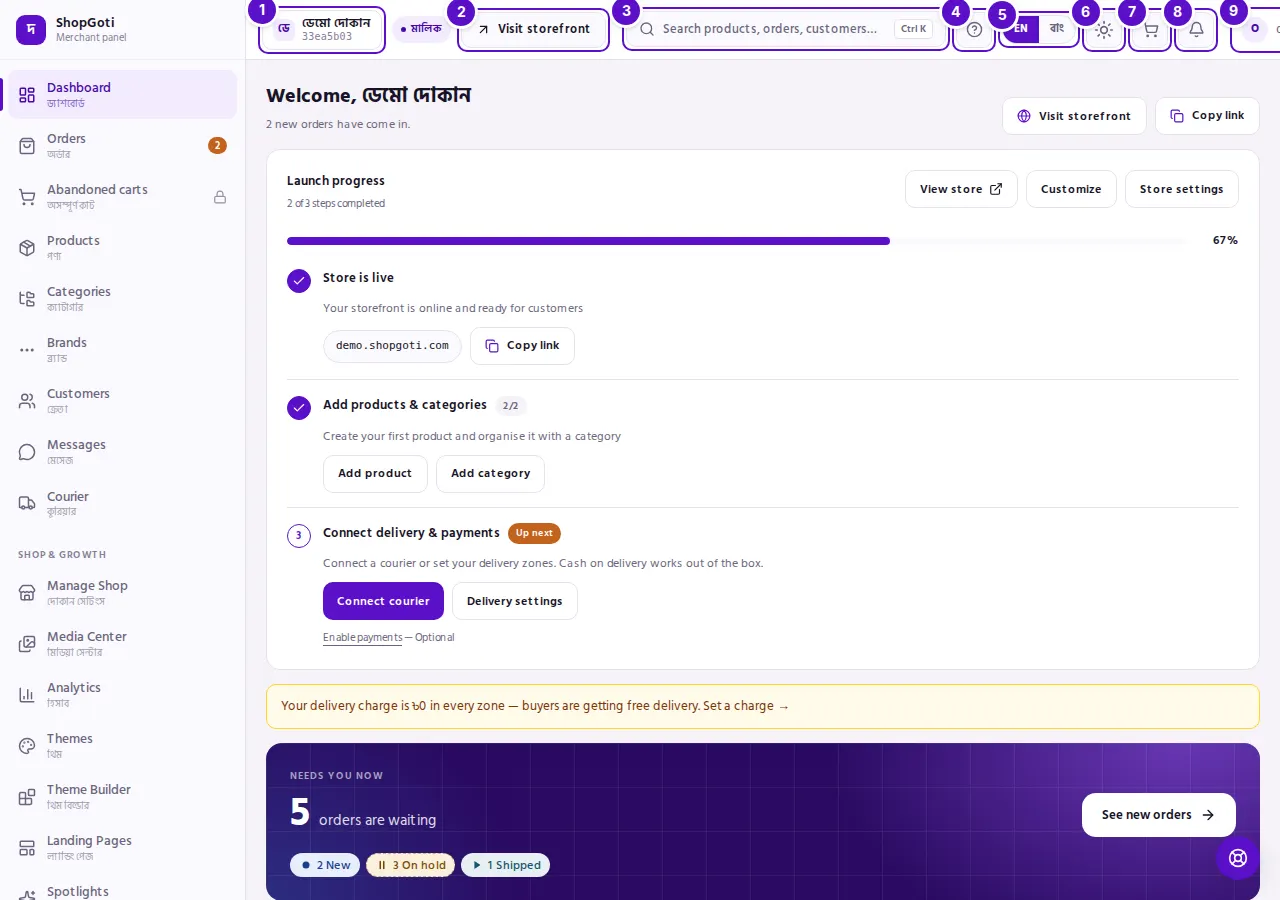
- Shop name and ID — the shop you are in. Under the name, the first 8 characters of the shop's ID. Beside it, your role: Owner, Manager or Staff.
- Visit storefront — opens your shop's public front page in a new tab. The button does not appear until the shop has a verified domain.
- Search button — reads "Search products, orders, customers…". Press it, or press Ctrl K (⌘K on a Mac), to open the search box.
- ? — opens the guide for the screen you are on, in a new tab.
- EN / বাং — switches the language. The language in use is shown as a filled button.
- Theme — Light, Dark or System.
- New order (cart icon) — opens the new-order form.
- Notifications (bell) — opens the notifications page. A number at the corner of the bell shows how many are new.
- Account menu — the round button with the first letter of your name. It opens Row density, My account and Log out.
Steps
Shop and search
Steps
- Look at the shop name on the left. This is the shop you are working in. If your account works in more than one shop, press the name to switch — every shop is listed with your role in it.
- To see how buyers see your shop, press Visit storefront. It opens in a new tab, and the panel stays where it is.
- To find a product, order or customer, press Search products, orders, customers…. On a computer you can also press Ctrl K (⌘K on a Mac).
- Type at least two characters. The results appear in three groups: Products, Orders and Customers. Each group shows up to five.
- Use the arrow keys to move up and down, and press Enter to open a result. Press Esc to close the box.
The page "?"
Steps
- On the page you need help with, press the ? in the top bar.
- The guide opens in a new tab, at the chapter for that page. On the Orders page, for example, it opens the Orders list chapter.
- If no chapter covers the screen yet, the guide's start page opens.
Language and theme
Steps
- Press EN or বাং. The panel's language changes, and you stay on the same page.
- Press the theme button (the sun or moon icon), then choose Light, Dark or System. System follows your device's setting.
New order and notifications
Steps
- Press the cart icon to open the New order form. Orders that came by phone, Facebook or across the counter are entered here.
- Press the bell to open notifications. The number at its corner tells you how many are new.
The account menu
Steps
- Press the round button with the first letter of your name at the right of the top bar. On a wide screen, a partly hidden email or phone number shows beside it.
- Under Row density, choose Comfortable or Compact. This changes the space between rows in lists. Buttons keep their size.
- Press My account to open the My account page. Press Log out to sign out on this device.
Tips and common mistakes
- The search box is on a computer only. The phone's top bar has no search button.
- No Visit storefront button? The shop's domain is not verified yet. Once the shop's address is set up, the button appears.
- Row density is on a computer only. It sits in the account menu, which is shown on a computer.
- Language and theme are remembered in this browser. On another phone or computer, choose them again.
- The "?" and the floating help button are different. The "?" opens the guide for the page you are on. The round floating button at the bottom right of a computer screen opens the Help Center.
- New order is for everyone. Staff can use it too, since phone orders are often taken by Staff.
Related pages
- Start here: panel tour — the menu, the top bar and the phone bar at a glance
- Using the panel on a phone — the bottom bar and the More sheet
- Your account card — the card at the foot of the menu
- My account — deleting your account and closing your shop