21.5Billing and invoices
Every invoice for your shop, what each line means, how to pay an open invoice by bKash and submit the payment proof, and when a receipt is available.
- Menu:
- Subscription → Billing
- Who:
- Owner
- Package:
- All packages
- Updated:
- 2026-10-15
Overview
Billing lists every invoice the platform has raised for your shop. An invoice is raised when you subscribe, upgrade, or buy an add-on, and when a monthly renewal falls due. The page is open to the Owner only.
Each invoice has its own page. There you see its lines and its total, pay it if it is open, and download the receipt once it is paid.
Payment is made by bKash, by hand. You send the amount to the ShopGoti account shown in the instruction box on the invoice page, then you submit the bKash transaction details. ShopGoti checks the transfer and marks the invoice Paid. You cannot mark an invoice paid yourself.
Screen tour
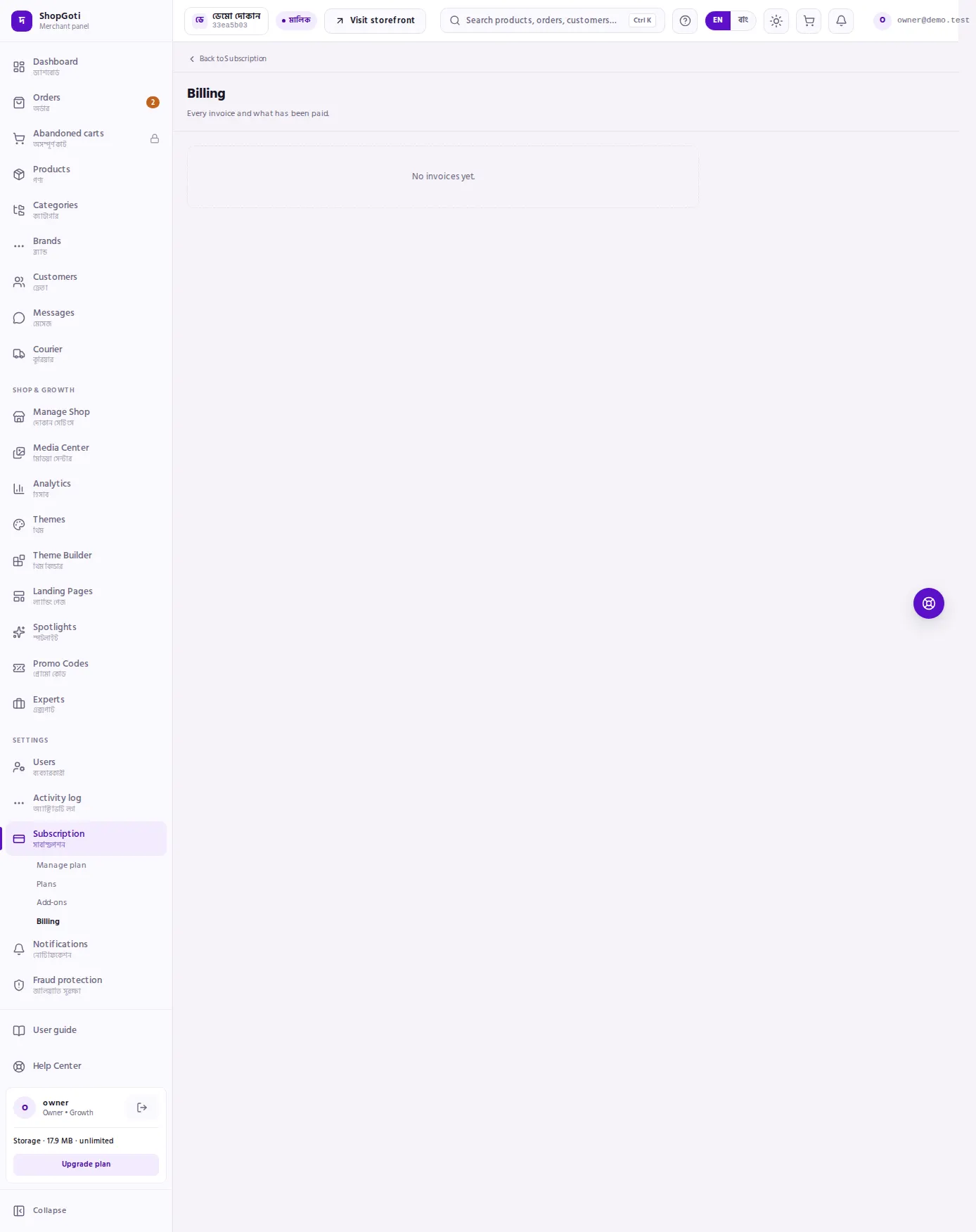
- Invoice table — five columns: Issued (the date), Type, Period, Amount and Status. The table appears only when there are invoices.
- Issued date — each date is a link. Press it to open that invoice's page. An open invoice shows a Pay now button in the Status column instead of a status word.
The invoice page itself has these parts, top to bottom:
- Header — a short invoice number, the type, the date it was issued, and a status badge: Paid, Pending, Unpaid or Void.
- Pay this invoice — shown only on an open invoice. It shows the amount to send, the instruction box, and the form for the transaction details.
- Invoice lines — each line with its amount, then the Total.
- Receipt — Download receipt once the invoice is paid.
Steps
Find an invoice
Steps
- Open Subscription, then Billing, from the rail under Settings.
- Read the table. Issued is the date. Type shows SUBSCRIPTION or ADDON, and for an add-on the add-on's short key follows it. Period is the billing period. Amount is in ৳. Status shows Paid or the invoice's state.
- Press the date in Issued to open the invoice.
Read an invoice's lines
Steps
- On the invoice page, read Invoice lines. Each line shows what it is for and its amount.
- Check the Total at the bottom of the list against the lines.
- Read the period line under the list. It says For the start and end dates, or No billing period. If the invoice was paid, the paid date follows it.
- Read the line Payment system status. It shows the payment system's own word, such as PENDING.
- If the lines do not add up to the total, a red warning, The invoice does not add up, shows both figures. Contact support before you pay.
Pay an open invoice by bKash
Open invoices have the status Unpaid or Pending. You can start from the Pay now button on the Billing list, or from the invoice page.
Steps
- Open the invoice. The block Pay this invoice appears at the top of the page.
- Read the amount beside Send. This is the exact amount to send.
- Read the instruction box. It names the ShopGoti bKash account to send the money to. Send the amount from your bKash account to that account.
- Keep the bKash confirmation SMS. It contains the transaction ID.
- Under Enter the details below after you have sent the money, type the Transaction ID exactly as it appears in the SMS.
- In The number you sent it from, type the bKash number you sent the money from, such as 017 followed by eight digits.
- Press Submit payment proof. A message says the proof is submitted and the team usually confirms it within a few hours.
- The page now shows Your payment is being verified. The payment form is hidden. Do not send the money again.
- When ShopGoti confirms the transfer, the status becomes Paid, and the plan or add-on starts.
If the instruction box is missing, the page shows No payment instructions. Do not send money in that case. Contact support first.
Download a receipt
Steps
- Open an invoice whose status is Paid.
- Press Download receipt. The receipt file opens or downloads.
- If the invoice is not yet paid, the page says The receipt appears here once the invoice is paid. instead of the button.
Fields
The payment form on an open invoice has two fields. Both are required.
| Field | What it does | Example |
|---|---|---|
| Transaction ID | The transaction ID from the bKash SMS you received after sending the money. | 8N7A2K9XQ1 |
| The number you sent it from | The bKash number you sent the money from. | 017XXXXXXXX |
Tips and common mistakes
Related pages
- Subscription overview — the banner that links to an unpaid invoice.
- Manage plan — plan changes that raise an invoice.
- Add-ons — buying an add-on raises an invoice here.