13.1Themes
Choose your shop's look — preset themes, brand colour, light or dark mode, the Buy Now button, filling the sections a theme needs, and switching on the Theme Builder.
- Menu:
- Themes
- Who:
- Owner · Manager
- Package:
- All packages
- Updated:
- 2026-10-15
Overview
The Themes page decides how your shop looks. There are two kinds of theme:
- Preset themes — ready-made themes. You choose one and switch it on, then fill in its sections (banners, categories, products).
- Theme Builder — a theme you design yourself. It is built on its own page (see Theme Builder).
Each preset needs some sections filled in. Until they are, the Apply theme button stays off, and the reason is written beside it. Switching theme deletes nothing — each theme keeps its own banners and choices.
Only Owners and Managers can view this page.
Screen tour
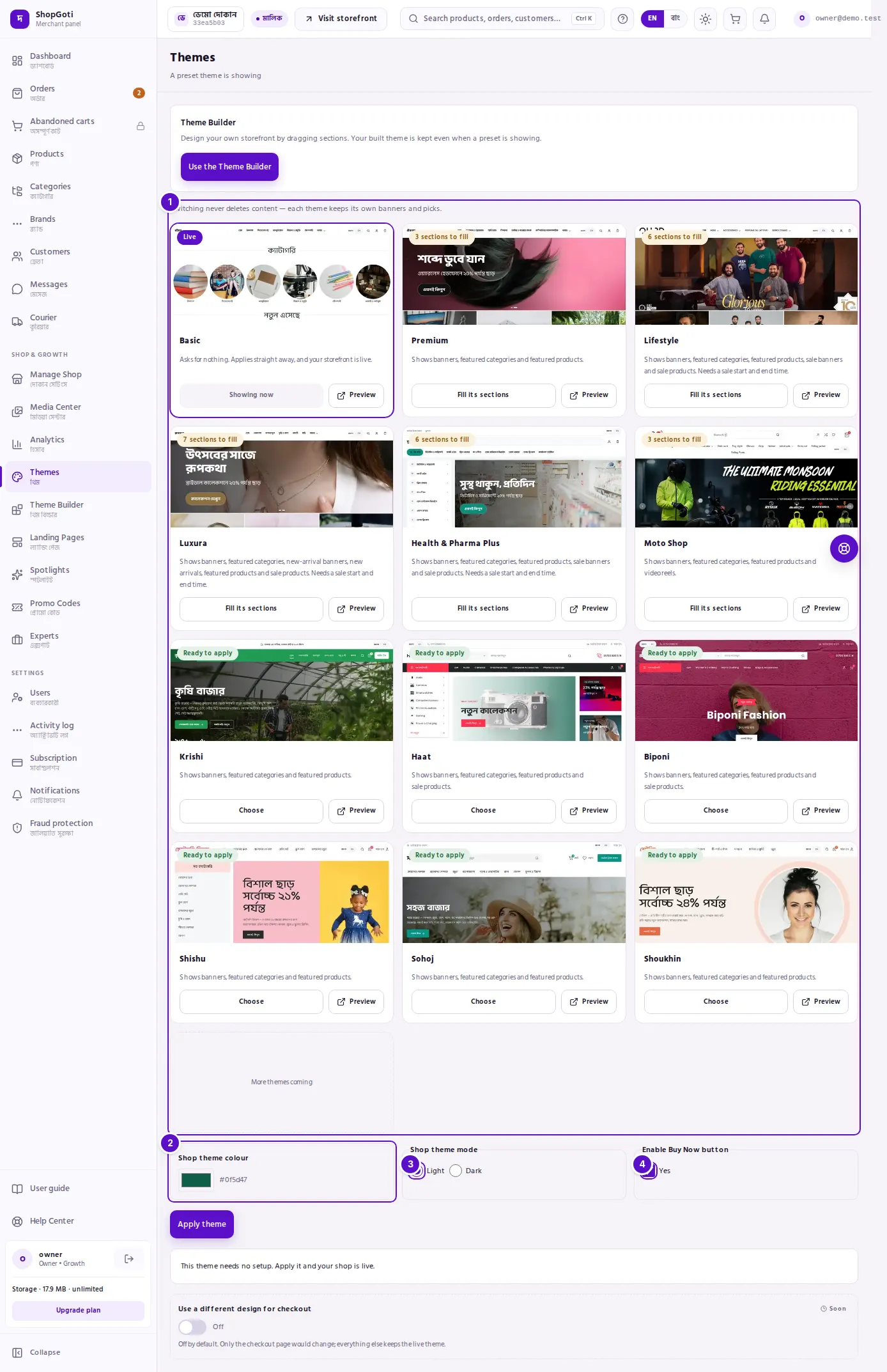
- Preset cards — each theme's name, a line on what it needs, and its state: Showing now, Ready to apply, or how many sections are still to fill. Where a card has a picture, hovering over it scrolls the sample shop slowly down.
- Shop theme colour — the colour box for the brand colour. The colour code is written beside it.
- Light or dark — the shop's mode. Choose Light or Dark.
- Enable Buy Now button — a tick box. Yes shows On; no shows Off. In Bangla the choice reads চালু or বন্ধ.
Above the cards is the Theme Builder card. Below the cards is the section board for the theme you have chosen. At the very bottom is a switch called Use a different design for checkout, which does not save yet (see the tips below).
Steps
Choose a theme and switch it on
Steps
- Open the Themes menu.
- Press a preset card. The chosen card gets a coloured outline.
- Read the state at the bottom of the card: Showing now, Ready to apply, or Fill its sections with the number still to do.
- If sections are still to fill, fill them on the section board below (see the next task).
- Set the shop colour, light or dark, and the Buy Now button further down.
- Press Apply theme. The preset, colour, mode and Buy Now setting are saved together.
Fill the sections a theme needs
Steps
- Look at the heading Set up {theme name} on the section board. It shows how many required parts are filled, with a bar.
- Each section is a folded row. The number on its right shows how many have been given, for example 2/5.
- Open the row and add pictures, categories, products or video links.
- Press Save at the bottom of the row.
- If the last row is Flash Sale Timer, enter the start and end times, then press Update timer.
- When everything required is filled, the heading says: "Everything this theme needs is filled. You can apply it now."
Add a banner's picture and where it goes
Steps
- In a banner row, press Choose a picture under Banner to choose from the Media Center, upload, or paste a picture link.
- Under Where tapping goes, choose a destination: a category, a product, a promo code or a page.
- If the destination you need is not in the list, open Or paste a link and paste the link.
- A banner with no destination stays a picture only.
- Press Save at the bottom of the section. All the banner pictures and destinations are saved together.
Set the brand colour and light or dark
Steps
- Press the colour box beside Shop theme colour and pick a colour. The colour code is shown beside the box.
- Under Shop theme mode, choose Light or Dark.
- Press Apply theme.
Turn the Buy Now button on or off
Steps
- Tick Enable Buy Now button to turn it on. The label shows Yes. Untick it to turn it off; the label shows No.
- Press Apply theme.
Turn the Theme Builder on, or go back to a preset
Steps
- In the Theme Builder card above the cards, press Use the Theme Builder. Your built theme now shows on your shop.
- While the Theme Builder is on, the button reads Switch back to a preset. Press it to show a preset again.
- Going back to a preset does not delete your built theme.
- If your plan does not include the Theme Builder, a warning appears beside the button, with a Compare plans link.
Preview a preset before you apply it
Steps
- On a preset card, press Preview. A demo shop for that theme opens in a new tab.
- The demo shop belongs to the platform. It has sample products and pictures, not your own.
Fields
| Field or button | What it does |
|---|---|
| Preset card | Chooses the theme. The card says which sections it needs. |
| Shop theme colour | The brand colour. Saved when you press Apply theme. |
| Shop theme mode | Light or dark. Saved when you press Apply theme. |
| Enable Buy Now button | Shows a buy button in the shop when on. Saved when you press Apply theme. |
| Apply theme | Saves the preset, colour, mode and Buy Now setting together. Off until the required sections are filled. |
| Picture and where tapping goes | The banner picture and where a buyer lands when they tap it. Both are saved together with the banner section's Save button. |
| Categories, products | The categories or products chosen for a section. Saved with the section's Save button. |
| Video link and product | The YouTube or Facebook link of a video reel, and optionally that reel's product. |
| Flash Sale Timer start and end | The countdown window, in Dhaka time (GMT+6). Saved with Update timer. |
What each theme needs
The number in brackets is the most you can add to that section. "Needs (at least)" is what must be filled before Apply theme works.
| Theme | Needs (at least) | Flash Sale Timer needed |
|---|---|---|
| Basic | Nothing. It applies straight away. | No |
| Tech Ghor | Homepage banners 1 (up to 5), featured categories 1 (up to 6), featured products 1 (up to 10) | No |
| Lifestyle | Homepage banners 1 (5), featured categories 1 (8), featured products 1 (10), sale banners 1 (5), sale products 1 (10) | Yes |
| Rupkotha | Homepage banners 1 (5), featured categories 1 (8), new arrivals — banner 1 (3), new arrivals — products 1 (10), featured products 1 (10), sale products 1 (10) | Yes |
| Health & Pharma Plus | The same as Lifestyle | Yes |
| Moto Shop | Homepage banners 1 (3), featured categories 6 (12), featured products 12 (24). Video reels are optional (8). | No |
| Krishi, Haat, Biponi, Shishu, Sohoj, Shoukhin | Nothing is required. The sections are optional. | No |
Tips and common mistakes
- When Apply theme is off, read the line beside it. It names the section and the number still needed.
- Choosing a card and switching a theme on are different. Choosing a card only changes the section board below it. The theme goes live only when you press Apply theme.
- Saving a section and switching a theme are different jobs. A section's Save keeps that section's entries. Applying the theme is what puts the chosen preset and its choices on the shop.
- The checkout switch does not save yet. It is marked Soon. Turning it on or off changes what you see on the screen, but nothing is stored and it does not change your shop.
- Basic has no sections. In its place the page shows a message: this theme needs no setup.
Related pages
- Theme Builder — layouts you design yourself
- Dashboard — a summary of the shop