17.2New promo code and edit
Create or change a promo code — discount type, limits, dates, who can see it and how often it can be used, with a worked example of the discount.
- Menu:
- Promo Codes
- Who:
- Owner · Manager · Staff
- Package:
- All packages
- Updated:
- 2026-10-15
Overview
This page creates a promo code or changes an existing one. New code opens an empty form. The Edit (pencil) icon on a code's row opens the same form filled in with that code. The one difference is the code box: once a code is created, its text cannot be changed.
Only Owners and Managers can open this page. Staff who arrive here are sent back to the promo codes list.
Screen tour
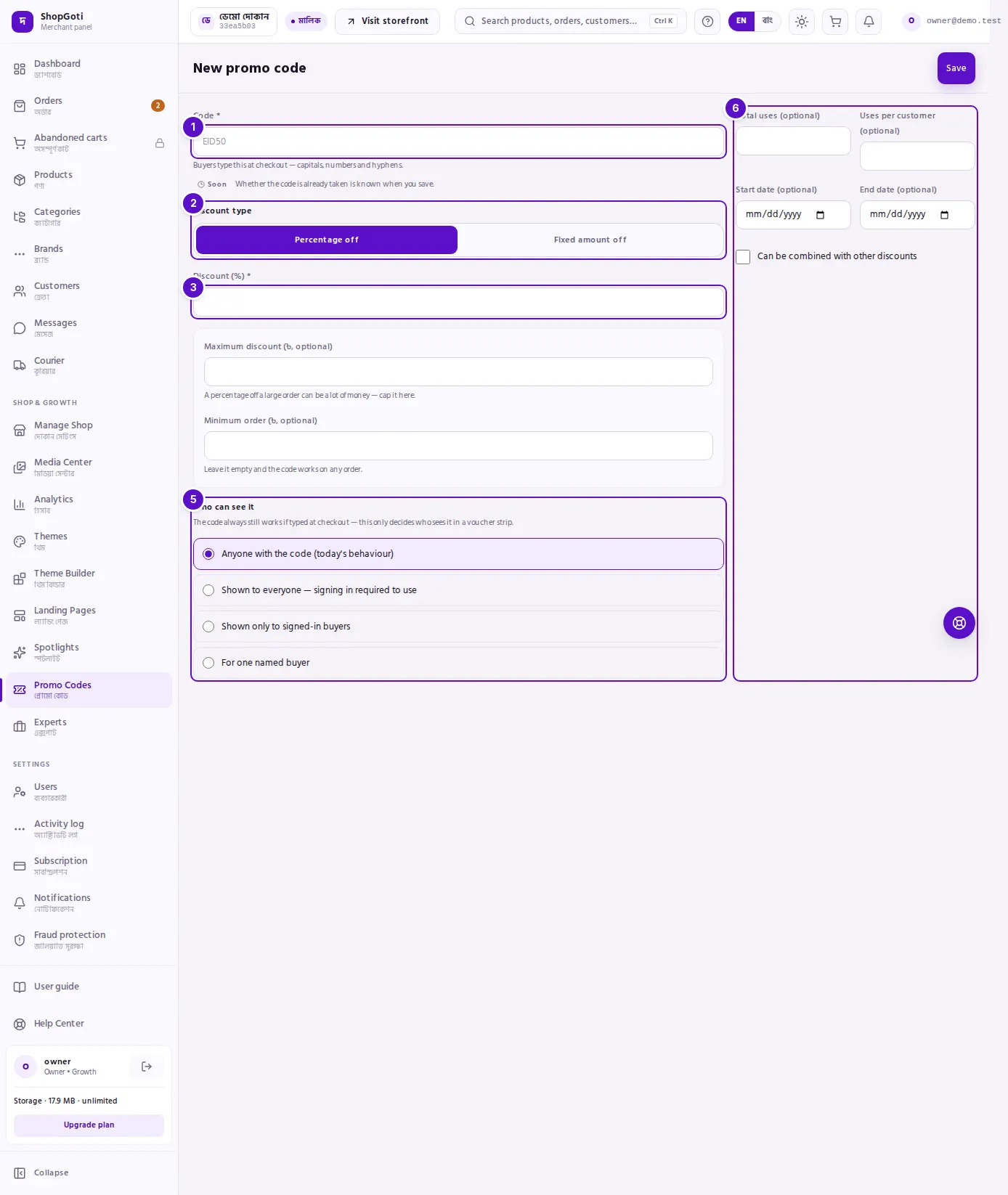
- Code box. What the buyer types at checkout. It becomes capitals when saved. On an existing code the box is locked.
- Discount type. Percentage off or Fixed amount off. Choosing one shows only that type's amount box.
- Discount (%) or Discount amount (৳). For a percentage, enter 1 to 100.
- The example box, which begins "On an order of…". It shows how much the buyer saves and what they pay. If you set a minimum order, the example uses it.
- Who can see it. Four options. A buyer can always type the code at checkout; this choice decides only who sees it in a voucher strip on your storefront.
- The right-hand column: Total uses (optional), Uses per customer (optional), Start date (optional), End date (optional) and Can be combined with other discounts. Save is also at the top of the form.
Steps
Create a code
Steps
- On the Promo Codes page, press New code at the top.
- In the Code box, type the code. Keep it to 40 characters or fewer, using capitals, numbers and hyphens. Lowercase letters are turned into capitals when you save.
- Under Discount type, choose Percentage off or Fixed amount off.
- For a percentage, type Discount (%) from 1 to 100. If you want a cap, type Maximum discount (৳, optional). For a fixed amount, type Discount amount (৳).
- Type Minimum order (৳, optional). Leave it empty and the code works on any order.
- Read the example box that begins "On an order of…". It shows what the buyer saves and what they pay.
- If you want, type Total uses (optional) and Uses per customer (optional).
- If you want, choose Start date (optional) and End date (optional).
- Under Who can see it, choose one option. The default is "Anyone with the code".
- Tick Can be combined with other discounts if this code can be used with another discount.
- Press Save. The message "Promo code created." appears and you return to the list.
Change an existing code
Steps
- On the code's row, press the Edit (pencil) icon.
- The Code box is locked. A code cannot be renamed.
- Change any other field: the discount, a limit, the dates or who can see it.
- Press Save. The message "Promo code saved." appears and you return to the list.
Make a code for one named buyer
Steps
- Under Who can see it, choose For one named buyer. A search box appears.
- In Which buyer, type the buyer's name or email. A list of matching buyers appears after a moment.
- Press the buyer's name. Their name is shown as chosen.
- To choose someone else, press Change, then search again.
- Press Save. If you have not chosen a buyer, the code is not saved.
Fields
| Field | Required | What it does |
|---|---|---|
| Code | Yes on a new code; locked when editing | What the buyer types at checkout. Up to 40 characters; capitals, numbers and hyphens. |
| Discount type | Yes | Percentage off or fixed amount off. One only. |
| Discount (%) | Yes, for a percentage code | From 1 to 100. |
| Discount amount (৳) | Yes, for a fixed code | More than zero. |
| Maximum discount (৳, optional) | No | Percentage codes only. A discount on a large order cannot go above this amount. |
| Minimum order (৳, optional) | No | The code does not apply to orders below this amount. Empty means any order. |
| Total uses (optional) | No | How many times the code can be used by all buyers together. Empty means no limit. |
| Uses per customer (optional) | No | How many times one buyer can use it. |
| Start date (optional) | No | The date from which the code works. |
| End date (optional) | No | The date until which the code works. Must be after the start date. |
| Can be combined with other discounts | No | If ticked, the code can be used together with another discount. |
| Who can see it | No | Four options; see the tips below. |
Tips and common mistakes
- Whether a code is already taken is known only when you save. There is no check before that.
- For a buyer who is already chosen, edit shows only the buyer's ID. Press Change and search again to see the name.
- A code that has expired can be given a new end date by editing it.