10.13Platform support access
See the record of every time ShopGoti support entered your shop, with the reason, the access level, how long it lasted and what was changed. Owner only.
- Menu:
- Manage Shop
- Who:
- Owner · Manager
- Package:
- All packages
- Updated:
- 2026-10-15
Overview
Platform support access is a log, not a switch. It shows each time ShopGoti support entered your shop to help you: when it happened, why, how long it lasted and whether anything was changed.
This page cannot allow, block or end support access. A visit is started by ShopGoti's team, not from this panel. Each visit needs a recorded reason, and a visit lasts up to 60 minutes at a time. Every visit is logged here.
Only the Owner can open this page. The Platform support access card on the Manage Shop hub is shown to the Owner only. A Manager who types the address is sent back to Manage Shop, and Staff are sent to the dashboard.
Screen tour
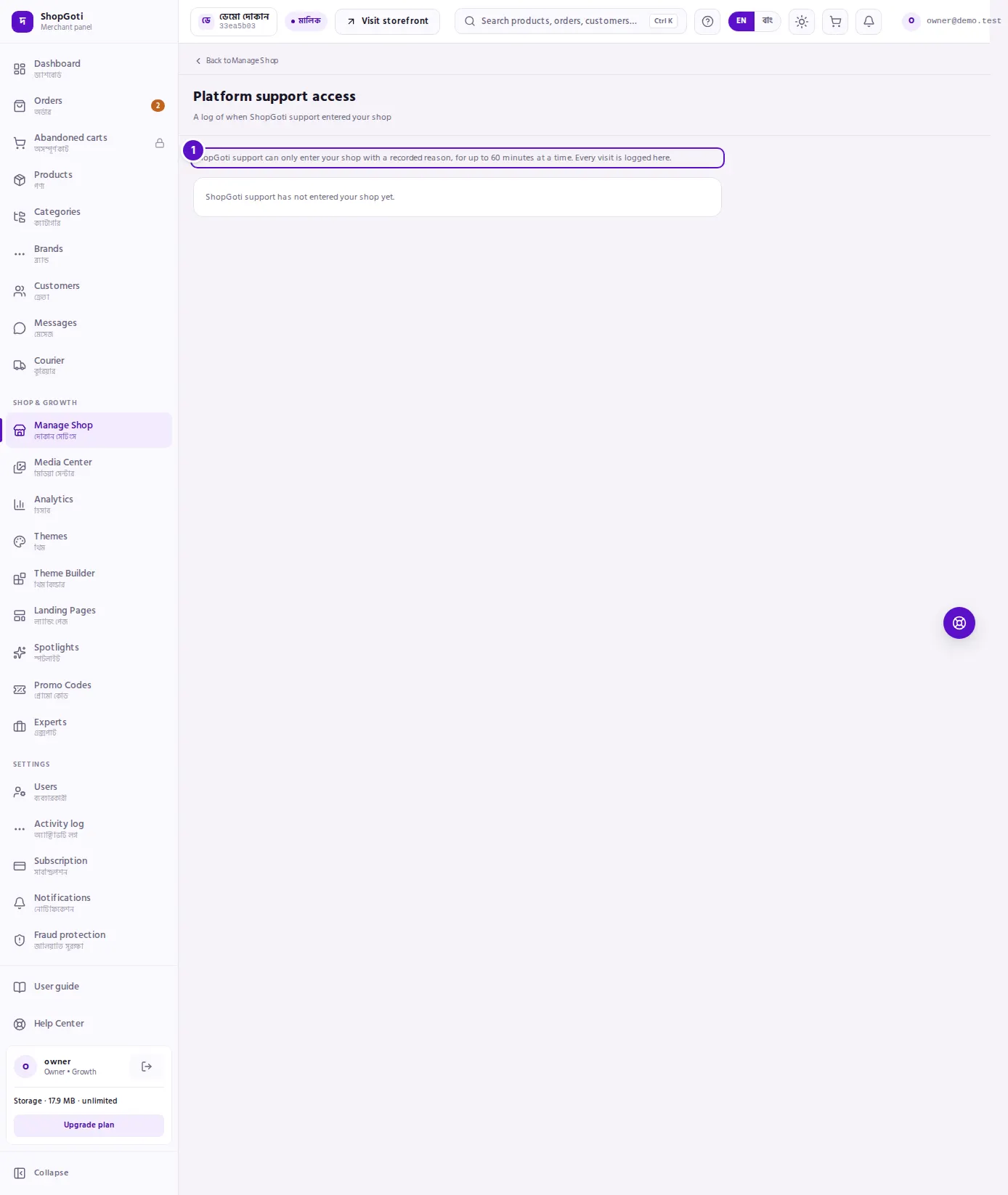
- The explanation — at the top, it says that ShopGoti support can enter your shop only with a recorded reason, for up to 60 minutes at a time, and that every visit is logged. If no visit has happened, the page says ShopGoti support has not entered your shop yet.
Each visit appears as a card below the explanation, with these lines:
- ShopGoti support as the name of who entered, with a badge that says View only or Assist. Assist is shown with a warning colour.
- The date and time the visit started.
- Reason — the reason given for the visit.
- Ticket — the support ticket reference, shown only when one was given.
- Duration — how long the visit lasted, for example "12 min". It can also say Ongoing, or Code generated, never used.
- The count of changes support made, or No changes made.
Steps
Read the support log
Steps
- Open Manage Shop and press the Platform support access card. The card is shown to the Owner only.
- Read the explanation at the top of the page.
- Read each visit card from the top. The newest visit is first.
Understand a visit's duration
Steps
- Read the Duration line.
- "12 min" — the visit lasted that long.
- Ongoing — the visit was still running when the page loaded.
- Code generated, never used — a support access code was made for your shop, but nobody entered it, so no visit took place.
Check what support changed
Steps
- Find the Changes line on the visit's card.
- No changes made means the visit did not change anything.
- A number means the visit made that many changes to your shop.
Ask ShopGoti about a visit
This page has no button to end or stop a visit. To ask about a visit, or to tell ShopGoti that you did not expect one, contact ShopGoti support through the Help Center.
Tips and common mistakes
- Only the Owner sees this page. Managers and Staff do not see the card, and they are sent away if they type the address.
- The log shows only what it records. It does not show the name of the ShopGoti person, their IP address, their browser, or the access code. It shows ShopGoti support as the name.
- The log is kept for 90 days. It shows up to 100 visits, the newest first. Older visits are not shown.
- A visit that says "Ongoing" may still be running. If you did not expect one, contact ShopGoti support through the Help Center.