9.4Couriers
The courier connections of your shop — add your own Pathao or Steadfast login details, switch a courier on or off, change the default courier, and finish the setup of your own delivery.
- Menu:
- Courier → Couriers
- Who:
- Owner · Manager · Staff
- Package:
- All packages
- Updated:
- 2026-10-15
Overview
The Couriers tab under Courier shows the status of your shop's courier connections. There are two kinds:
- Third-party couriers, such as Pathao or Steadfast. Here you give the courier login details from your own courier account. The details are saved and verified.
- Your own delivery, where you or your staff deliver parcels yourselves. Here you give the pickup address, the pickup window and the details for receiving payments.
The platform decides which third-party couriers are open to your shop. A courier that is not yet available shows Coming soon on its card. To have one turned on, contact support.
When an order does not name a courier, the shop's default courier is used.
Only Owners and Managers can change anything on this tab. Staff can view it; their cards say view only.
Screen tour
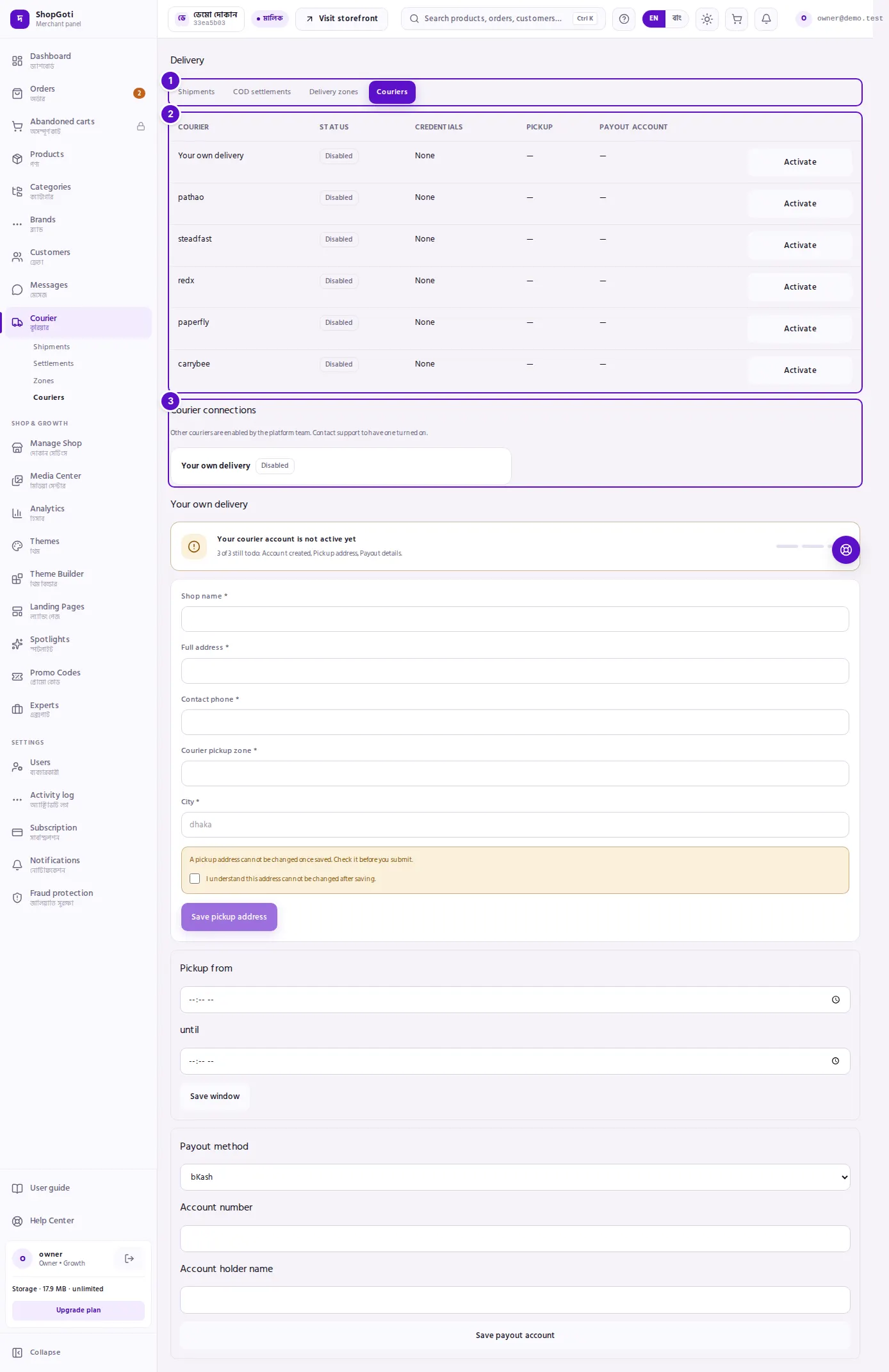
- Tab row — Couriers is the active tab.
- Connection list — columns: Courier, Status, Credentials, Pickup, Payout account. Owners and Managers also see an Activate or Switch off button at the end of each row.
- Courier connections — one card per courier. A card can hold the login form, the Make default button and the Switch off button. Below the cards is the Your own delivery section, where the pickup address, the pickup window and the payout details are entered.
Steps
Look at the status of your couriers
Steps
- Open the Courier menu, then press Couriers.
- In the Status column, read one of three values: Active, Pending, or Disabled.
- In the Credentials column, On file means login details are saved; None means they are not. The details themselves are never shown.
- Read the Pickup and Payout account columns to see what is already entered for your own delivery.
Add a third-party courier's login details (Owners and Managers)
Steps
- In Courier connections, find the card that has a form — for example
pathaoorsteadfast. If a card has no form, the courier is not open to your shop yet. - Fill in each field. The field names come from the courier. For Pathao they are Client ID, Client Secret, Pathao account email, Pathao account password and Store ID.
- If details are already saved, a secret field shows a partial mask, not the full value. Leave a box blank to keep the value already saved.
- For a courier that is not your default yet, tick Make this my default courier if you want it to be.
- Press Save & verify. While the check runs the button shows Verifying…. When it succeeds, the line Details verified and saved. appears.
Switch a courier on or off, or make it the default (Owners and Managers)
Steps
- To switch a courier on, press Activate on its row. Once it is on, its row and card show Switch off instead; press it to switch the courier off.
- To change the default courier, press Make default on the card of a courier that is active. The courier that is already the default shows Default courier on its card, and has no Make default button.
Finish the setup of your own delivery (Owners and Managers)
Your own delivery has three forms: the pickup address, the pickup window and the payout details. Each one is saved on its own.
Steps
- In the Your own delivery section, read the box at the top to see which steps are left. For example, it may say "2 of 3 still to do: …". Below it are three bars: a green bar is a finished step, a grey bar is a step still to do.
- In the Pickup address form, fill in Shop name, Full address, Contact phone, Courier pickup zone and City. Write the city in lower-case letters, such as
dhaka. - Tick I understand this address cannot be changed after saving. Until you tick it, Save pickup address cannot be pressed.
- Press Save pickup address. After saving, the form is replaced by the line The pickup address is set and cannot be changed.
- In the pickup window form, fill in Pickup from and until, then press Save window.
- Under Payout method, choose bKash, Nagad or Bank. Fill in Account number and Account holder name, then press Save payout account.
- When all three steps are done, the box says that everything has been provided and that the account goes live after review. When the account is active, the box says: Your courier account is active.
Fields
| Field | Where | Required | What it does |
|---|---|---|---|
| Client ID | Pathao card | Yes, if not already saved | Pathao's client ID for your account. |
| Client Secret | Pathao card | Yes, if not already saved | Pathao's client secret. Kept secret. |
| Pathao account email | Pathao card | Yes, if not already saved | The email of your Pathao account. |
| Pathao account password | Pathao card | Yes, if not already saved | The password of your Pathao account. Kept secret. |
| Store ID | Pathao card | Yes, if not already saved | The store number shown in your Pathao dashboard. |
| Api-Key | Steadfast card | Yes, if not already saved | Steadfast's API key. Kept secret. |
| Secret-Key | Steadfast card | Yes, if not already saved | Steadfast's secret key. Kept secret. |
| Webhook Bearer Token | Steadfast card | No (optional) | The token Steadfast sends with its status updates. Use the token you set in the Steadfast portal. |
| Shop name | Your own delivery, pickup | Yes | The name of the pickup place. Cannot be changed once saved. |
| Full address | Your own delivery, pickup | Yes | The full pickup address. Cannot be changed once saved. |
| Contact phone | Your own delivery, pickup | Yes | The phone number for the pickup. |
| Courier pickup zone | Your own delivery, pickup | Yes | The name of the pickup zone. |
| City | Your own delivery, pickup | Yes | The city, in lower-case letters. The box shows dhaka as an example. |
| Pickup from / until | Your own delivery, pickup window | Yes | The start and end of the pickup time. |
| Payout method | Your own delivery, payout | Yes | bKash, Nagad or Bank. The default is bKash. |
| Account number | Your own delivery, payout | Yes | The number of the account. |
| Account holder name | Your own delivery, payout | Yes | The name on the account. |
Tips and common mistakes
- Secrets are not shown again. After saving, the full password or key is not displayed. To change one, type the new value and save.
- When the check fails, the panel shows the reason. For example, if the Pathao Store ID is wrong, the message says it must be the number shown in your Pathao dashboard.
- This screen has no test or live mode. The details you enter are the ones that are saved and verified.
- The pickup address is permanent once saved. Check every box before you tick the confirmation.
- A card that says Coming soon means that courier is not yet available to your shop. Contact support; the platform decides when it is turned on.
Related pages
- Shipments — parcels sent through these couriers
- Zones — the charge for each area
- Settlements — the cash on delivery your courier has remitted