8.1Messages
The direct-chat inbox — buyer conversations, the unread filter, replies with basic formatting, replying to one specific message, sending a picture or a file, deleting a message, sharing a file, read state, and why the Messages entry can be missing from the menu.
- Menu:
- Messages
- Who:
- Owner · Manager · Staff
- Package:
- All packages
- Updated:
- 2026-10-29
Overview
Messages is the inbox for the chats that buyers start with your shop from your storefront. The left side lists the conversations, each with the buyer's name, phone number, a line from the last message and an unread count. The right side shows the open conversation, where you read and reply.
The list refreshes by itself, and so does an open conversation, so you do not need to reload the page. Messages in the menu shows a number when buyers have unread messages.
Owners, Managers and Staff can all open Messages. Answering buyers is Staff work.
Screen tour
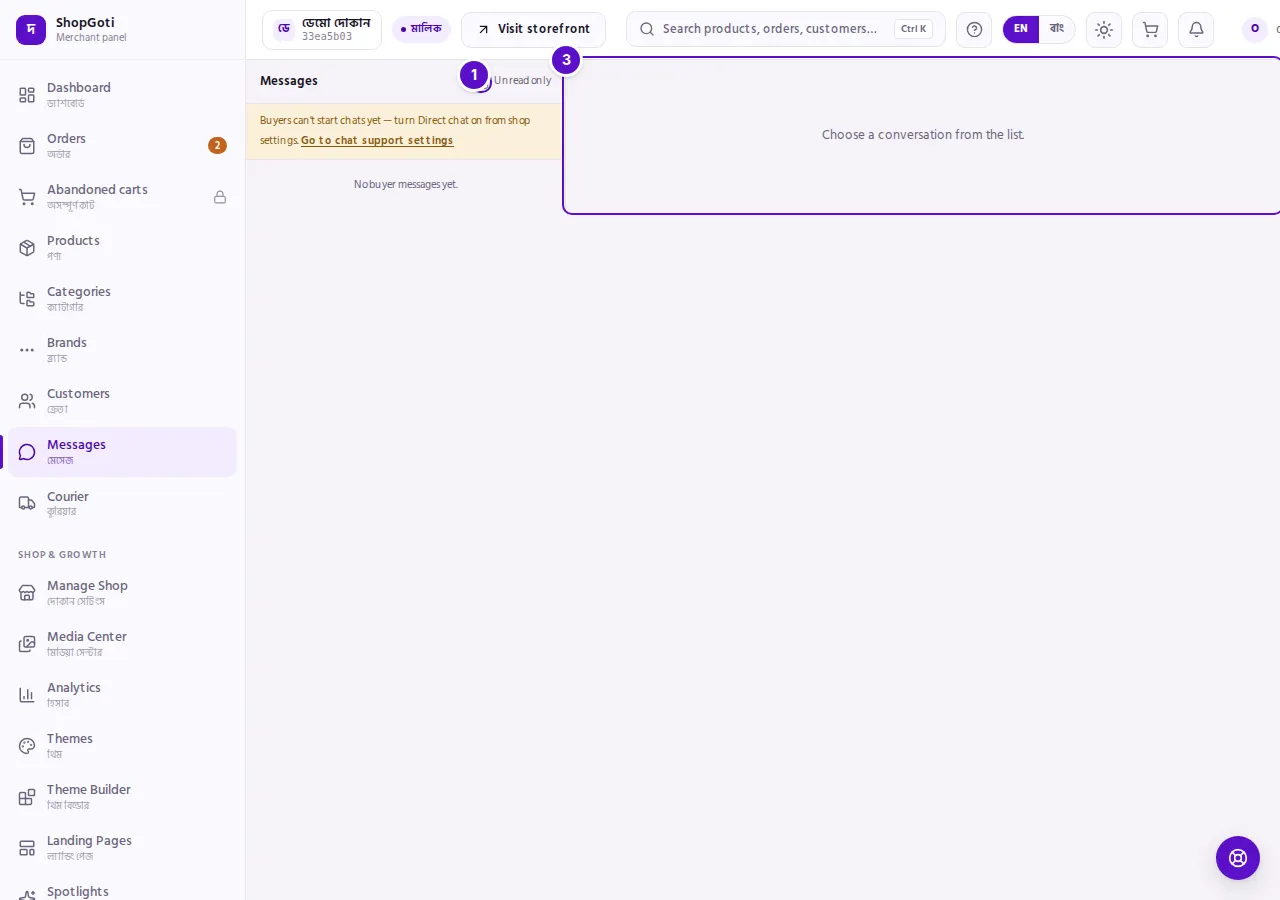
- Unread only — tick it to show only the conversations that have unread messages.
- Conversation list — each row shows the buyer's name, an unread count in a badge when there are new messages, the buyer's phone number, and a line from the last message.
- Right-hand pane — reads "Choose a conversation from the list." Press a conversation to open it here. On a phone the conversation fills the whole screen.
When buyers cannot start new chats yet, a yellow notice appears above the list. The tips below explain why.
Steps
Open a conversation
Steps
- Open Messages from the menu. The conversations appear on the left.
- Press a conversation. The buyer's name and phone number appear at the top of the right-hand pane, and its messages load.
- On a phone, the conversation replaces the list. Press Back to the list to return.
Show only unread conversations
Steps
- Tick Unread only above the list. Only conversations with new messages stay in the list.
- Untick it to see every conversation again.
Read messages and mark them as read
Steps
- Open the conversation.
- Read the messages. Your messages appear on the right and the buyer's on the left.
- If the conversation has earlier messages, press Show earlier messages at the top of the thread.
- Stay at the bottom of the thread. About one second after you reach the latest message, the conversation counts as read and its unread count disappears. If you read from the top of a long thread, the count stays until you reach the bottom.
- When the buyer has read your latest message, Seen appears under it.
- If a message is about a product, a small box above it reads About: followed by the product name. Press the box to open the product.
Reply to a buyer
Steps
- Open the conversation and click in the Write a reply… box at the bottom of the thread.
- Type your reply. For basic formatting, use the small toolbar above the box: Bold, Italic, Strikethrough, Bulleted list or Emoji. Bold, Italic and Strikethrough place the formatting symbols around the text you selected, and the buyer sees the formatted text.
- Press Enter to send, or press the Send button — the arrow at the right end of the box. Press Shift + Enter for a new line. Send stays disabled while the box is empty.
- Your reply appears in the thread. If it cannot be sent, the text stays in the box and the reason appears above it.
Reply to a specific message
Steps
- Point at the message you want to answer, the buyer's or your own, and press Reply under it. On a phone the buttons are always shown. A bar reading Replying to and the buyer's name, with a short copy of that message, appears above the box, and the cursor moves into the box.
- Type your reply, or attach a file, then press Send or Enter. The bar stays until the reply is sent. If sending fails, the bar and your text stay.
- Your reply appears with a small quote of that message at its top, and the buyer sees the same quote. A picture is quoted as a thumbnail with Photo; a file is quoted by its name.
- To answer a different message, press Reply under it. The bar changes. To send an ordinary message instead, press × (Cancel reply) on the bar, or press Esc in the box. Your text stays.
- To see the original again, press the quote inside a reply. The thread scrolls to that message and lights it for a moment. If the original is further up, press Show earlier messages first. While the original is not loaded, pressing the quote does nothing.
Send a picture or a file
Steps
- Open the conversation and press the paperclip (Attach a file) in the toolbar above the reply box, after the emoji button.
- Choose a JPG, PNG or WebP picture up to 4 MB, or a PDF, DOC or DOCX file up to 5 MB. One file goes in each message. Choosing another file replaces the first.
- The file appears above the box as a small card with its name and size. Press × (Remove the file) to take it off.
- If you like, type a caption in the box, which now reads Add a caption (optional)…. You do not need any text to send a file.
- Press Send — the arrow inside the box — or Enter. A picture appears in the thread as a thumbnail with the caption underneath; a PDF or Word file appears as a card with its name, type and size. The buyer sees the same.
Every file you send is saved in your Media Center, in a folder called Chat that the panel makes the first time it is needed. Files that buyers send you are saved there too. They count against your storage, and deleting one in the Media Center gives the room back; the message keeps its card, and a deleted picture shows File removed.
Delete a message
Steps
- Open the conversation and point at the message you want to remove. Reply, Share, Copy and Delete appear under it. On a phone they are always shown.
- Press Delete. The panel asks "Delete this message? It disappears for the buyer too." Press Cancel, or Esc, to keep the message.
- Press Delete again to confirm. The message turns into a grey note, "This message was deleted", on the same side of the thread. The buyer sees the same note in their chat.
You can delete your own messages and the buyer's. The words are removed, not hidden, and so is the file: a deleted picture or document leaves the Chat folder in the Media Center and its storage is given back. If the file cannot be removed — a product still uses that picture, for example — the message is still deleted and the file stays in the Chat folder. The note keeps its place between the other messages. If you delete the last message, the conversation list shows "🚫 This message was deleted" in place of the preview.
Share a file or copy a message
Steps
- Point at a message that holds a picture or a file, yours or the buyer's, and press Share.
- Where your browser can share — most phones — the share sheet opens. Pick an app, such as WhatsApp. Where it cannot, the panel copies the file's link and shows Link copied; paste it into any chat. Anyone who has the link can open the file.
- To keep the words of a message, press Copy under it. The panel shows Text copied. The symbols for bold, italic and the like are left out.
Call the buyer
Steps
- Open the conversation.
- Under the buyer's name, press the phone number followed by Call. On a phone this opens the dialler.
Find out why Messages is missing or shows a notice
Steps
- If Messages is not in the menu, the platform has switched Direct chat off for your shop. You cannot turn it on from the panel. Contact ShopGoti through the Help Center, which has a WhatsApp link.
- While Direct chat is off, opening the Messages address directly shows the panel's not-found page.
- If Messages is in the menu but a yellow notice says "Buyers can't start chats yet", the Direct chat switch in your shop's chat settings is off. Owners and Managers press Go to chat support settings in the notice, tick Direct chat, and press Save on the Chat Support page. Staff do not see that link; ask an Owner or Manager.
- If the page says "Direct chat is not included in your package", your package does not include chat. Press Compare plans to see the plans.
Fields
| Field | Required | What it does | Limit |
|---|---|---|---|
| Write a reply… | Yes, unless a file is attached. Send — the arrow at the right end of the box — stays disabled until the box has text or a file. | The reply the buyer receives. Formatting is kept as symbols in the text. With a file attached, it becomes the caption. | 2,000 characters. The counter shows how many are left. |
| Attach a file (paperclip) | No | One picture or document sent with the reply. | Pictures (JPG, PNG, WebP) up to 4 MB; documents (PDF, DOC, DOCX) up to 5 MB. |
Tips and common mistakes
- Existing conversations stay open. If the merchant switch for Direct chat is off, buyers cannot start new chats, but you can still answer conversations that are already open.
- Read state follows the bottom of the thread. Scrolling up to read older messages does not clear the unread count. Reach the latest message.
- You are told about new buyer messages on any page. A notice reads "New message from a buyer" with an Open button. The notice does not show the message text. The bell keeps a record of it.
- A file needs room in your storage. Files go into the Chat folder in the Media Center and use your package's storage. If you are near the limit, delete files you no longer need there.
- A support session blocks replies. If ShopGoti support is working in your shop in a support session, a reply is refused with "This action is not available during a support session." Your text stays in the box.
Related pages
- Customers list — the buyers who have ordered from your shop, with their order counts
- Orders list — the orders a buyer may ask you about
- Media Center — where the files sent in chats are kept, and where you free up storage