17.1Promo codes list
See every promo code in one list, filter by status, turn codes on or off, delete them, and go to the page where codes are created.
- Menu:
- Promo Codes
- Who:
- Owner · Manager · Staff
- Package:
- All packages
- Updated:
- 2026-10-15
Overview
Opening the Promo Codes menu shows every discount code of your shop in one list. Each row shows the code, the discount, the conditions, how often it has been used, its validity and its status. The tabs at the top narrow the list by status. Creating a code, or changing one, happens on the next page.
Owners, Managers and Staff can all see the list. Creating, editing, turning codes on or off, and deleting them are for Owners and Managers only. Staff do not see those buttons and icons.
Screen tour
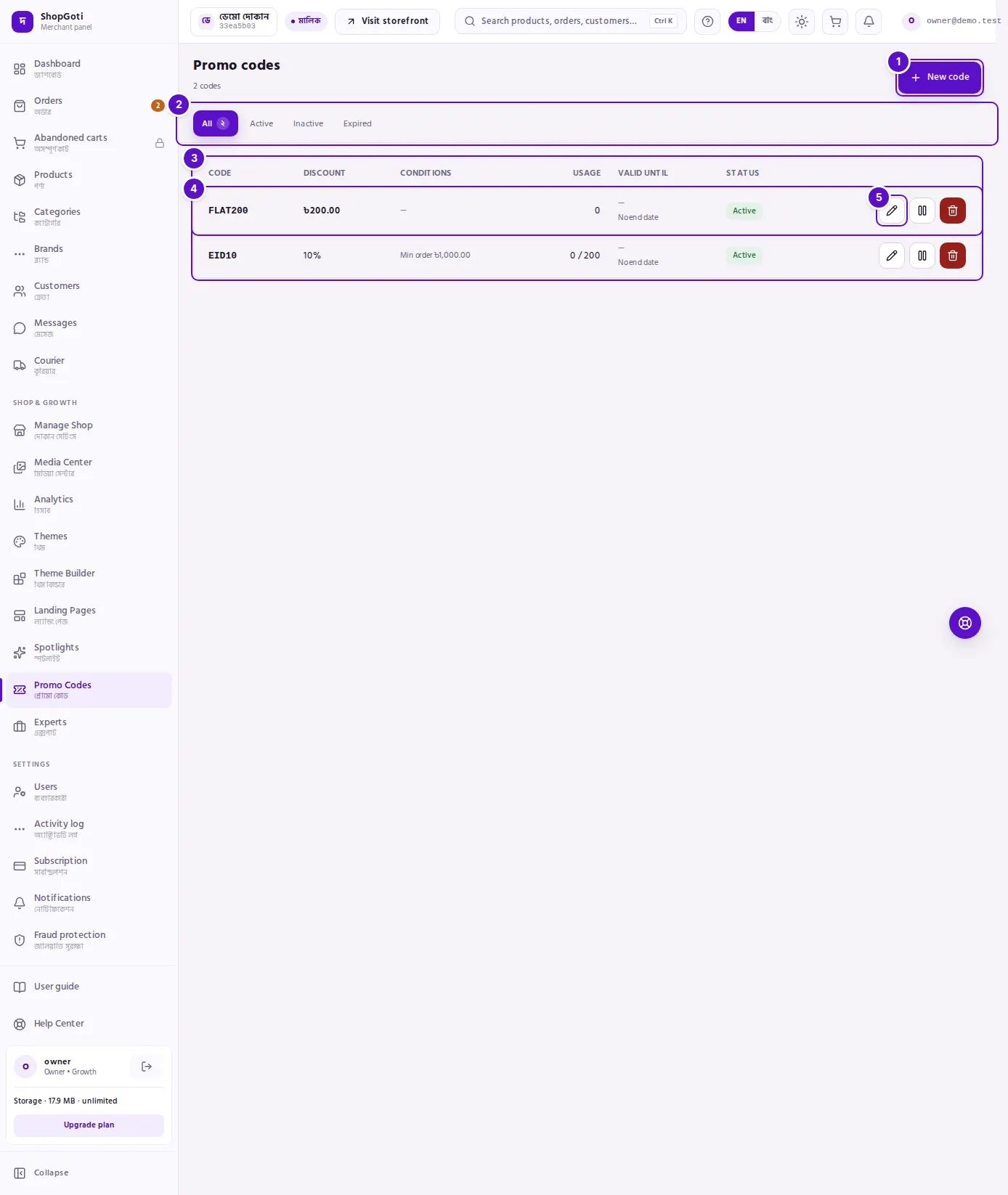
- New code button. Only Owners and Managers see it.
- Status tabs: All, Active, Inactive, Expired. The selected tab shows how many codes match.
- Columns: Code, Discount and Status always show. Conditions, Usage and Valid until show on larger screens and are hidden on a phone.
- A row. A code marked Stacks with other discounts can be used together with other discounts. An Expired code's row is greyed out, but it stays in the list.
- At the end of each row: the Edit (pencil), Activate or Deactivate (play or pause), and Delete (bin) icons. Only Owners and Managers see them.
Steps
See codes by status
Steps
- Open the Promo Codes menu.
- Press a tab: Active (working now), Inactive (you turned it off), or Expired.
- Press All to see every code again.
- Read the number beside the selected tab. Press another tab to see its number.
- If no code matches the filter, press Clear filters.
Turn a code on or off
Steps
- On the code's row, press the Activate (play) or Deactivate (pause) icon. Hover over the icon to see its name.
- The status badge changes.
Delete a code
Steps
- On the code's row, press the Delete (bin) icon.
- The code leaves the list at once, with no confirmation step. The message "The code has been deleted." appears.
Go to the create or edit page
Steps
- To make a new code, press New code at the top.
- To change a code, press the Edit (pencil) icon on its row.
- The details of both are on New promo code and edit.
Tips and common mistakes
- The Usage column shows 48 / 200, which means 48 uses out of a total limit of 200. If there is no total limit, it shows only the number of uses.
- The count beside a tab shows only on the selected tab.
- The list shows 20 codes at a time. This screen has no page buttons yet.