25.2My account
How to close your shop and delete your account, step by step. An owner closes the shop first, then deletes the account.
- Menu:
- Your account
- Who:
- Owner · Manager · Staff
- Package:
- All packages
- Updated:
- 2026-10-15
Overview
The My account page has one section: Delete my account. On a computer, press the round button with the first letter of your name in the top bar to open a menu, then choose My account.
The steps depend on your role:
- Owner — while the shop is open, first use the Close my shop form. After the shop is closed, use the Delete my account form.
- Manager and Staff — go straight to the Delete my account form.
This page has no form for changing your password. To change the language, use the EN / বাং button in the top bar; see Top bar. A phone's top bar has no account menu, so do account deletion and shop closure from a computer.
Screen tour
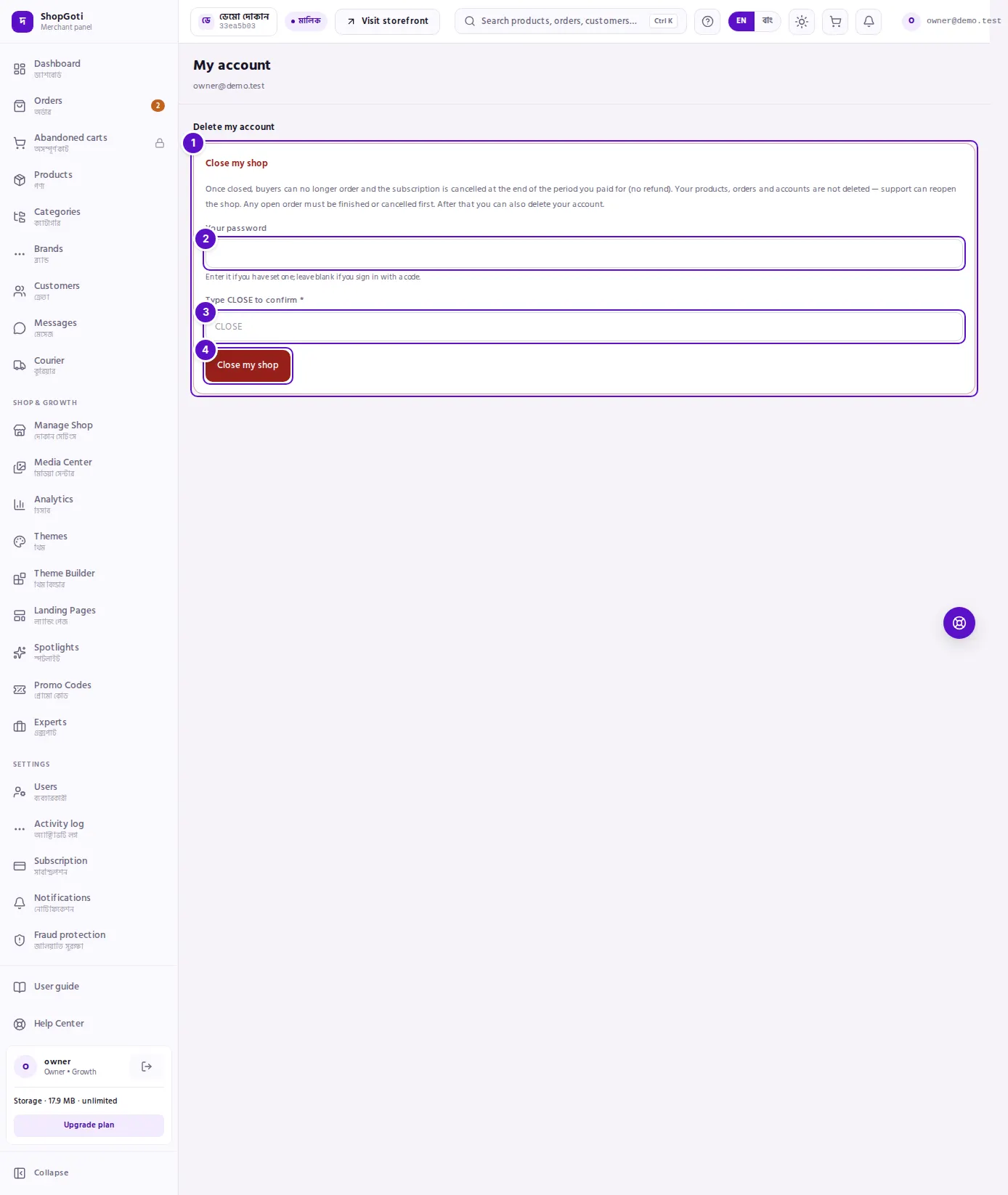
- Close my shop form — for the Owner only, while the shop is open. The whole form is this area.
- Your password box — fill it in if you have set a password. If you sign in with a code, leave it empty.
- Type CLOSE to confirm box — type
CLOSEexactly. - Close my shop button.
Steps
Owner: close the shop first
Steps
- In the top bar, press the round button with the first letter of your name, then press My account.
- In the Close my shop form, enter Your password if you have set one.
- In Type CLOSE to confirm, type
CLOSEexactly. - Press Close my shop.
Owner: delete the account after closing
Steps
- After the shop is closed, opening any page of the panel shows This shop is suspended. That page has the Delete my account form underneath, for the Owner.
- If you have set a password, enter it in Your password.
- In Type DELETE to confirm, type
DELETEexactly. - Press Delete account.
Manager and Staff: delete the account
Steps
- In the top bar, press the round button with the first letter of your name, then press My account. There is no shop-closing step: the Delete my account form shows at once.
- If you have set a password, enter it in Your password.
- In Type DELETE to confirm, type
DELETEexactly. - Press Delete account.
Fields
| Field | Required? | What it does |
|---|---|---|
| Your password | No — needed only if you have set a password | Checked against your password. If it is wrong, the page says: "That password is not correct." Leave it empty if you sign in with a code. |
| Type CLOSE to confirm | Yes | Confirms closing the shop. Must be exactly CLOSE. |
| Type DELETE to confirm | Yes | Confirms deleting the account. Must be exactly DELETE. |
Tips and common mistakes
- An owner cannot delete the account while the shop is open. The server answers: "Your shop is still open — close it first, then delete your account."
- Open orders stop the shop from closing. The server answers: "You have orders in progress — a buyer is waiting on each. Finish or cancel them first." Finish or cancel them, then try again.
- Closing the shop does not delete anything. Products, orders and accounting records stay. ShopGoti support can reopen the shop.
- Only the shop's owner can close the shop. Managers and Staff do not have the Close my shop form.
- During a support session, no account form appears. ShopGoti support can be in your shop for a short time. While they are, you see: "An account cannot be deleted from a support session."
- A phone has no link to this page. Use a computer for these steps.
Related pages
- Your account card — the card at the foot of the menu, log out and plan upgrade
- Top bar — the account menu, language and theme
- Common problems and messages — what the messages on this page mean