0.5Panel tour
The panel's menu, top bar, rail foot and phone bottom bar — what each part is for, and what you see for your role and package.
- Menu:
- Start here
- Updated:
- 2026-10-15
Overview
Every screen of the panel is built from the same parts. On a computer, the menu on the left lists every page; the top bar across the top shows your shop, your role and the quick buttons; and the foot of the menu holds Help Center, your account card and your storage meter. On a phone, a bottom bar with four main pages and a More button replaces the left menu, and the top bar is shorter.
What you see depends on two things: your role (Owner, Manager or Staff) and your package.
- Owner sees every page, plus Subscription, the Upgrade plan button and the plan banner.
- Manager sees every page except Subscription.
- Staff sees the daily work: Orders, Abandoned carts, Products, Categories, Brands, Media Center, Customers, Courier, Promo Codes, Notifications and Fraud protection.
A page your role cannot use is not shown at all, rather than greyed out. A few pages your package does not include show a lock.
Screen tour
Computer
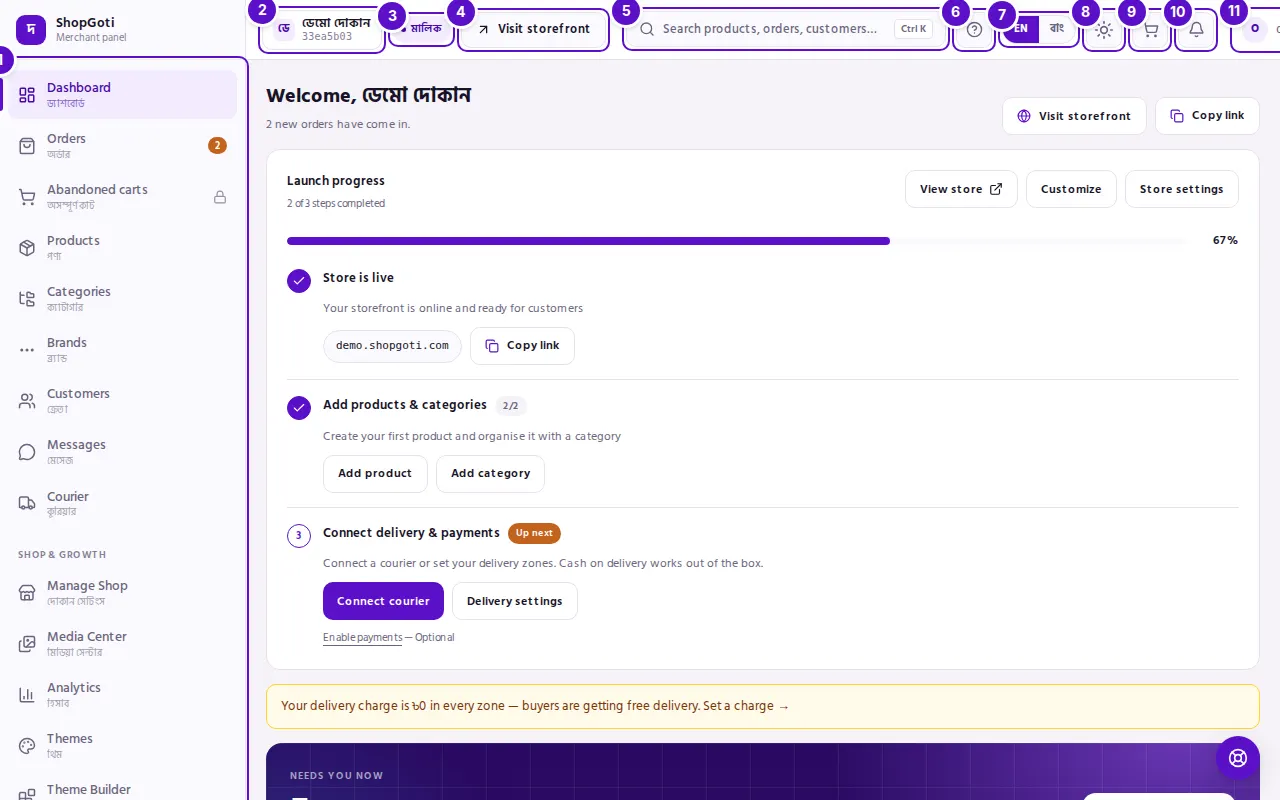
- Menu — every page you can open, in groups. The first group has no heading. Shop & Growth and Settings have headings.
- Shop — your shop's name, and the first eight characters of its code.
- Role — the role chip beside the shop. It shows your role in Bangla: মালিক (Owner), ম্যানেজার (Manager) or স্টাফ (Staff).
- Visit storefront — opens your shop as buyers see it, in a new tab. It appears only when your shop has a verified domain.
- Search — opens the search box. Press Ctrl K, or ⌘K on a Mac, to open it from anywhere.
- ? — opens the guide page for the screen you are on, in a new tab.
- EN / বাং — switches the panel's language.
- Theme — switches between light, dark and system.
- New order (cart icon) — opens the form to enter an order taken by phone, Facebook or at the counter.
- Notifications (bell) — opens your notifications. A red number shows how many are unread.
- Account menu — opens Row density, My account and Log out.
- Help Center — FAQ, tutorials and WhatsApp, in a new tab.
- User guide — this guide, in your language, in a new tab.
- Your account card — your name, your role and plan, a log-out button, the storage meter and Upgrade plan.
- Collapse — shrinks the menu to icons only.
Phone
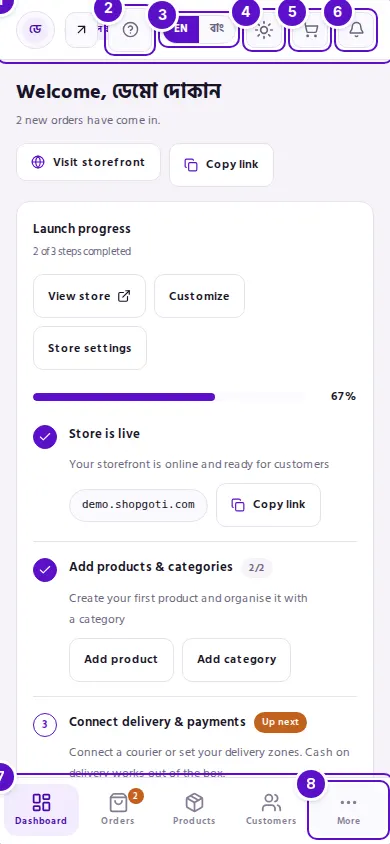
- Top bar — your shop's name, and the buttons on the right.
- ? — opens the guide page for the screen you are on.
- EN / বাং — switches the panel's language.
- Theme — switches between light, dark and system.
- New order — opens the form for a new order.
- Notifications — opens your notifications.
- Bottom bar — the four main pages for your role.
- More — opens the rest of the menu, the theme choice, the user guide and Log out.
Steps
Find a page in the menu
Steps
- Read the menu from top to bottom. The first group, which has no heading, holds Dashboard, Orders, Abandoned carts, Products, Categories, Brands, Customers, Messages and Courier. Then comes Shop & Growth, then Settings.
- Press an item to open its page. The item you are on has a coloured fill and a short bar on its left edge.
- For Courier and Subscription, the item you are on opens a short list beneath it. Courier has Shipments, Settlements, Zones and Couriers. Subscription has Manage plan, Plans, Add-ons and Billing. These lists appear only under the item you are in.
- A small number in a coloured bubble beside an item is a count of things waiting for you, for example new orders, unread messages or unread notifications.
Collapse the menu
Steps
- At the bottom of the menu, press Collapse. The menu shrinks to icons only.
- Hover over an icon to see its name.
- To open the menu again, press the icon at the bottom of the narrow menu. Its name is Expand menu.
- The menu stays in the state you left it in, on this browser.
Use the top bar
Steps
- Look at the shop on the left. It shows your shop's name and the first eight characters of its code. If your account works in more than one shop, this is a menu: press it to see every shop with your role in each, and press one to switch. With a single shop there is nothing to switch.
- On a computer, the role chip sits beside the shop name. It shows your role in Bangla: মালিক for Owner, ম্যানেজার for Manager, or স্টাফ for Staff.
- Press Visit storefront to open your shop as buyers see it. It opens in a new tab.
- To search, press the search box, which reads Search products, orders, customers…. Type at least two letters. Results come in three groups: Products, Orders and Customers. Use the arrow keys and Enter to open a result, or press Esc to close the box.
- Press ? to open the guide page for the screen you are on, in a new tab. If that screen has no guide page yet, you get the guide's home page.
- Press EN or বাং to change the panel's language. The language you are using is shown filled in.
- Press the theme icon, then choose Light, Dark or System. System follows your device's setting.
- Press the cart icon, labelled New order, to open the form for an order taken by hand.
- Press the bell, labelled Notifications. A red number shows the unread count.
- On a computer, press the account menu. It shows your email or phone, and opens Row density, My account and Log out. Row density has two choices, Comfortable and Compact. It changes how tall the rows in lists are, on every list.
Use the rail foot
Steps
- Help Center opens FAQ, tutorials and WhatsApp in a new tab. On a computer, a round button at the bottom right of the screen does the same.
- User guide opens this guide in your language, in a new tab.
- Your account card shows your name, which is the part of your email before the @, and a line with your role and plan, for example Owner • Starter. The log-out icon on the card signs you out.
- The storage meter shows how much picture space your package is using. It reads Storage · used / total, or Storage · used · unlimited, with a percentage of capacity used.
- Upgrade plan appears for the Owner. It opens the plan comparison page.
- Collapse is the last item. It works as described in Collapse the menu above.
Use the panel on a phone
Steps
- The bottom bar holds four main pages. For an Owner or Manager they are Dashboard, Orders, Products and Customers. For Staff they are Orders, Products, Customers and Courier.
- Press More to open the rest of the menu. The sheet shows a line such as 9 more screens, then a tile for each page you can open.
- At the bottom of the More sheet, you find the theme choice (Light, Dark, System), User guide and Log out.
- The top bar keeps your shop's name, ?, EN / বাং, the theme icon, the new-order cart and the bell.
- Search is not shown on a phone. Use the menu to open the page you need.
Tips and common mistakes
- Hidden is not broken. A page missing from your menu means your role cannot open it. Ask the Owner if you need it.
- A lock means your package does not include that feature. Abandoned carts, Theme Builder, Landing Pages and Spotlights show a lock when your package lacks them. Press the item anyway: the page holds the upgrade offer.
- Messages appears only when direct chat is turned on for your shop.
- Visit storefront appears only when your shop has a verified domain. You set up the domain under Manage Shop.
- The plan banner. Owners see a line under the top bar when the plan needs attention: Your plan has an unpaid bill, Your shop is suspended or Your plan has been cancelled. A date may follow it. Press Renew now to go to billing.
- Settlements under Courier shows the cash-on-delivery money your courier remits to you. It is not a payment from ShopGoti.
- On a phone, the account menu is not shown. My account (password, closing the shop, deleting the account) and Row density are on the computer's account menu. Use a computer for them.
- No storage meter? The meter is drawn only when the panel can read your storage. The rest of the menu still works.
Related pages
- About this guide — how every page is laid out
- Sign in — signing in and out
- Create your shop — the three steps that open your shop
- Shop suspended — what the panel shows when a shop is suspended
- Dashboard — the page you land on after you sign in