10.1Manage Shop — the settings hub
The Manage Shop page lists every shop setting in four groups, and each card that has something to check says whether it is done or still to do.
- Menu:
- Manage Shop
- Who:
- Owner · Manager
- Package:
- All packages
- Updated:
- 2026-10-15
Overview
Manage Shop is where every setting of your shop is kept. The page is a list of cards in four groups — Settings, Domain, Integrations and Policies. Pressing a card opens that page. Some cards also show a status, so you can see at a glance what still needs you.
Owners and Managers can open this page. Staff do not see Manage Shop in the menu, and typing the address sends them to the dashboard. The Platform support access card is shown to the Owner only.
The header shows your shop's name and a badge with your package, for example Free or Starter.
Screen tour
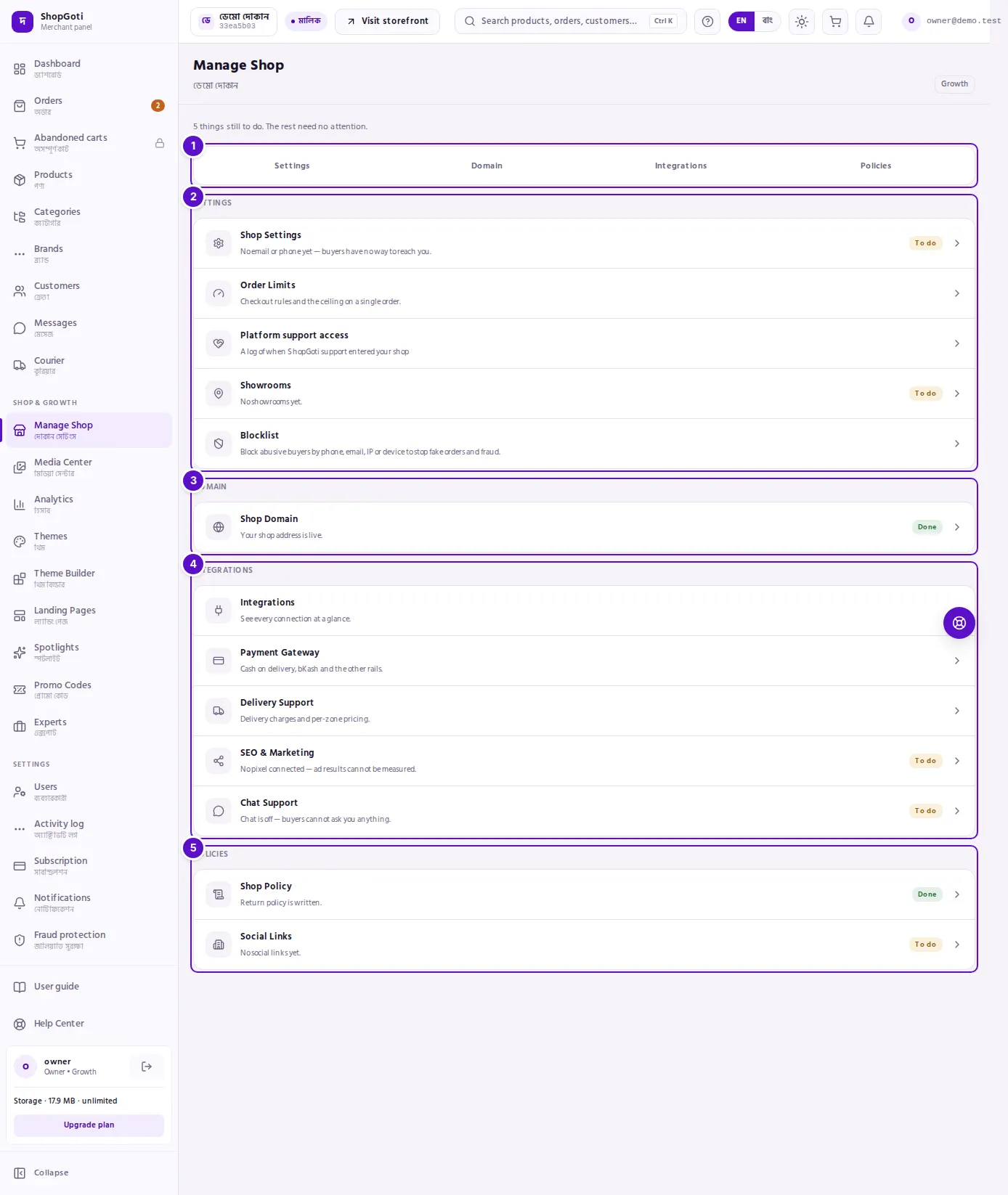
- Jump bar — four buttons, one for each group. Press one to scroll straight to that group. On a phone the bar is hidden and the groups stack one under another.
- Settings group — Shop Settings, Order Limits, Platform support access (Owner only), Showrooms and Blocklist.
- Domain group — Shop Domain.
- Integrations group — Integrations, Payment Gateway, Delivery Support, SEO & Marketing and Chat Support.
- Policies group — Shop Policy and Social Links.
- Count line — under the title. When something needs you it reads "3 things still to do. The rest need no attention." When nothing does, it reads "Everything about your shop lives here — pick a section below."
- Status and description — a card with a status shows one line about it (for example "Return policy is written.") and a chip: Done or To do. A card without a status shows its description instead.
The cards that show a status are Shop Settings, Shop Domain, Shop Policy, SEO & Marketing, Chat Support, Social Links and Showrooms. The other cards have no chip, because the hub does not read their data and will not guess.
Steps
Open a settings page
Steps
- Open Manage Shop in the menu. The page opens with its four groups.
- Find the card you need — for example Shop Policy in the Policies group — and press it.
- The page opens. To come back, press Back to Manage Shop at the top of the page.
See what still needs you
Steps
- Read the count line under the title.
- Look at the chips. A To do card needs attention. A Done card has its main item set.
- Press a To do card and fix it on its own page.
Use the jump bar on a computer
Steps
- Press Settings, Domain, Integrations or Policies in the bar at the top of the list.
- The page scrolls to that group.
Tips and common mistakes
- Done means one thing was found, not that the page is complete. The chip on a card checks one key item — for example whether a return policy is written. Open the card and read it.
- No chip does not mean "done". Delivery Support, Payment Gateway, Order Limits, Integrations, Platform support access and Blocklist have no status here. Open them to check.
- Staff do not see this page. If you are Staff and need a shop setting changed, ask the Owner or a Manager.
- The Blocklist card is a shortcut. It opens the blocklist that is part of Fraud protection. The panel does not check your package before it opens.