21.4Add-ons
Buy one extra feature for the shop without changing plan, open a feature you already hold, and understand the add-ons you cannot buy yet.
- Menu:
- Subscription → Add-ons
- Who:
- Owner
- Package:
- All packages
- Updated:
- 2026-10-26
Overview
An add-on adds one feature to your shop without a plan change. It is billed every month along with your subscription. The Add-ons page is open to the Owner only.
Buying an add-on raises an invoice. The add-on becomes active only after that invoice is paid. Until then, the card keeps its Add button.
The page has up to three sections:
- AI credit packs — extra AI answers, bought as often as you need. One-time price, never expires.
- You can add these now — add-ons you can buy today, as cards.
- Not available to buy yet — the rest, as a list. Each has a lock and the reason it cannot be bought, or a price badge.
Screen tour
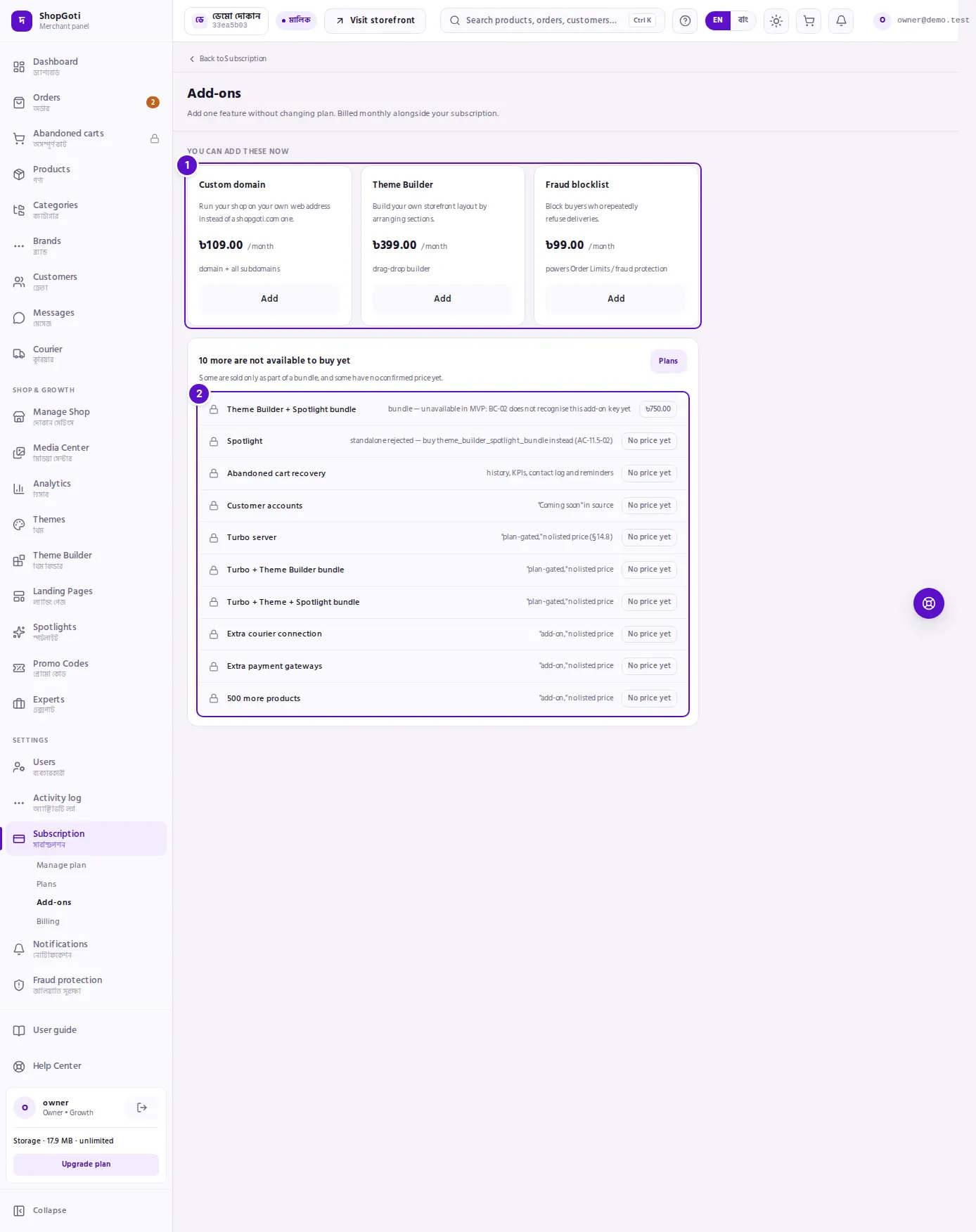
- You can add these now — one card per add-on you can buy. Each card shows the name, what it gives you, the price per month, and either the Add button or the Active badge.
- Not available to buy yet — a heading with the count, a short reason, a Plans button, and a list. Each row has a lock, the add-on's name, and a badge with its price or No price yet.
On an Active card for four of the add-ons, an Open link goes to the feature: Custom domain opens the shop's domain settings, Abandoned cart recovery opens the abandoned carts list, Theme Builder opens Theme Builder, and Fraud blocklist opens the fraud protection page.
Steps
Buy an add-on
Steps
- Open Subscription, then Add-ons, from the rail under Settings.
- In You can add these now, find the card and read its name, its description and its price per month.
- Press Add on that card. An invoice is raised, and the message says to pay it to activate the add-on.
- Open Billing, find the invoice, and pay it. See Billing.
- When the invoice is paid, the card shows Active instead of Add.
Buy AI credit
Steps
- In AI credit packs, find the pack: AI listing writer or AI chat replies.
- Press Buy. An invoice is raised and its page opens.
- Pay the invoice. When the payment is confirmed, the credit is added.
Bought credit is used only after your package's monthly AI credit runs out, and it does not expire. You can buy a pack again whenever you like, but only one invoice for the same pack can wait for payment at a time. See how much is left on AI Integrations.
Open an add-on you already hold
Steps
- Find the card marked Active.
- If the card has an Open link, press it. The link takes you to the feature the add-on unlocks.
See the add-ons you cannot buy yet
Steps
- Scroll to N more are not available to buy yet. Read the line under it: "Some are sold only as part of a bundle, and some have no confirmed price yet."
- Read each row. The lock means you cannot buy it from this page. The badge shows its price, or No price yet when no price is set.
- If a row has a note, read it. The note says why the add-on is not on sale.
- To see which plan includes what, press Plans.
Tips and common mistakes
Related pages
- Plans — the plans, and what each one already includes.
- Billing — the add-on invoice, and how to pay it.
- Subscription overview — the add-ons your shop has active.