15.1Landing pages list
Create landing pages, see how many your package allows, publish or unpublish a page, pause it, set when it shows, and preview it.
- Menu:
- Landing Pages
- Who:
- Owner · Manager
- Package:
- Depends on the package — a lock on the menu means upgrade
- Updated:
- 2026-10-15
Overview
Opening the Landing Pages menu shows every landing page of your shop in one list. A landing page is a sales page built around one or more products, sent to buyers through its own link. From this screen you create pages, see each page's state, publish or unpublish, pause, set a time window and preview.
To arrange what is on a page (images, the product list, the order form), press Edit page on the page's card. That is covered in the next chapter.
Only Owners and Managers can open this page. Staff do not see the menu item, and if they type the address they are sent back to the dashboard.
Package: landing pages are included from Starter upwards. Starter allows 5 pages, Pro allows 20, and Growth has no limit. On Free you cannot create a landing page. Pages you already had stay in the list and can still be edited.
Screen tour
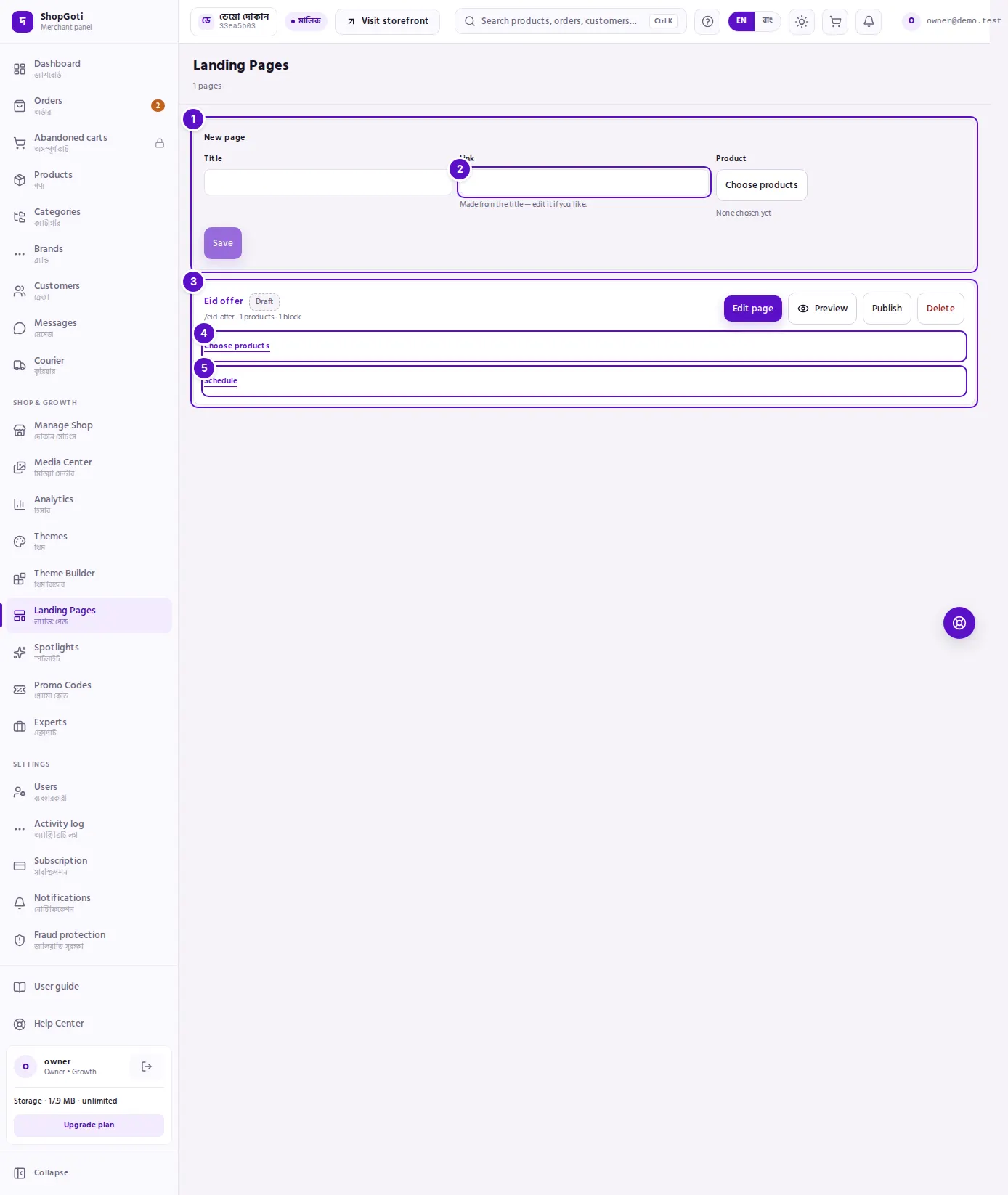
- New page form. Start a new page with a title, a link and a product. If your package does not include landing pages, this form is replaced by a message with a Compare plans link. Beside the heading the count shows, for example 3 / 5 pages when there is a limit, or 3 pages on an unlimited package.
- Link box. The last part of the page's address. It fills in from the title by itself.
- Page card. The title (press it to open the page editor), a status badge (Draft, Scheduled, Live, Ended, Paused), the link, the product and block counts, and a row of buttons: Edit page, Preview, Publish or Unpublish, Pause or Resume on a published page, and Delete on a draft only.
- Choose products. The page's product list. Closed by default; press it to open.
- Schedule. The window in which the page shows. Closed by default; press it to open.
Steps
Create a landing page
Steps
- Open the Landing Pages menu.
- In the New page form, type the page name in the Title box. The Link box fills in from the title by itself.
- To change the link, type a new one in the Link box. The link may contain only lowercase English letters, numbers and hyphens. If you made the link from a Bangla title, type it again in English.
- In the Product box, press Choose products. Search by name or SKU, or narrow with All categories, press the products you want, then press Confirm. The first product you pick becomes the page's main product.
- Press Save. The button stays grey until at least one product is chosen.
- The new card appears in the list and is briefly highlighted. The page is a draft, so buyers cannot see it yet.
Publish and unpublish a page
Steps
- On a draft page's card, press Publish. The page is published. If it has no schedule, its badge becomes Live.
- To take a published page back to draft, press Unpublish on its card. The page returns to Draft.
Pause and resume a page
Steps
- Pause appears only on a published page. Press it.
- The badge becomes Paused. Buyers cannot see the page. Its link and its first publish date are kept.
- To show the page again, press Resume.
Set when a page shows
Steps
- Open the Schedule section of the card.
- In Show from or Show until, pick a date and time. The time is Dhaka time (GMT+6).
- Leave a box empty for no limit. To remove a limit that is already set, empty its box.
- Press Save. The change can take up to a minute to reach your shop.
Preview a page
Steps
- Press Preview on the card, or in the top bar of the page editor on a larger screen.
- A pop-up shows the page the way a buyer will see it.
- Use the phone or desktop icon to choose the width. The width icons appear only on larger screens.
- If the frame does not load, press Open in a new tab. The page opens in its own tab.
Change a page's products
Steps
- Open the Choose products section of the card. The page's current products appear as chips.
- Press Choose products. Press products to tick or untick them, then press Confirm.
- Press Save in that section. The other buttons on the card do not change the product list.
Delete a draft page
Steps
- Delete appears only on a draft page's card. Press it.
- Confirm in the browser's confirmation box. It shows the page's name.
- The page is deleted and the message "Landing page deleted." appears.
Fields
| Field | Where | Required | What it does |
|---|---|---|---|
| Title | New page | Yes | The page's name. You cannot change it on this screen after the page is created. |
| Link | New page | Yes | The last part of the page's address. Lowercase English letters, numbers and hyphens only. Set once; this screen has no box to change it afterwards. |
| Product | New page, Choose products | Yes, at least one | The products the page sells. The first one is the main product. Only active products are offered. |
| Show from | Schedule | No | Empty means no start limit. Dhaka time. |
| Show until | Schedule | No | Empty means no end limit. Must be later than Show from. |
Tips and common mistakes
- To change products, use the Save button in the Choose products section. Other buttons such as Publish or Pause do not change the product list.
- A page must keep at least one product. If you remove every product and save, the save is refused.
- The products block is added for you. Every new page starts with it. Use Edit page to move it or to arrange the rest of the page.
- When the package limit is reached, creating a page shows a message that every page your package allows is in use. Delete a draft, or upgrade your package. The limit counts all your pages, including drafts and paused ones.
- An order placed through a landing page's order form appears in the normal Orders list like any other order.