23.3Rules
Set how many matching orders in how many minutes, a repeated order, an earlier order still unpaid, and how many returns make a buyer blocked automatically.
- Menu:
- Fraud protection
- Who:
- Owner · Manager · Staff
- Package:
- All packages
- Updated:
- 2026-10-15
Overview
The Rules tab sets the nine limits of your shop's fraud protection. When a limit is reached, the order is either put on hold or refused. A change applies to the orders checked after you save it.
Only Owners and Managers can open this tab. If Staff open it, they are sent back to the Held orders tab.
Each box shows the value the shop has now. All nine boxes are required, so saving sends all nine values. A box left empty stops the save.
Screen tour
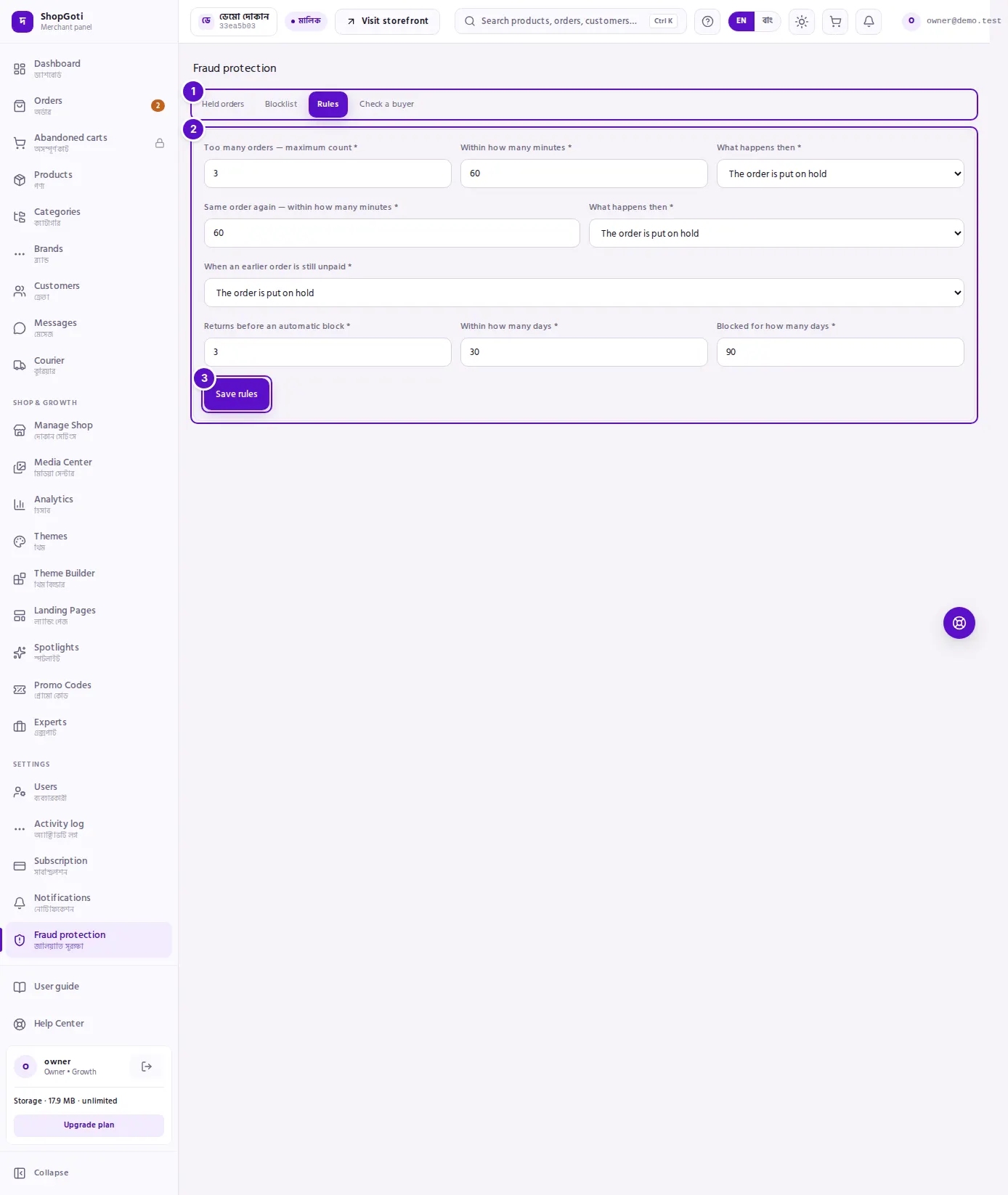
- Fraud protection tabs — check that the Rules tab is open.
- The nine boxes — in three groups: the number of orders and their timing; a repeated order; an earlier order that is still unpaid; and the automatic block. The table in Fields below says what each box does.
- Save rules — saves all nine values. On success, the page shows "Saved".
Steps
Change a rule
This needs the Owner or Manager role.
Steps
- Open Fraud protection from the menu and press the Rules tab. The current values are in the boxes.
- In the box you want to change, type a new number. For example, typing
3in Too many orders — maximum count means the rule applies on the third matching attempt. - Where a box says What happens then, choose The order is put on hold or The order is refused.
- Leave the other boxes as they are. Every box must have a value.
- Press Save rules. On success the page shows "Saved", and the new limits apply from the next order checked.
Fields
The table lists the nine boxes. The Starting value column is the value a shop has before anyone changes it.
| Box | What it controls | Starting value |
|---|---|---|
| Too many orders — maximum count | How many matching order attempts within the window reach the limit. The attempt being checked is counted too | 3 |
| Within how many minutes | The window, in minutes, for the count above | 60 |
| What happens then (orders) | When the limit is reached: put on hold, or refused | Put on hold |
| Same order again — within how many minutes | The window, in minutes, in which a repeated order is caught | 60 |
| What happens then (same order) | When a repeated order is caught: put on hold, or refused | Put on hold |
| When an earlier order is still unpaid | What happens when an earlier order's payment has not arrived: put on hold, or refused | Put on hold |
| Returns before an automatic block | How many returns from one buyer make the buyer blocked automatically | 3 |
| Within how many days | The window, in days, for the returns above | 30 |
| Blocked for how many days | How long the automatic block lasts | 90 |
Tips and common mistakes
- "Put on hold" and "refused" are different. A held order goes to the Held orders tab, and the buyer check shows "proceed carefully". A refused order is not taken, and the buyer check shows a red warning.
- Low numbers catch good buyers too. Before you lower a limit, check the Held orders tab to see which rules are catching orders now.
- Staff cannot see these limits. The tab is closed to them. They can see held orders and the blocklist.
- Every box needs a value. If one box is empty, nothing is saved. If you clear a box by mistake, type the old value back, then save.
- Automatic blocks are lifted on the Blocklist tab. Once a rule has blocked a buyer, the buyer appears on the Blocklist tab. Press Lift there to end the block.
Related pages
- Held orders — the orders these rules held or refused
- Blocklist — automatic blocks, and how to lift them
- Check a buyer — see whether the rules would catch a buyer before you take the order