10.12Integrations
See at a glance which couriers, ad pixels, search and analytics tools, payment methods and chat channels are connected to your shop, and open the page where each one is set.
- Menu:
- Manage Shop
- Who:
- Owner · Manager
- Package:
- All packages
- Updated:
- 2026-10-15
Overview
Integrations is a read-only summary of every connection between your shop and the outside world. It changes nothing. Each row shows a status and one button that opens the page where you set that connection.
The page has five sections:
- Delivery — your courier partners, such as Pathao, Steadfast, RedX, CarryBee and Paperfly, and your own courier.
- Marketing — Meta Pixel, Google Search Console, and the SEO and product-catalogue row with your sitemap and robots.txt addresses.
- Analytics — Google Analytics 4 and Google Tag Manager.
- Payments — your payment methods.
- Chat — Direct chat and WhatsApp.
Owners and Managers can open this page. Staff are sent to the dashboard.
The Manage Shop hub shows this page as the Integrations card in the Integrations group.
Screen tour
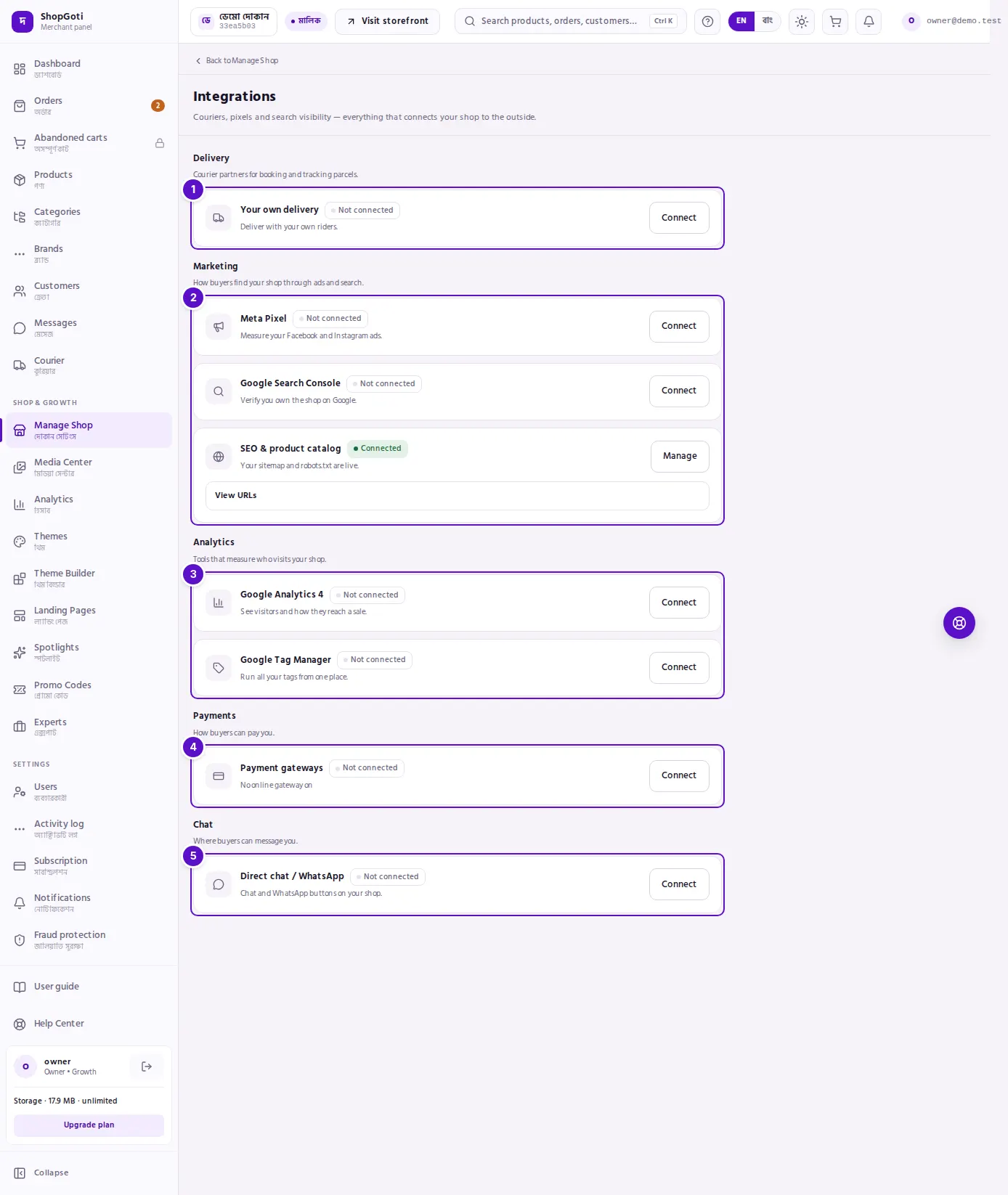
- Delivery — one row for each courier. The button opens the Courier page's accounts tab.
- Marketing — the Meta Pixel row, the Google Search Console row, and the SEO & product catalog row. That last row has a View URLs panel with your sitemap and robots.txt addresses, each with a copy button.
- Analytics — the Google Analytics 4 row and the Google Tag Manager row.
- Payments — the Payment gateways row. Its description says whether cash on delivery is on and how many online gateways are on.
- Chat — the Direct chat / WhatsApp row.
Steps
Check what is connected
Steps
- Open Manage Shop and press the Integrations card.
- Read the status on each row:
- Connected — the connection is set up.
- Not connected — it is not set up yet.
- Unknown — the panel could not read this setting right now. It does not mean the connection is missing.
- Coming soon — that courier is not available yet.
- Hidden from search — on the SEO row, this shows when search engines are switched off for your shop.
- Press Connect or Manage on a row to open the page where it is set.
Find your sitemap and robots.txt addresses
Steps
- In the SEO & product catalog row, press View URLs.
- Copy the sitemap address or the robots.txt address with its copy button.
The sitemap address is what you submit to Google Search Console.
Fields
This page has no form. To change a connection, open the page named on its button.
| Row | Where it is set |
|---|---|
| Each courier | Courier page, accounts tab |
| Meta Pixel, Google Search Console, Google Analytics 4, Google Tag Manager, SEO & product catalog | SEO & Marketing page |
| Payment gateways | Payment Gateway page |
| Direct chat / WhatsApp | Chat Support page |
Tips and common mistakes
- Unknown is not Not connected. If a row says Unknown, the panel could not read that setting in this visit. Refresh the page first, then check the setting itself before you change anything.
- Telegram order alerts are not on this page. This panel cannot set up Telegram order alerts for your shop, and this page does not list them. If you want them, ask ShopGoti support to turn them on for your shop.
- A courier row shows Connected when that courier is active for your shop. To activate one, use the Courier page.
- Hidden from search is a choice. It means search engines are switched off for your shop. Turn it on in the SEO & Marketing page if you want to be found.
Related pages
- SEO & Marketing — the pixels, verification and search settings
- Payment Gateway — your payment methods
- Chat Support — Messenger, WhatsApp and Direct chat
- Manage Shop hub