21.1Subscription overview
Which plan your shop is on, when it is paid through, how much of your product limit you have used, the platform fee per order, active add-ons, and where to go next.
- Menu:
- Subscription
- Who:
- Owner
- Package:
- All packages
- Updated:
- 2026-10-15
Overview
The Subscription overview answers the two questions an Owner usually arrives with: which plan the shop is on, and whether anything is owed. It is open to the Owner only. Managers and Staff who open the address are sent back to the dashboard.
The page has one main card and four links to the sub-pages: Manage plan, Plans, Add-ons and Billing. The title's badge shows the subscription's state in the platform's own words, such as ACTIVE or PAUSED. The line under the title shows the billing cycle: Monthly, Six-monthly or Yearly.
Screen tour
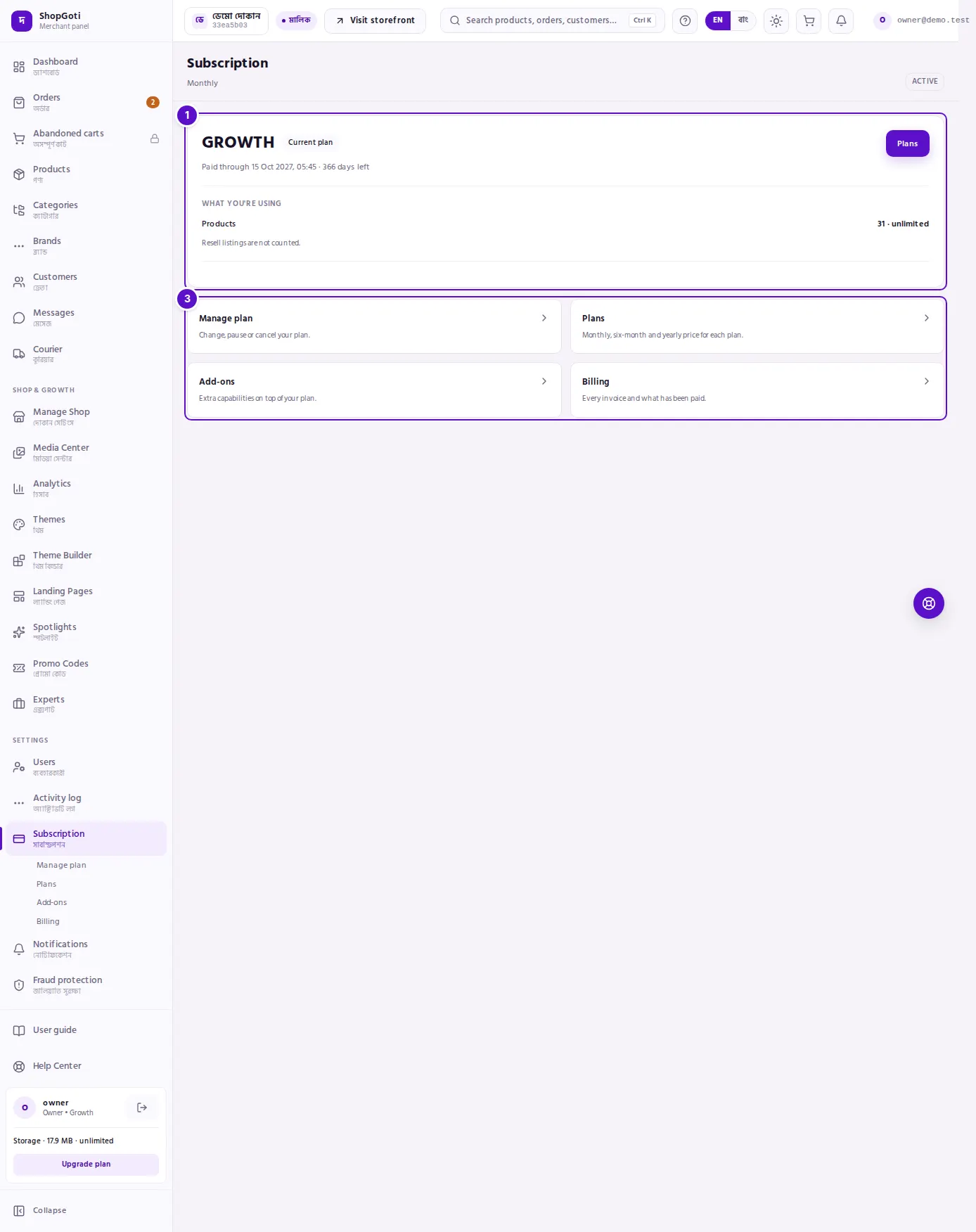
- Plan card — the plan name, the Current plan badge, the paid-through line, any change that is waiting for the end of the period, and the Plans button. Under the plan name you also see the product meter, the platform fee and the active add-ons, when they apply.
- Platform fee per order — three chips, one each for Physical goods, Digital goods and Resell goods. Each chip shows the rate your current plan charges on that kind of product. A rate of zero is shown in green.
- Four links — Manage plan, Plans, Add-ons and Billing. Each has one line that says what it is for.
Two things appear only when they apply:
- A warning banner, You have an unpaid invoice., with a Pay now button. If a grace period is running, the banner also says Grace period ends and the date.
- What you're using — a bar that fills as you add products, with the count as used / limit. It turns red when you reach the limit. A plan with no product limit shows the count and the words unlimited. Resell listings are not counted.
Steps
Check your plan and what you owe
Steps
- Open Subscription from the rail, under Settings.
- Read the plan name in the plan card. The badge beside the page title shows the subscription's state.
- Read the line under the plan name. It says Paid through with a date and the days left. While the subscription is paused, it says Paused and the number of days banked.
- If the banner You have an unpaid invoice. is showing, press Pay now. It opens the Billing page.
See how much of your product limit you have used
Steps
- In the plan card, find What you're using and the Products line.
- Read the count. It shows the products you have added and the limit of your plan.
- Watch the bar. When the count reaches the limit, the number and the bar turn red, and you cannot add more products until you remove some or change plan.
Go to a sub-page
Steps
- To compare plans and prices, press Plans in the plan card.
- To change, pause or cancel, press Manage plan under the four links.
- To buy an extra feature, press Add-ons.
- To see invoices and pay them, press Billing.
Tips and common mistakes
Related pages
- Manage plan — change, pause or cancel your plan.
- Plans — each plan's prices and what it includes.
- Add-ons — buy one extra feature without changing plan.
- Billing — every invoice, how to pay one, and the receipt.