7.1Customers list
Every customer who has ordered from your shop, with how many orders they placed, how many were delivered and returned, their risk label, and a CSV download.
- Menu:
- Customers
- Who:
- Owner · Manager · Staff
- Package:
- All packages
- Updated:
- 2026-10-15
Overview
Opening Customers shows one row for each buyer who has ordered from your shop. Each row gives the number of orders, how many were Delivered, and how many came back undelivered (Returned). Those three numbers are why this screen exists. Before you send a cash-on-delivery parcel to a buyer, the Returned count tells you more than the risk label does.
Owners, Managers and Staff all see this page. Changing a customer's marketing consent is done on the customer's own page, and only Owners and Managers can do that.
Screen tour
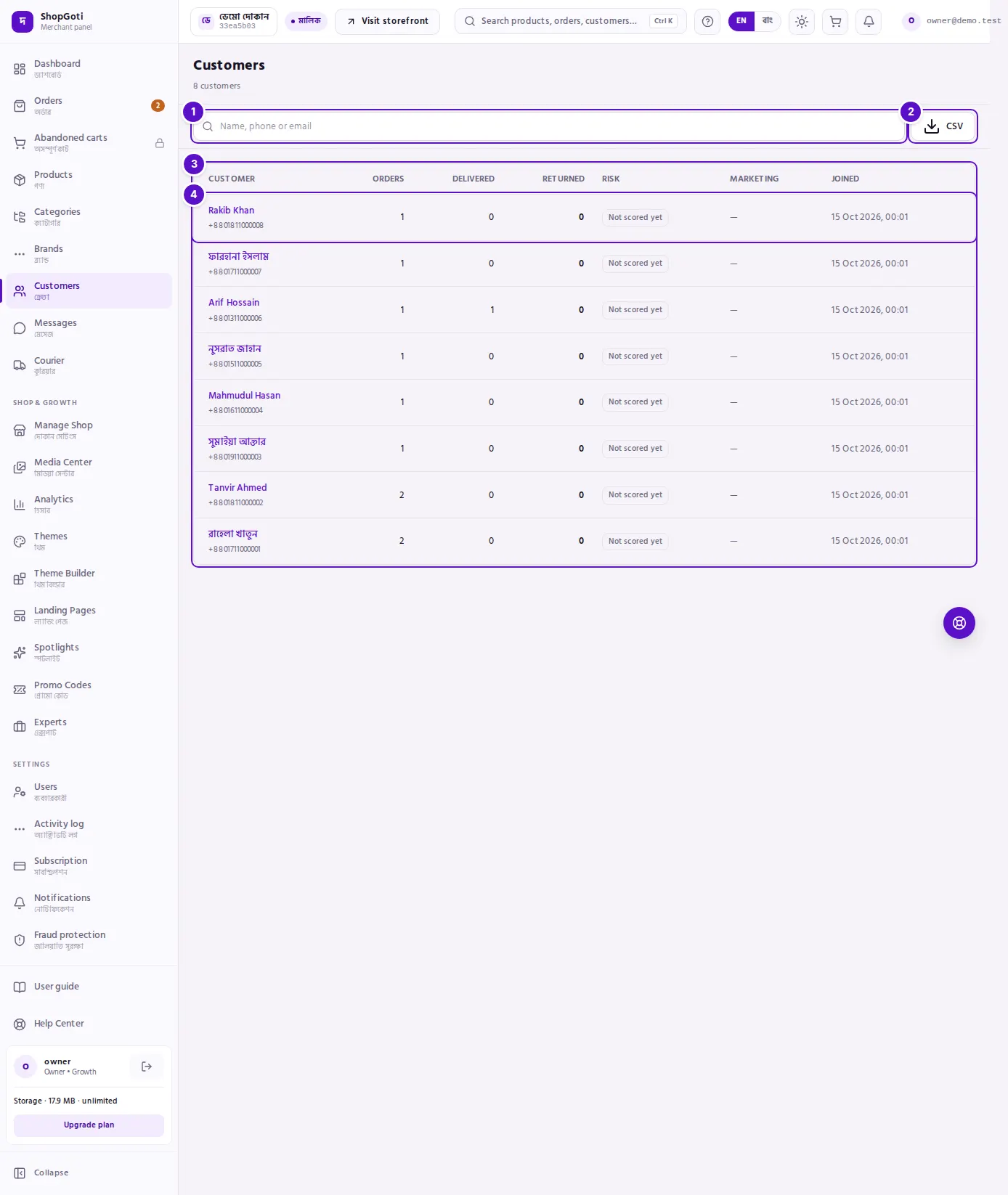
- Search — type a name, phone number or email, then press Enter. The box reads "Name, phone or email".
- CSV — downloads the customers that match the search box as a CSV file.
- Columns — Customer, Orders, Delivered, Returned, Risk, Marketing and Joined.
- A customer row — press the name or the phone number to open that customer's page.
The line beside the title, for example "42 customers", changes with the search. On a phone each customer is a card: the name, the phone number or email, a one-line summary of orders, delivered and returned, and the risk label on the right. Press the card to open the customer.
Steps
Find a customer
Steps
- Open the Customers menu.
- Click in the search box, which reads "Name, phone or email", and type part of a name, a phone number or an email address.
- Press Enter. The list shows only the matching customers, and the count beside the title changes.
- If nothing matches, press Clear search. You can also clear the box and press Enter to see every customer again.
Read the numbers and the risk label
Steps
- Read Returned together with Delivered. Two delivered out of three and two delivered out of forty can carry the same risk label, but they call for different decisions.
- Read the Risk label. It is one of Low risk, Medium risk, High risk or Not scored yet.
- A customer marked Not scored yet has no order history to judge yet. Nothing has gone wrong.
- Read the Marketing column. Opted in means the customer has given marketing consent. A dash (—) means they have not.
- Press the name or phone number to open the customer's page and read the order history.
Download the customers as CSV
Steps
- To export every customer, clear the search box and press Enter. To export only some customers, search for them first.
- Press CSV. The file is called
customers.csvand downloads to your device. - Open the file in Excel or Google Sheets. The file starts with a marker that tells Excel to read Bengali names correctly.
Move between pages
Steps
- Scroll to the bottom of the list.
- When there are more than 20 customers, Previous and Next buttons appear with "Page 1 of 3" (or the current page and total) between them. Press them to move between pages.
Tips and common mistakes
- The search box is the only filter. This screen has no filter buttons for risk or any other field, and no sort controls.
- Searching starts again from page 1. A new search always shows the first page of its results.
- A customer with no name shows "No name". A customer with no phone number and no email shows a dash.
- There are two empty screens. Before your first order, the page says "No customers yet" and explains that customers appear with the first order. If a search finds nothing, it says "No customers match this search" and offers Clear search.
Related pages
- Customer detail — one customer's history, spend and marketing consent
- Orders list — every order, with the same phone-number search