2.3Create an order
Take a phone, Facebook or in-shop order yourself — customer, items, discount, VAT, delivery charge and a part payment.
- Menu:
- Orders
- Who:
- Owner · Manager · Staff
- Package:
- All packages
- Updated:
- 2026-10-15
Overview
When a buyer orders by phone, through Facebook or in person at the counter, enter the order yourself with this form. Enter the buyer's details, add the items, add a discount or VAT if they apply, set the delivery charge, record how much you have received now, and press Create order. On success the new order's detail page opens with the message "Order created."
Owner, Manager and Staff can all open this form and create orders. Only Owner and Manager can add a buyer to the fraud blocklist.
The form has no separate choice for phone or Facebook orders. The Order type box offers two options: In-shop sale and Online order. Choose In-shop sale for a sale at the counter, and whichever of the two fits a phone or Facebook order.
Screen tour
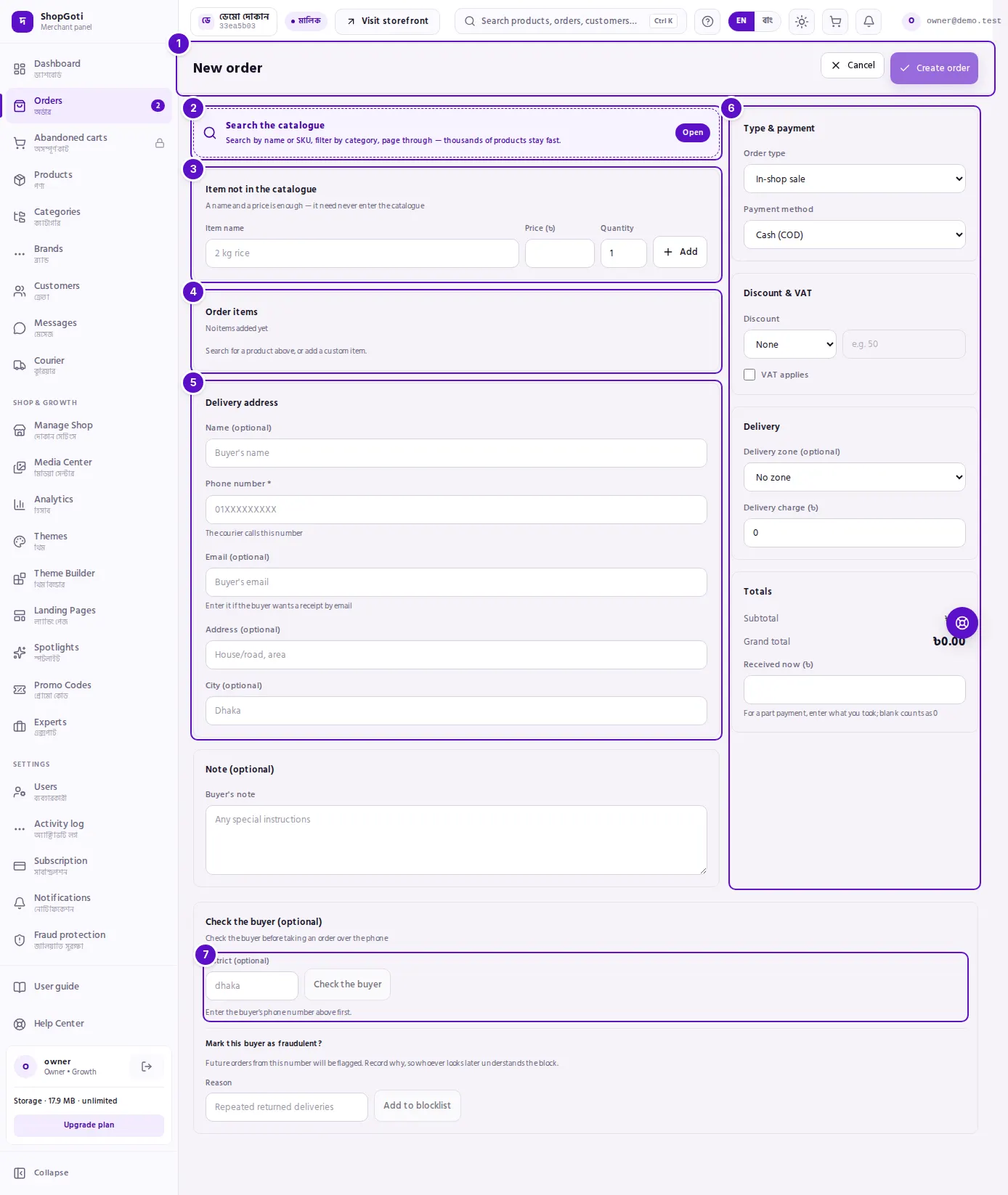
- Top bar — the title New order, Cancel (returns to the orders list) and Create order. The Create button stays off until there is at least one item.
- Search the catalogue — a large button. It opens the product popup, where you search by name or SKU and filter by category.
- Item not in the catalogue — boxes for a product name, a unit price and a quantity, to add something you sell that is not in the catalogue.
- Order items — the lines on the order. Each line has a quantity box, a unit price box and a remove button.
- Delivery address — the buyer's phone number (required), name, email, address and city.
- Right column — four cards: Type & payment, Discount & VAT, Delivery, and Totals (subtotal, discount, VAT, delivery, grand total, what you received now, and what is due).
- Check the buyer — below the form. It checks the phone number you typed and shows a verdict. Owner and Manager also see Mark this buyer as fraudulent? here.
Steps
Add a product from the catalogue
Steps
- Press Search the catalogue. The product popup opens.
- Type a name or SKU, or filter by category. Page through to see more products.
- Choose the products you need. More than one can be chosen at once.
- Confirm your choice. The products join Order items. A product already on the list is not added a second time as a new line.
Add an item that is not in the catalogue
Use this for something you sell that is not in the catalogue. It never has to be added to the catalogue.
Steps
- In the Item not in the catalogue card, type the Item name, for example "2 kg rice".
- Type the Price (৳). An item needs a price above zero to be added.
- Set the Quantity.
- Press Add. The item joins Order items.
Change a line's quantity, price or variant
Steps
- In Order items, change the number in the line's quantity box. It cannot go below 1.
- To change the price, type a new figure in the unit price box. It changes this order only, not the catalogue. Use it to give a regular buyer a lower price on one line.
- If the product has several variants, a box under the line name lets you choose another. Choosing a variant also updates its price and SKU.
Remove a line
Steps
- Press the trash icon on the line you want to remove.
- The line leaves the list and the totals are recalculated.
Enter the buyer's address and note
Steps
- In the Delivery address card, type the buyer's phone number in Phone number, for example
01XXXXXXXXX. It is required. Without it the order is not created, and a message asks for the number. - Type the name, email, address and city if you have them. They are optional, but a name and address make the courier's job easier.
- If the buyer wants a receipt by email, type their address in Email (optional).
- In Buyer's note, type any special instruction, for example "do not deliver before the morning". It is saved with the order.
Choose the order type and payment method
Steps
- In the Type & payment card, choose the Order type: In-shop sale (the default) or Online order.
- Choose the Payment method: Cash (COD) (the default) or Online payment.
Give a discount
Steps
- In the Discount & VAT card, open the Discount box and choose None, Percentage % or In taka.
- In the box beside it, type the amount. For a percentage, 10 means 10%. For taka, 50 means 50 taka.
- The Totals card shows the discount as you type.
Add VAT
Steps
- In the Discount & VAT card, tick VAT applies. Two new boxes appear.
- Type the rate in Rate %.
- Choose On top of the price (the default), which adds VAT to the price, or Inside the price, which treats VAT as already included in the price.
- Check the VAT line in Totals. The figure shown here is a preview; the server calculates the final amount that the buyer is charged.
Set the delivery zone and charge
Steps
- In the Delivery card, choose a Delivery zone (optional). The default is No zone.
- When you choose a zone, the Delivery charge (৳) box fills with that zone's charge. You can type a different charge.
- With no zone, type the Delivery charge (৳) yourself. If you leave it empty, the charge is zero.
Record a part payment
Use this when the buyer has paid some money already, or you have taken part of it at the counter.
Steps
- In the Totals card, type the amount you have received now in Received now (৳).
- If you leave it empty, it counts as 0.
- Once you enter an amount, the Due line below shows what is still owed. The amount received cannot be more than the grand total.
- After the order is created, the amount appears in the Paid line on the order's detail page.
Check the buyer by phone number
A check is advice; it does not stop the order from being created.
Steps
- Type the buyer's phone number above in the Delivery address card first. Without it the Check the buyer button stays off, and the card says: "Enter the buyer's phone number above first."
- In District (optional) type the district. You can leave it empty.
- Press Check the buyer.
- The result box shows one verdict:
- All clear — take the order with confidence
- Check before taking this order
- Ask for payment up front
- Better not to deliver to this buyer
- Below the verdict, the reasons are listed, for example "Several orders from this number in a short time".
Block a buyer as fraudulent
Only Owner and Manager can do this. Staff do not see this part of the form.
Steps
- Below the Check the buyer card, find Mark this buyer as fraudulent?.
- Type the Reason, for example "Repeated returned deliveries".
- Press Add to blocklist. The phone number is blocked.
- When it works, the panel says it was added to the blocklist and can be lifted from the Fraud protection page.
Create the order
Steps
- Check that at least one item is in Order items. Otherwise Create order stays off.
- Check the Totals card: the grand total and the Due line.
- In the top bar, press Create order. The button shows "Creating…" while it works.
- On success the new order's detail page opens with "Order created." From there you confirm, pack, book a courier and print the invoice.
- If the order is refused, the message above the form gives the reason. Read it, correct the form and try again.
Fields
| Field | Required? | What it does |
|---|---|---|
| Phone number (buyer) | Yes | The number the courier calls. Without it the order is not created. |
| Item name (not in the catalogue) | Yes, to add such an item | The name that goes on the order. |
| Price (৳) (not in the catalogue) | Yes, to add such an item | The unit price. Must be above zero. |
| Quantity | Yes | How many. Starts at 1. |
| Name, Email, Address, City (buyer) | No | The buyer's details. An email is used for a receipt. |
| Buyer's note | No | Special instructions. Saved with the order. |
| Order type | Yes (default: In-shop sale) | In-shop sale or Online order. |
| Payment method | Yes (default: Cash (COD)) | Cash (COD) or Online payment. |
| Discount (type and amount) | No | None, a percentage, or an amount in taka. |
| VAT applies, Rate %, mode | No | Whether VAT applies, its rate, and whether it is on top of or inside the price. |
| Delivery zone (optional) | No | Fills the delivery charge when chosen. |
| Delivery charge (৳) | No | The delivery charge. Empty or zero means no charge. |
| Received now (৳) | No | What you have received so far. Empty counts as 0. |
| District (optional) (buyer check) | No | Sent with the check. |
| Reason (fraud block) | Yes, to block | Why the buyer is blocked. |
Tips and common mistakes
- Enter the phone number first. The buyer check reads the phone number from the top of the form. If that box is empty, the check cannot run.
- Online payment needs a gateway. Use Cash (COD) on the Free package.
- The delivery charge follows the zone, but you can change it. The charge in the box is the one the order receives.
- Part payment shows on the order. The Due line only shows the balance on this form. Once the order is created, the Paid line on its detail page shows the amount received.
- Discounts larger than the subtotal are refused. Lower the discount.
- Pick the right VAT mode. If your shop prices already include VAT, choose Inside the price. Otherwise the total will be wrong.
- The check is advice. Decide for yourself whether to take the order. A red verdict does not stop the form from creating the order.
- Staff cannot block a buyer. The fraud block part of the form is not shown to Staff.
- Adding the same custom item twice. Two custom items with the same name are two separate lines. To combine them, raise one quantity and remove the other.
- A product from the catalogue already on the list is not added again. Change its quantity on its line instead.
Related pages
- Orders list — finding and filtering the orders you have created
- Order detail and status actions — the next steps once the order exists
- Invoice and receipt — printing the order's invoice
- Dashboard — the summary of new orders