10.2Shop Settings
Change your shop's name, English name and about text, contact details, VAT, logo, theme colour and what the shop page shows, and see the limits of your plan.
- Menu:
- Manage Shop
- Who:
- Owner · Manager
- Package:
- All packages
- Updated:
- 2026-10-15
Overview
Shop Settings holds the details of your shop: its name, contact details, VAT, logo, favicon, theme colour and a few switches that change what buyers see on the shop page. At the bottom, Your plan lists the limits of the package you are on.
The page has two forms that are saved separately. The first form, Shop name and the English fields, is saved on its own. The second form, with contact details and settings, is saved by its own Save button. Changing the shop name does not change your shop's web address.
Owners and Managers can change these settings. Staff are sent to the dashboard.
Screen tour
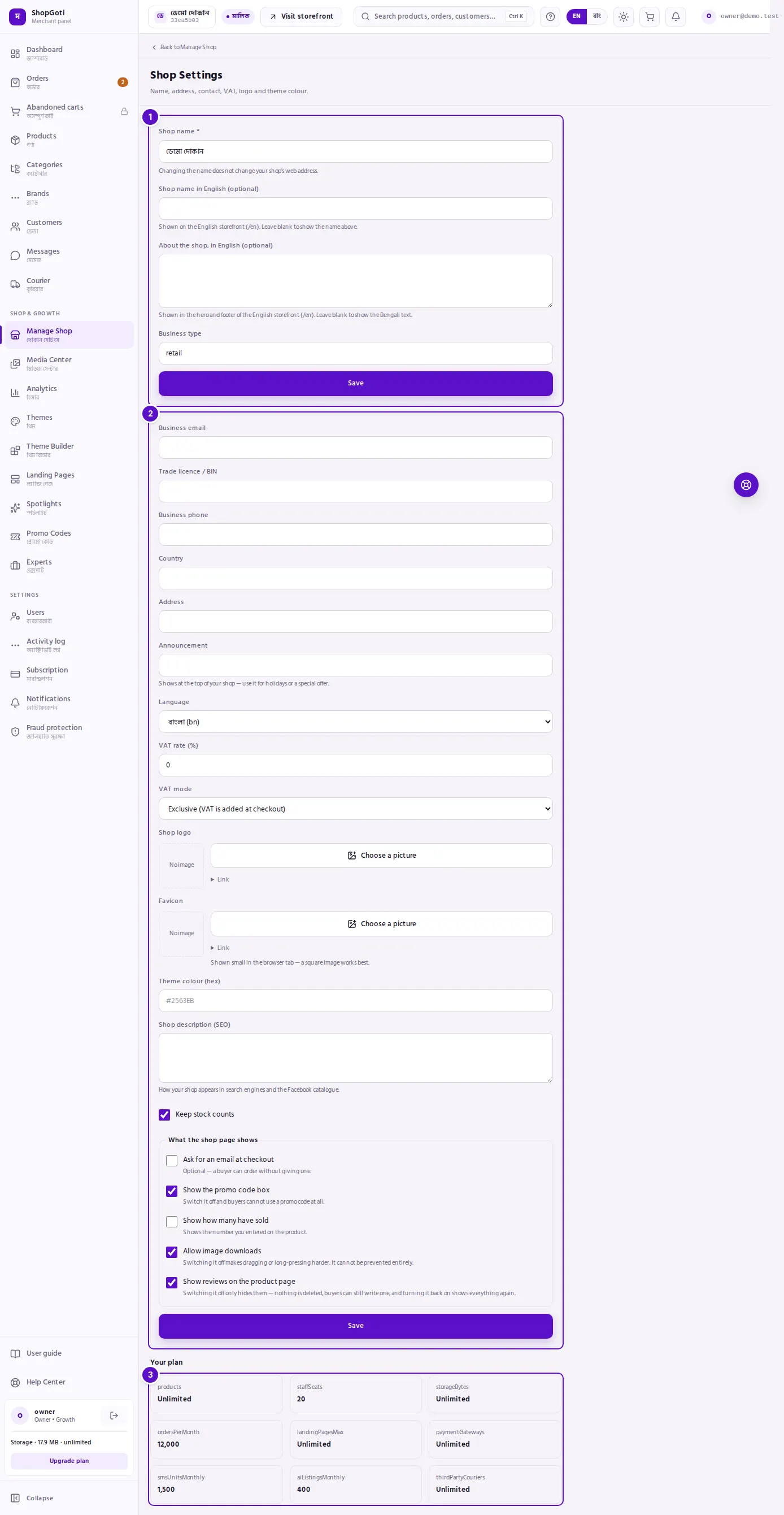
- Shop profile — the shop name, the optional English name and English about text, and the business type. Its own Save button sits under it.
- Shop settings — contact details, language, VAT, logo, favicon, theme colour, the SEO description, the stock switch and the storefront switches. One Save button sits at the bottom.
- Your plan — one box for each limit of your package. "Unlimited" means there is no cap.
Steps
Change the shop name
Steps
- In Shop name, type the new name.
- Press Save under the profile form.
- A message says Saved.
The name does not change your web address. The hint under the box says so.
Add an English name and about text for the English shop page
Steps
- In Shop name in English (optional), type the English name. It can be up to 120 characters.
- In About the shop, in English (optional), type the English description. It can be up to 2,000 characters.
- Press Save under the profile form.
The English name and about text appear on the English version of your shop page (/en). Leave them blank to show the Bangla text there.
Update contact details, announcement and VAT
Steps
- In the settings form, change Business email, Business phone, Country or Address.
- To show a message at the top of the shop, type it in Announcement. It can be up to 200 characters.
- In VAT rate (%), type the rate.
- In VAT mode, choose Inclusive (VAT is inside the price) or Exclusive (VAT is added at checkout).
- Press Save at the bottom of the settings form.
Set the logo, favicon and theme colour
Steps
- Under Shop logo, press Choose a picture. The Media Center opens. Pick a picture and press Use this picture. To paste a link instead, open Link under the button and type the address into the box.
- To take a picture off, press Remove under the picture. Then press Save. The picture is removed only when you save.
- Under Favicon, add a small square picture. It shows in the browser tab.
- In Theme colour (hex), type a colour code such as #2563EB.
- Press Save.
Choose what the shop page shows
Steps
- Under What the shop page shows, tick or untick each switch:
- Hide prices and take inquiries instead of orders — the shop page shows no price, cart or Buy now. Each product gets an Inquire button instead: the buyer signs in with a code sent to their email and sends you a message with the product attached. It arrives in Messages, and you reply there. No orders are taken while this is on. Not available on the Free package.
- Ask for an email at checkout — buyers can still order without giving one.
- Show the promo code box — when this is off, buyers cannot use a promo code at all.
- Show how many have sold — shows the number you enter on a product.
- Allow image downloads — when this is off, dragging or long-pressing an image is harder. It cannot be prevented completely.
- Show reviews on the product page — when this is off, reviews are hidden, not deleted. Buyers can still write one.
- Press Save.
The form also has a Keep stock counts tick box above these switches.
Check your plan limits
Steps
- Scroll to Your plan at the bottom of the page.
- Read each box. "Unlimited" means there is no cap on that item.
The names in this list are the panel's internal names, such as products or ordersPerMonth.
Fields
Shop profile form
| Field | Required | What it does |
|---|---|---|
| Shop name | Yes | The name of your shop. Changing it does not change your web address. |
| Shop name in English (optional) | No, up to 120 characters | Shown on the English shop page. |
| About the shop, in English (optional) | No, up to 2,000 characters | Shown in the hero and footer of the English shop page. |
| Business type | No | The kind of business you run. |
Shop settings form
| Field | Required | What it does |
|---|---|---|
| Business email | No | Your business email address. Use an address in the form [email protected]. |
| Trade licence / BIN | No | Kept for your own records. It is not published on the shop. |
| Business phone | No | Your business phone number. |
| Country | No | Your country. |
| Address | No | Your business address. |
| Announcement | No, up to 200 characters | A message shown at the top of your shop. |
| Language | Preselected | Bangla or English. This is also the language of order SMS sent to buyers. |
| VAT rate (%) | No, zero or more | The VAT rate. |
| VAT mode | Preselected | Inclusive or Exclusive. |
| Shop logo | No | The logo picture. |
| Favicon | No | The small icon in the browser tab. |
| Theme colour (hex) | No | A colour code such as #2563EB. |
| Shop description (SEO) | No | The fallback description for the shop page. When the SEO description on the SEO & Marketing page is empty, the first 160 characters of this text are used. |
| Keep stock counts | No | Tick to keep a stock count for your products. |
| Hide prices and take inquiries instead of orders | No | A switch. Off by default. Not on the Free package. |
| Ask for an email at checkout | No | A switch. |
| Show the promo code box | No | A switch. |
| Show how many have sold | No | A switch. |
| Allow image downloads | No | A switch. |
| Show reviews on the product page | No | A switch. |
Tips and common mistakes
- A blank box does not clear what is saved. On this page, leaving Business email, Business phone, Country, Address or Announcement blank and saving keeps the old value. To change one of them, type the new value. The logo and favicon are the exception: use Remove, then Save.
- Language changes buyer SMS too. Switching Language to English also changes the language of the order SMS that buyers receive.
- Blank English fields are fine. If you do not run an English shop page, leave the English name and English about text empty.
- Hiding reviews does not delete them. The switch only hides them on the product page.
- Inquiry mode stops orders, not your work. While prices are hidden, buyers cannot order from the shop page. You can still create an order yourself from Orders once you have agreed a price in Messages. Turn the switch off to start selling again. If your shop moves to the Free package, prices show again by themselves.